4.1 Assets Assignment
The Assets Assignment module allows operators to search, view and also manage all the assets linked to orders, a easy-to-use and intuitive interface provides quick and effective way to assign assets to orders.
assets_assignment
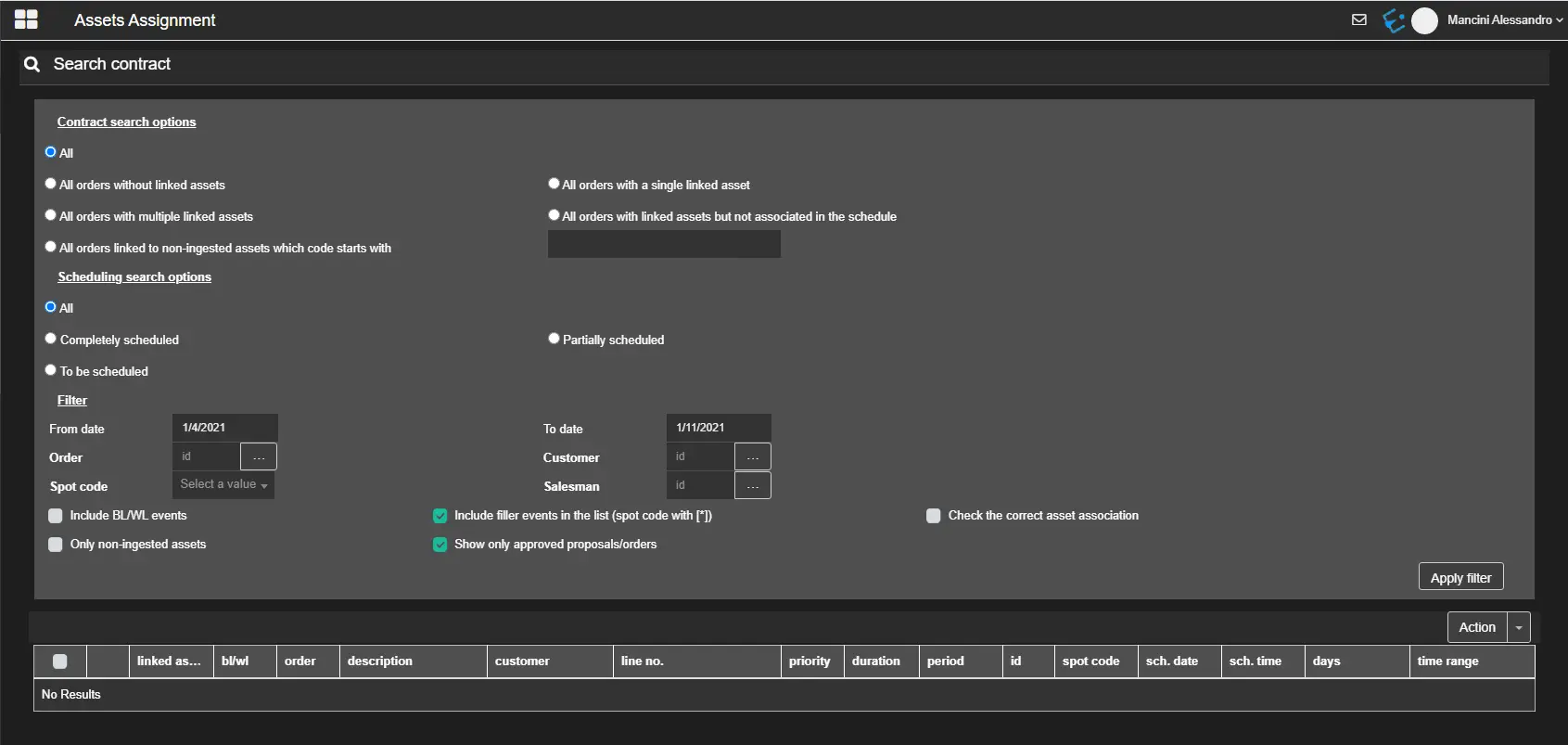
In order to start using the Asset Assignment function, we need to rely first on the following search criteria and filter Air Sales contracts:
Contracts search optionsSet the filter that determines which orders will be displayed in the results section.
• All• All orders without linked assets
• All orders with multiple linked assets
• All orders linked to non-ingested assets whose code starts with
• All orders with a single linked asset
• All orders with linked assets but not associated with the schedule
Filter
Here you can specify the criteria with which order lines will be filtered:
• From date – To date: Specify the date range on which order lines are placed in the schedule.
• By Order: Enter Order ID or click the browse button to launch the search form.
• By Customer: Enter customer ID or click the browse button to launch the search form to locate the customer.
• By spot code: Select a spot code from the list.
• By Account Executive: Enter the Personal data ID of the Account Executive or click the browse button to launch the search form to locate the Account Executive.
• Include BL/WL events: If enabled, order lines placed in the Black and White List will be included.
• Only non-ingested assets: If enabled, it allows to display orders linked to assets but yet to be recorded.
• Include filler events in the list (spot code with [*]): If checked, fillers will be included in the results, otherwise, they will be excluded. Order lines related to fillers will be highlighted in the "spot code" column with an asterisk to improve their differentiation.
• Show only approved proposals/orders: If checked, only proposals or orders with "approved" status are retrieved.
• Check the correct asset association: If checked, allows to highlight all the scheduled order lines featuring an asset different from the one linked to the contract.
Options
Indicate if the scheduling status of retrieved orders.
• All
• Completed scheduled
• To be scheduled
• Partially scheduled
Asset Assignment
To manage the assets assigned to order lines, the following options are available:
Asset rotation by line: Allows to rotate a pool-of-assets across the scheduled spaces belonging to the current order line.Asset rotation by order: Allows to rotate a pool-of-assets across the scheduled spaces belonging to the current order.
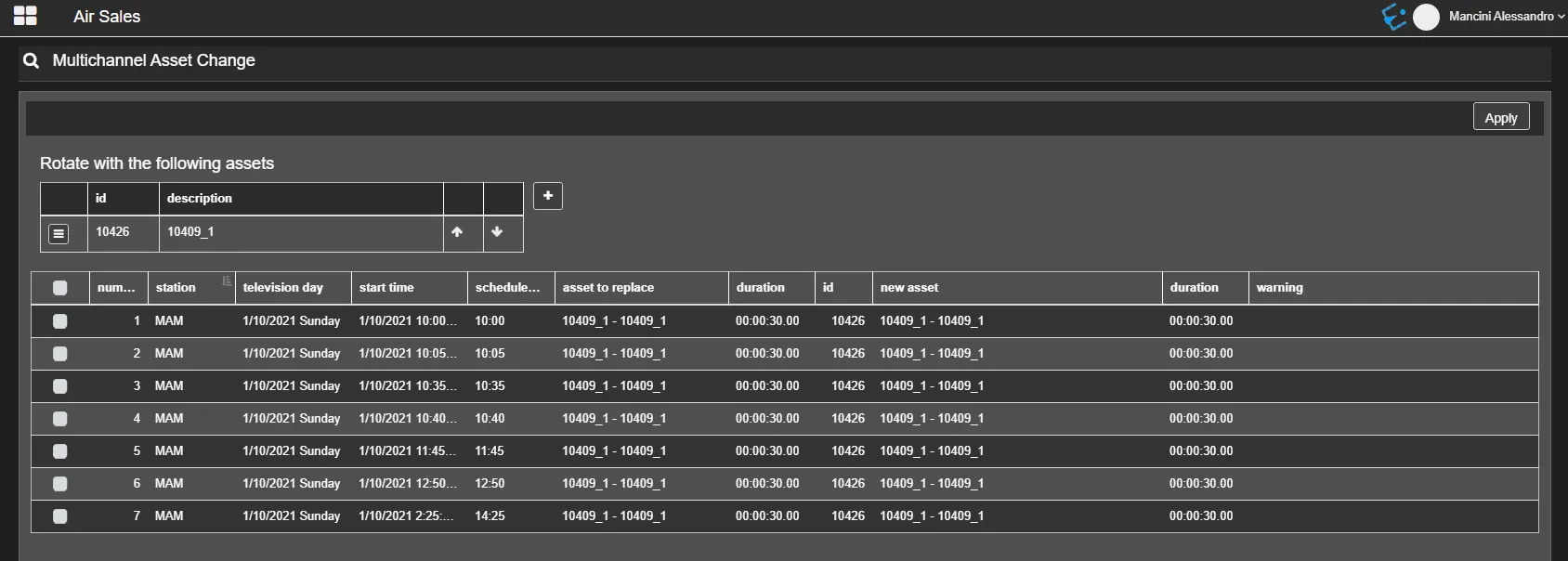
Assigned assets management: Select an order line and access to this feature through the Action menu on the right. It opens Multichannel Asset Change module which allows viewing, modifying and adding assets to the selected order line.
etereweb_asset_assignment
The example below displays the scheduled contract row and the available linked assets.
scheduled_contract_row
You can add/remove an asset from the list for rotation or change the order for the course using the up arrow and down arrow.
Any changes to the rotation list will take effect immediately when you click the <Apply> button.
 Assets_Assignment
 etereweb_asset_assignment
 scheduled_contract_row