70.2.2 Tape Library Configuration
In order to use a tape library along with Etere, it should be configured as follows:
1. Add the Etere resource component
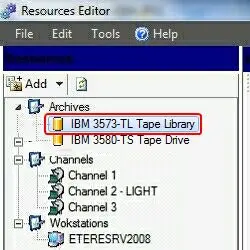
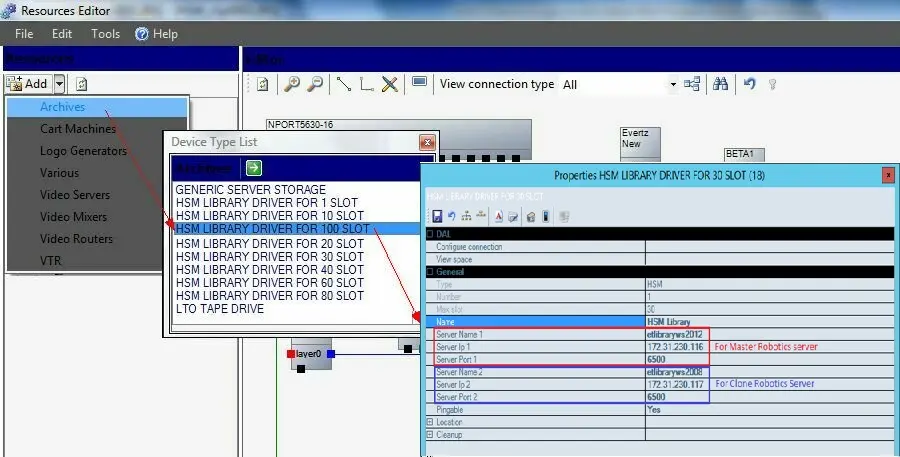
As a very first thing it is required to create an HSM Library resource under the Etere Configuration | Resources Editor module, compile the Server name and Server IP with their related values, and indicate the Server Port through which Robotics will communicate with the other HSM applications:
Resources Editor 1
Resources Editor 2
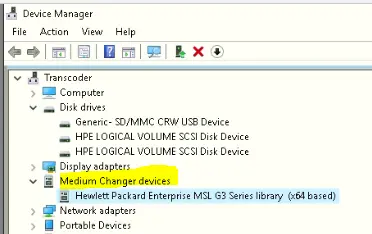
When the Tape Library is connected to Server, the Server should detect an unknown “Medium Changer Device” as indicated below.
Device Manager
The Medium Changer is the driver that moves LTO tapes between slots and drives in Tape Library.
NB: The Tape Library resource is recognized by Windows through the device drivers. Upon installed, the communication between Etere and Tape Library is via set of SCSI commands.
Important note
In case of upgrading to Etere 22 or a higher version, please read the notes given in the Migrating to Etere 21 or lower chapter.
2. Install HSM Robotics Service
During Etere installation, you can install HSM Robotics as a service to manage the tape library.
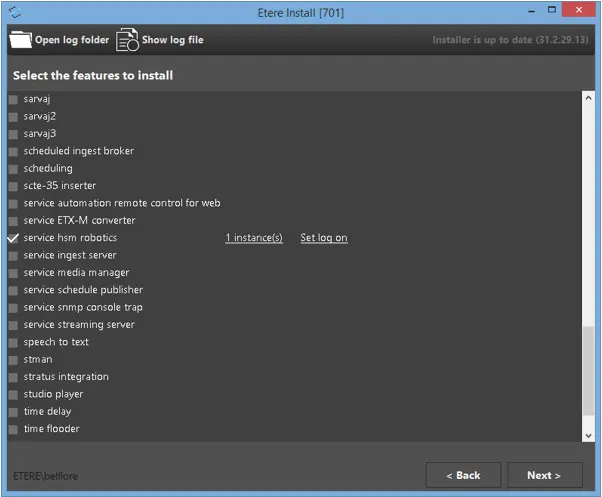
After Etere installer is launched, select feature “service hsm robotics” among with other Etere modules to be installed, as indicated below.
Etere Install
Next:
•Select the number of instance(s) to be installed. Or leave as default to install 1 instance of Robotics service.
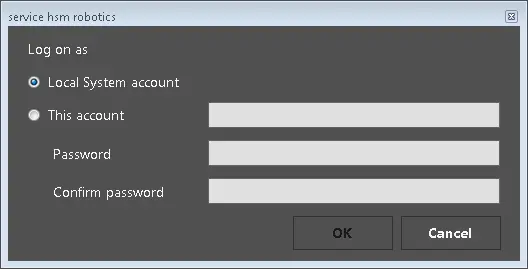
•Click on Set log on and select one of the following:
Service hsm robotics
- Local System account: Select this option to install the Robotics service using the default local system account.
- This account: Select this option to use a specific user account to perform the installation
Click <OK> to confirm the selection of log on account and return to Etere Install process.
In Etere Install, click <Next> to continue and follow the instruction on screen to complete the installation.
Upon installed, when HSM Robotics Service is started it automatically recognize the Tape Library in following order:
- It is a SCSI pass-through Tape Library, or
- A Driver-claimed Tape Library, or
- A Tape Drive (single-drive usage), or
- An Optical Memory (ODA) Library
3. Configure the Robotics server
At this point it is possible to launch Etere HSM Robotics on the server on which the Library is connected, Robotics will automatically take as resource the HSM Library which 'server name' is the same as the server on which it has been launched.
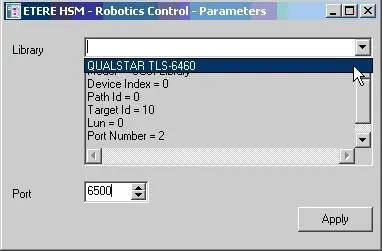
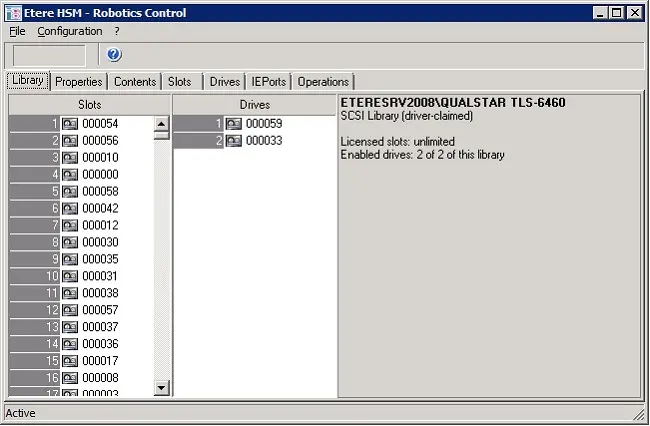
i. The first time is is launched, it is required to set the storage peripherals to be used. The list will show all libraries and drives, select the library (either a standard library or a single-drive):
Robotics Control 1
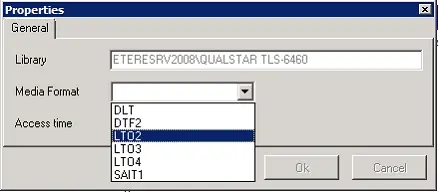
Moreover, set the default cartridges Media Format (see image below). in case the 'Media Format' property is not specified, all cartridges will be inserted into the database but they will not be able to be used until this parameter will be set (from either this tab or the Tape Library module).
Proprietis
ii. Etere HSM Robotics will use only the number of slots for which the station has a valid license (therefore shown in the tab library), that is the Etere database situation monitor. The other tabs (i.e.: Contents, Slots, Drives and IE Ports) display the 'complete situation' and show all slots and all the inject/eject ports within the library:
Robotics Control 2
NB: When upgrading the firmware on LTO Tape Library, no action is required from Etere.
 Robotics_Control_1
 Resources_Editor_2
 Device_Manager
 Service_hsm_robotics
 Etere_Install
 Robotics_Control_2
 Proprietis
 Resources_Editor_1