55.1 How does it works
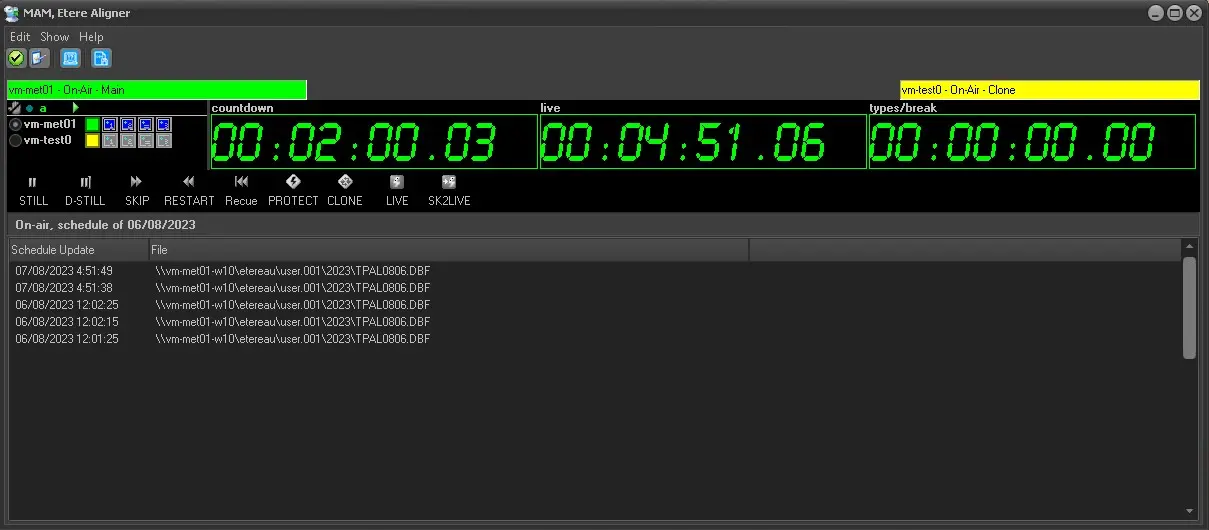
The Etere Aligner user interface consists of a small window (which, once launched, is automatically minimized to the system tray). However, it is possible to display this window by double-clicking on the system tray icon. Once open on the desktop, the main window is mainly divided into two areas:
Schedule aligner
• The upper panel allows the viewing of the Automation status and the on-air event countdown
• The lower panel lists all actions performed to update the broadcast playlist.
NB: Please note that only one Etere Aligner instance is allowed for each station; a warning message will be prompted each time the operator attempts to launch more instances for the same station (e.g. channel 01). The log file is stored in the station where Etere Aligner is installed. The log captures the date and time in dd/mm/yyyy hh:mm:ss: ms format.
Manual Alignment
The operator can start a manual update by clicking the [Start the update manually] green button in the top left-hand corner of the window. This will cause the schedules to align without waiting for the end of the on-air event.
For example, for those stations that manage the schedule with EtereWeb, ensuring the schedules are aligned is crucial. Every time an event is broadcasted, the immediate correspondence of real-time updated information is fundamental for a dynamic view of the on-air programming. In this way, the operator in a branch office, for example, can control the on-air schedule, knowing the information is up-to-date and the schedule contains the actual/broadcast timings.
NB: When the Aligner flags the day's first event on-air, it will adjust the total duration of the last event (often a looped event) from the previous day to its actual duration.
Enable Automatic Publishing
The second function of Etere Aligner allows you to request periodic publishing of the active schedule (usually carried out by the Publish function in Executive Editor). In Aligner, in the Edit drop-down list under Parameters, you can activate 'Execute the automatic publishing every: xx minutes', choosing how often you want it to occur.
Once activated, the schedule will automatically be published based on the chosen timings. This also means the Executive Editor does not need to be open to publish the schedule. In Parameters, you can specify that the system publishes the program at each Etere F90 request.
SNMP-based Monitoring
As Etere Aligner runs on the same computer as Etere Automation, where there is usually no operator interaction, you can request the Aligner's heartbeat to be sent to the Etere Monitoring Console to confirm that Etere Aligner is still running. Under the Edit drop-down, you can set the Etere Aligner parameters in Aligner. By ticking the "Enable SNMP sending" and specifying how many minutes are required, Aligner will send a heartbeat periodically to the Monitoring Console to confirm that Etere Aligner is running.
The Monitoring Console will allow to specify a period within which a heartbeat from Etere Aligner is expected to be received. If it isn't received within this time, an error message and sound will alert the operator that Etere Aligner is no longer functioning as it should. In Monitoring Console, select the Automation PC from the list on the left of the screen; in the bottom left-hand corner, you need to input under 'Owner' etAlign.exe and in the Timecode box, insert the number of minutes the Monitoring Console needs to receive the Etere Aligner heartbeat before sending an error message.
 Schedule_aligner