59.4.14.1 Batch File Transcoder
What is a Batch File Transcoder?
The Batch file transcoder is a process used for encode/decode a file based on a certain set of options. Batch file transcoders are launched by Etere Data Mover to transcode requested files using a specific compression profile (i.e. windows media profile).
Once saved, Batch file transcoders will be available as action blocks ready to be included within T-workflows.
How to configure a Batch File Transcoder?
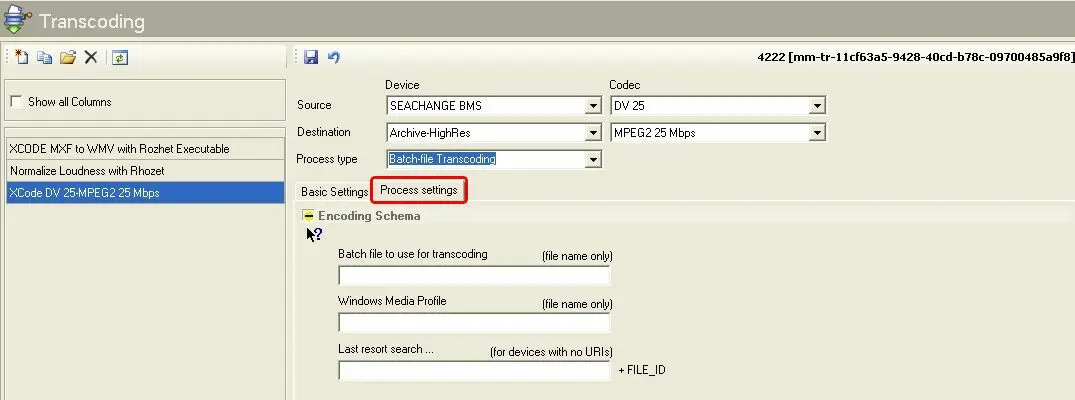
When defining a batch file transcoder action, the following information needs to be compiled under the 'Process settings' tab:
Process settings tab
•Batch file to use for transcoding: Indicate the filename of the batch file to be used for the transcoding, including also any necessary parameter.
Available transcoding batch files includes:
- Etere HiRes Transcoder
- DVCPRO 50 or DV25 QT Transcoding
- MPEG 2 Omneon MXF Transcoding
- SAF Transcoding
- MXF from K2 Transcoding
NB: From Etere released version 28.1 onwards, the Batch File Transcoder is able to manage batch file name with Cyrillic format (e.g. Космические охотники.mxf) during transcoding.
•Windows Media Profile: Enter only the name of the compression profile to be used for the transcoding, that is, the Windows Media (e.g.: wmprofile.prx) or the Rhozet Carbon Coder (e.g. HU345GUGUK45) profile. Information regarding how to create custom profiles is explained in the next chapters: WME9 profiles and Rhozet profiles.
•Last Resort Search: In case the metadevice in which files to be transcoded are stored doesn't support 'URI references' (i.e. resource identifiers), it will be possible to enter here the exact path where the video file to be transcoded is located, in this case the transcoding will be performed directly from the specified location.
NB: Please note that both, batch files (.bat) and windows media profiles (.prx) must be located within the Etere Installation directory (e.g. c:\program files\etere\) in order to be correctly detected and used.
Once compiled, save the action by clicking on the [SAVE] button, after then, the action will be ready to be included in a T-workflow.
 Process_settings_tab