70.3.6.9 LTFS installation and configuration
Requirements
1.Supported OS:
-Windows 7 (x86 and x64)
-Windows server 2008 R2 SP1 (x64 only)
2.Hardware requirements:
-X86 or x86_64 processor
-Min 1 GB RAM
-Support IBM LTO-5 and LTO-6, and TS1140 tape drive
3.Software requirements
-Microsoft Visual C++ 2010 Redistributable Package (x86 or x64)
-Microsoft .NET Framework 4
-IBM LTFS Single Drive Edition (on Data Pump's PC)
Note: when installing Etere version 27.3 or higher, Microsoft .NET Framework 4.2 is required. From Etere version 28.1 onwards, Microsoft .NET Framework 4.5 is required.
Installation on Windows
In order to install the "IBM LTFS - Single Drive Edition" just follow the next simple procedure:
1.Launch the LTFS_w1.2.1_X64_setup.exe executable for 64-bit OS or LTFS_w1.2.1_X86_setup.exe for 32-bit OS.
2.Select the installation language and press the [Next] Button:
3.The welcome page will be displayed, press [Next],
4.Accept the software license agreement and press [Next],
5.Specify the installation path and press [Next],
6.Hit the [Install] button to start the installation process.
7.Be sure to restart the system after installation is finished after installing LTFS.
NB: If one or more LTO tape drives are recognized by the operating system, the Configuration panel displays when the system is restarted. The Configuration panel allows the user to assign a drive letter for each LTFS-supported tape drive. After assigning a drive letter, the user can then access the tape drive as a file system.
Configure LTFS on Windows
After system restart, follow the step described below to configure the LTFS Tape Drive:
-Select Start and right click on Computer.
-Select System Properties and launch Device Manager.
-Right click on root directory and select “Scan for hardware changes”.
-LTFS would recognizes the new tape drive as a new device. You need to assign a drive letter to the LTFS tape drive before you can start using it.
-To assign new drive letter, launch Start > All Program > IBM > LTFS > Configuration menu as shown below.
-Click on <Configuration> to launch the configuration menu.
-From the menu, locate the LTFS tape drive and select an unused drive letter to assign to the new tape drive and click <OK>.
-The new LTFS tape drive would appeared in Windows Explorer as per drive letter assigned.
-Mount a tape to the LTFS tape drive, a tape icon would appeared beside the tape drive in Windows Explorer, indicating the loaded tape is detected and ready for use.
NB: From Etere released version 29.3 onwards, other than Standard Windows drivers, IBM drivers and HP LTO drivers are added to address the “persistent binding” check error during communication with HSM Data Pump.
Data Pump Configuration
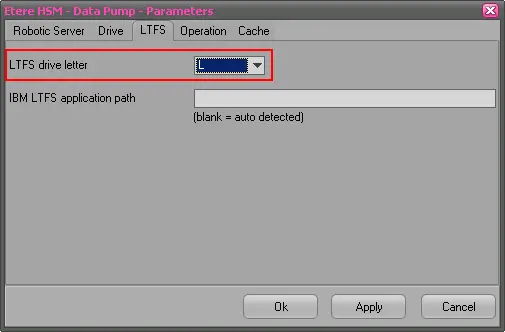
1. In the Configuration menu of Data Pump, you have to set the "LTFS drive letter" in the LTFS tab within the Parameters form.
2. Choose the same drive letter just selected in Windows. This needs to be done for every Data Pump on the PC.
Data Pump will assign this drive letter to the LTFS drive when needed.
3. You may also insert the path where IBM LTFS is installed (eg: C:\Program Files\IBM\LTFS\) or leave it blank to let Data Pump auto detect it.
Note: If you choose to use LTFS, then all your Data Pumps have to support LTFS.
Important Note:
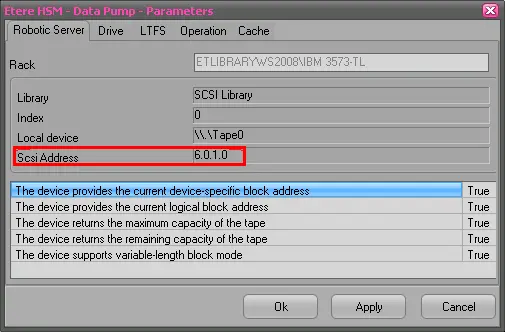
For the first configuration, please make sure that the ‘Scsi Address’ attribute contains a value. If it does not, you have to reconfigure Data Pump from the beginning.
Headquarters Configuration
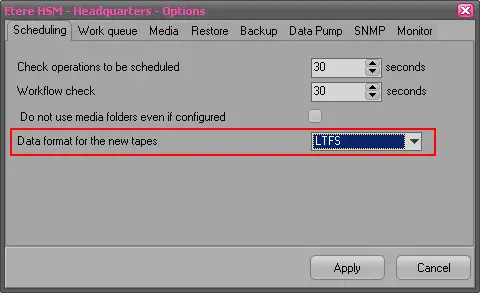
1. In the Options form within the Configuration menu, set the parameter "Data format from the new tapes" = LTFS in the Scheduling tab.
After this is done:
> All new tapes used hereafter will be formatted and used as LTFS. Tapes that are already written in Etere format will be used in legacy mode.
> Data Pump will perform this mixed-mode automatically.
> T-workflow’s actions to use are the standard HSM actions for Archive and Restore.
 data_format
 ltfs_drive_letter
 ltfs_robotics