51.1.1 General
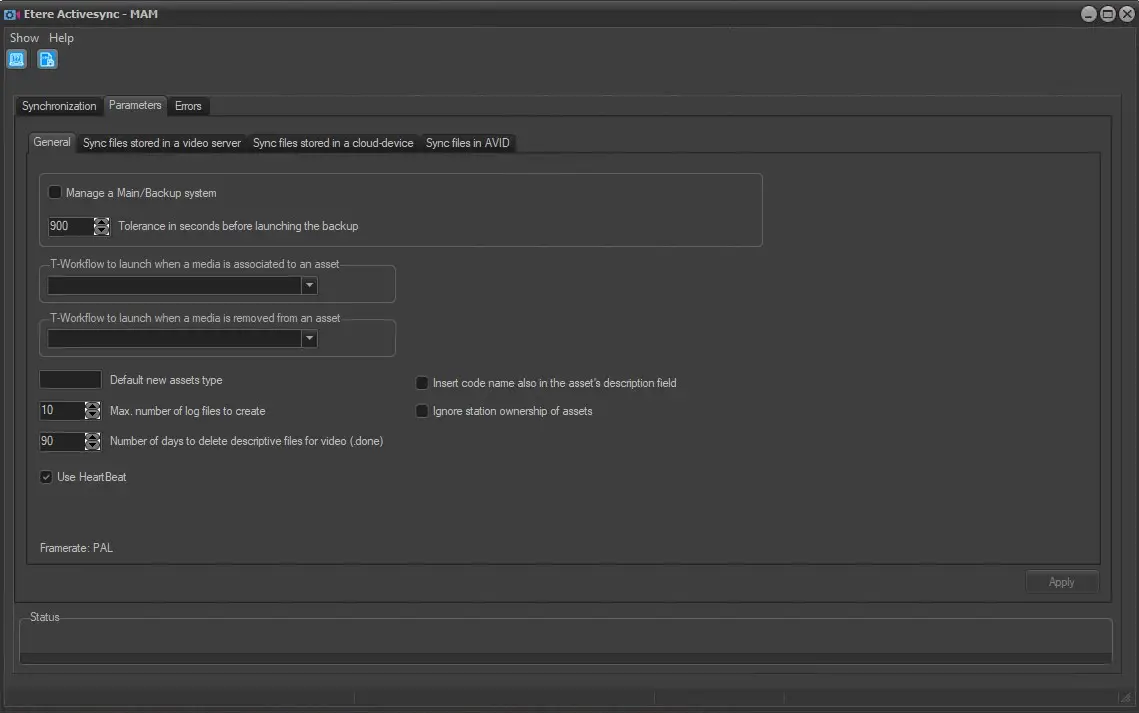
The General section allows to set the parameters to be used during the synchronization process; these parameters are:
Etere_ActiveSync
Manage a Main/Backup system: it allows you to have multiple ActiveSync running. One ActiveSync will work as the central server. In contrast, a second one will be the backup server, so if the main doesn't give signals during a user-defined interval, the backup server will become the main to execute operations.
In multiple instances environment, use this option and enable the "Check only the current station" option in each instance to start the ActiveSync instance in the intended mode (Main or Backup).
NB: Etere systems can have one Main and one Backup ActiveSync server at most. For further details on this feature, refer to Main/Backup mode.
Tolerance in seconds before launching the Backup: This parameter allows setting a maximum time (between 30s and 9000s) for the central server to send a heartbeat signal to the backup server. If no heartbeat is received from the main server after the specified time, the backup server will resume the primary role and take charge of the synchronization. Default: 900s
T-Workflow to launch when a media is associated to an asset: Select the T-workflow to be launched when an asset form is associated with an existing video file.
NB: This T-workflow can be also set in Etere Configuration > Configuration Editor > T-Workflow > Default T-workflows > Media is associated to an asset.
Workflow to launch when a media is removed from an asset: Indicate the T-workflow to be launched when an association between an asset form and an existing video file is removed.
NB: This T-workflow can be also set in Etere Configuration > Configuration Editor > T-Workflow > Default T-workflows > Media is removed from an asset.
Default new assets type: Insert the type (e.g. COMM, NEWS, TRAILER, etc.) assigned as default type to assets created by Etere Active Sync. The type for new assets can be set also in the Edit path form, in Sync files stored in a cloud-device tab. In this case, the type will be set for any asset created, while if it's set for a specific path, it will be set only for those assets created when linking files in that specific path.
See chapter Sync files stored in a cloud-device for more information.
Max number of log files to create: Indicate the maximum number of log files to be created to record the synchronization process activities. As more processing details are logged in the log files, set an approximate value of 24 log files to eliminate memory leakage or impaired performance.
Number of days to delete descriptive files for video (.done): Specify the days to retain the imported files (*.done) in the system. After the days set, all imported video files with the extension ".done" (e.g. *.done001, *.done002, etc.) will be deleted from the system.
The operation should be done once a day. The default retention period is set to 90 days.
Insert code name also in the asset form's description field: Enable this option to insert more detailed information into new asset forms for easy recognition.
Ignore station ownership of assets: If disabled, ActiveSync would synchronize only the assets enabled for the current station (without modifying assets from other stations). If enabled, assets from all stations would be selected during the synchronization process (even if they belong to other stations).
Use HeartBeat: Enable this option to monitor the device's heartbeat during synchronization. Determining any unknown error that occurs during the synchronization process is helpful. This function would check and detect changes to the current directory during the synchronization process in 3 seconds till the completion of synchronization. This option is enabled by default.
Framerate: Displays the currently used video standard.
NB: The video standard must be set in Etere Configuration > Settings > System.
Once set, Active Sync parameters must be confirmed clicking on Apply button, otherwise they will not be taken by the module during the next synchronization.
 Etere_ActiveSync