59.4.7.9 File Renaming
A File Renaming action allows the renaming of a video file associated with a certain asset and updating its data into Etere's database, thus keeping all data associations coherent. Once saved, File Renaming actions will be available as action blocks ready to be included within T-workflows.
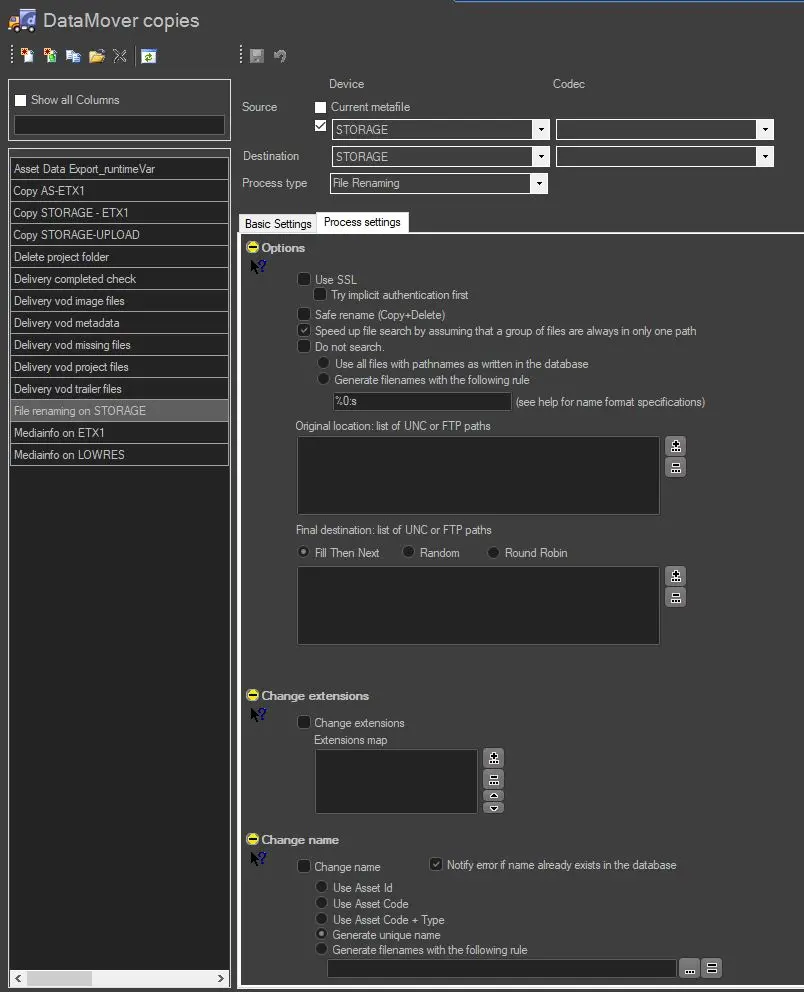
To create a File Renaming action, the following parameters need to be set:
File_Renaming
Device and Codecs
Please note that when configuring the Device and Codecs parameters (as explained in the "Copy action" chapter), files will be transferred or not depending on how devices are configured:
"Source device" is equal to "Destination device.": Files will be only renamed; no transfer will be performed.
If a file does not exist in the source device, the file renaming process will fail, and an error message will be prompted to notify the user.
"Source device" is different from "Destination device.": Files will be renamed and then transferred (moved) from their original location to the final destination. If a file does not exist in the source device, the file renaming process will fail, and an error message will be prompted to notify the user. The destination file remains intact.
Options
• Use SSL: Enable this option to use SSL (Secure Socket Layer) when performing the renaming of files over the network. If enabled, the Data Mover action would attempt to perform the file renaming using the following authentication steps in sequential order:
- Implicit FTP over SSL (see explanation in "Try implicit authentication first" option)
- FTP over TLS (Transport Layer Security)
- FTP over SSL (Secure Socket Layer)
- Plain FTP (without encryption)
If the FTP server support SSL encryption, Data Mover would use a new set of libraries. Else, Plain FTP would be used.
• Try implicit authentication first: If this option is enabled, Data Mover will use the implicit FTP over SSL encryption as the first option to access the FTP server. This option used port 990 for communication between 2 servers, and the port is disabled by default.
Note: The "Use SSL" option is disabled by default for all file renaming actions and must be enabled on a case-by-case basis.
• Safe rename (copy + delete): The data mover will copy all files to the destination folder ("copy + paste") with new file names if this option is enabled. The files in the source folder would be deleted only if the copy function was completed successfully. If the copy function failed, the new files copied in the destination folder would be removed. This feature is useful when copying bundle assets or multiple files within metafiles.
If this option is disabled, a "cut + paste" command would be performed. When one file failed to rename, Data Mover would undo the renaming process for all files and terminate the file renaming action.
• Speed up file search by assuming that a group of files are always in only one path: If enabled (default), Data Mover will scan original paths until at least one file is found (the search algorithm will assume that all files will be only in a single path), and the search will finish, speeding up in this way the process by avoiding useless recursive file search within directories.
Disable this option If video files are spread across various paths, such as with Omneon devices.
• Do not search...: Activate this parameter to make Etere Data Mover search for specific video files. Choose between these 2 options:
Use all file names and paths as written in the database - If enabled, Etere will read the video file's names and path exactly as they are stored in the database, without altering them.
Generate file names with the following rule - If checked, Etere Data Mover will not search for files on the source path; it will generate filenames based on the supported environment variables.
• Original Location: list of UNC or FTP paths: Clicking on the [+] button, it will be possible to indicate the source location (metadevice) where video files are stored. Moreover, it's also possible to manually tell the source location by pasting it from the clipboard (use a comma to separate locations before copying them).
NB: Please note that protocols supported include UNC (e.g. \\ws1\media\), FTP (e.g. ftp://ws1/media/) and SMB (e.g. smb://ws1/media/).
NB: In the case of using FTP addresses, it's also needed to indicate the access username and password (e.g., ftp://user:pwd@workstation01/media/).
NB: If destination paths have been explicitly configured, then cloud path destination paths are ignored. Otherwise, if no path is configured, Data Mover loads the list of all galleries associated with the selected cloud device and chooses the destination according to the specified policy (see next paragraph). This applies to multistep mover as well as to rename/move.
• Final destination: list of UNC or FTP paths: Optionally, set a metadevice path to which the renamed file will be moved once renamed (the new location will be automatically updated in the database references).
NB: Please note that the destination and original paths must have the same protocol (e.g. SMB, FTP, UNC) and must be related to the same server.
NB: In the case of using FTP addresses, it's also needed to indicate the access username and password (e.g., ftp://user:pwd@workstation01/media/).
Change extensions
• Change extensions: If checked, the extension for the video file will be renamed according to the configured Extensions Map. For example, if the video file is named 'myclip.avi' and the extensions map has a '.AVI=.MPG' entry, the resulting video file will be named 'myclip.mpg'.
Change name
This option indicates if the video file will be renamed using:
• Change name
Asset ID - The physical file will be named using the asset's ID (e.g., 13123. mpg).
Asset code - The physical file will be renamed using the asset's Code (e.g., coke spot feb2011.mpg).
Asset code + type - The physical file will be renamed, concatenating the asset's Code and the type of the asset to which the file is related (e.g., coke spot feb2011_COM.mpg). Asset types determine the asset content's nature according to the station's uses (e.g., COM, NEWS, PROMO, etc.).
Generate a unique name - The physical file will be named using a unique identification (UID) automatically generated by a system algorithm.
By default, one unique name is generated for each metafile; therefore, in case the file is formed by multiple physical files (e.g. mpg, pd, vix), Etere DataMover will use the same UID for all files but different extensions; for instance, the files 2143.mpg, 2143.vix and 2143.pd will become 02BD0000000000000075.mpg, 02BD0000000000000075.vix, 02BD0000000000000075.PD.
In case the metafile name is changed (because set in the basic settings), Etere DataMover will use the same UID for both the file and the metafile, thus allowing to support video servers on which video files are managed to maintain a relationship between the name of metafiles and physical files.
NB: To guarantee correct functioning, generating different names for each physical file is currently not supported.
Generate filenames with the following rule - The physical file will be named with a custom filename based on database references (e.g. Flexi-metadata) and free text. this, through the following buttons:
Define a custom name for the metafile using the Rules Editor.
NB: The value of this field cannot be directly typed, but it can be copied.
Use the custom name set for the metafile (Basic Settings > destination metafile > use rule) for the physical file.
If it is also intended to rename the metafile (i.e., video file's reference within the database), use the 'destination metafile' option in the basic settings tab.
Occasionally, when the file is delivered by workflow to the FTP destination, the delivered file fails to rename in the FTP destination. No specific error message is recorded in the Data Mover log. You can apply the workaround solution to overcome the renaming issue.
1. Rename the file locally in WIP (Work in progress) folder.
2. Upload a renamed file from the WIP folder to the FTP destination; the renamed file will be removed from the WIP folder when successful uploading.
3. If uploading fails, an error message would be triggered to alert the customer.
• Notify error if the name already exists in the database
If enabled, the copy will be aborted if the current name already belongs to another file in the database.
If disabled, no check will be done.
This option is useful, for instance, when generating unique names to prevent renaming files using existing words.
NB: The File Renaming action would only be successful if the asset's "Media Name" and "File Name" are identical. The Media Name and File Name are retrieved from the asset's "Media Data" tab in Media Library.
How to use it
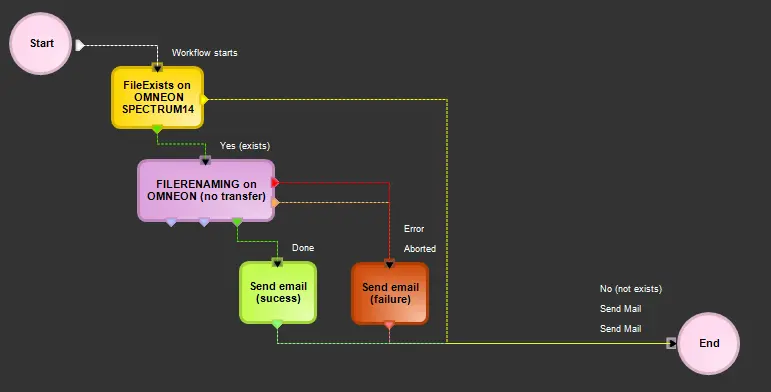
Actions based on the File renaming process type can be included -under the T-Workflow Editor- in any T-workflow:
ce_copy_filerenaming_workflow
 File_Renaming
 ce_copy_filerenaming_workflow