4.5.3 Search
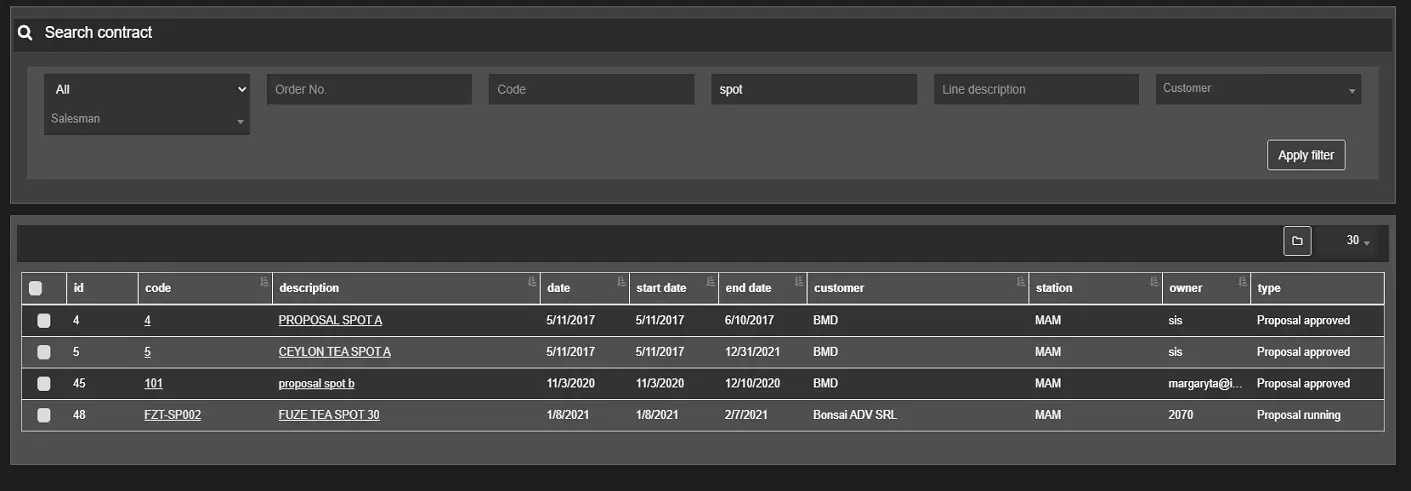
In Air Sales, the Search function allows you to search for contracts matching the specified criteria:
Search_contracts
• Type of contract: Options available in the parameter are:- All
- Order
- Proposal running
- Proposal approved
- Proposal refused
- Proposal to evaluate
- Proposal archived
- Proposal to revaluate
- Expired
- Proposal to schedule
- Proposal to customer
- Proposal to customer rejected
• ID: Specify the order number assigned to the contract.
• Code: Specify the code assigned to the contract.
• Description: Filter contracts by their description.
• Line description: Filter contracts having lines with a description that matches the text entered in this field.
• Customer: Filter the search selecting the customer among the values in the droplist.
• Account Executive: Filter the contracts by selecting the name of the assigned account executive.
On the right, you can select the number of contracts displayed per page or display all filtered items into a single page.
The search results display the following properties for each contract:
• ID: The ID assigned to the contract.• Code: The code of the contract.
• Description: The description of the contract.
• Date: The date the contract was created.
• Start Date: The validity start date of the contract.
• End Date: The expiry date of the contract.
• Customer: The name of the customer related to each contract found.
• Station: The station used to create the contract.
• Owner: The user who created the contract.
• Type: The current type of each contract found by the search.
When you select one or more contracts and press the Add to lightbox button, the chosen contracts will be added to Lightbox. This function is helpful in quickly filtering the commonly accessed contracts. Refer to chapter 4.3.0.0 Lightbox for more detailed information.
 search_contracts