59.6.3.4 Manage Legacy Resources
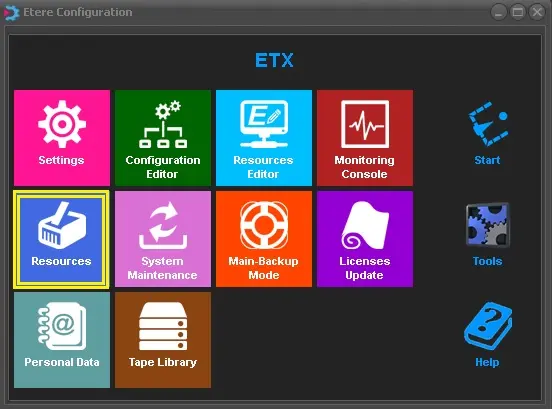
Legacy resources (i.e., devices that Etere manages using a legacy configuration method) are configured in the Resources module. The Resources module is available from the Etere Configuration main menu:
Resources_module
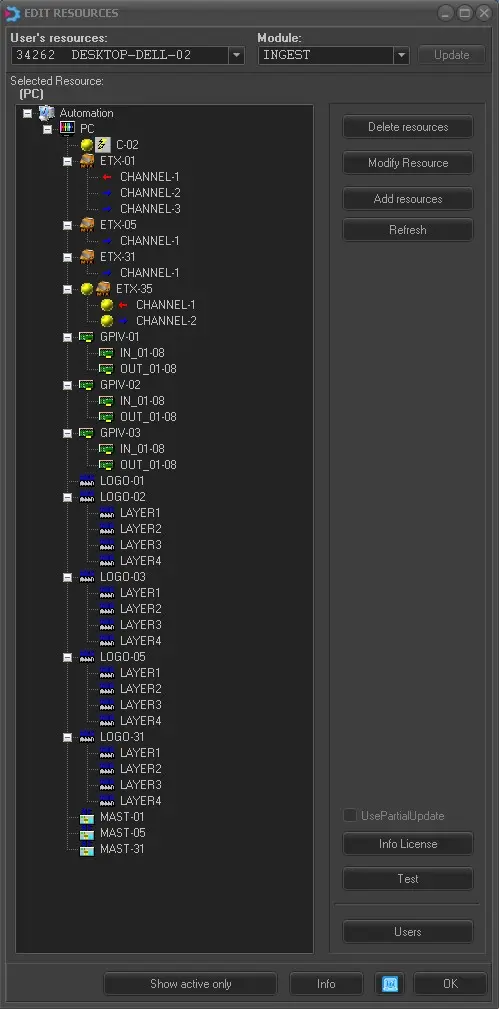
Once launched, the resource's main window will be displayed, and its main user interface will be composed of the following areas:
user_resources
User's Resources and Module - Select the Etere PC and Etere module (e.g. Ingest, Automation, Scheduling, etc.) for which resources will be managed; this is for highlighting all those devices present in the resource tree which are currently enabled.
Additionally, it is possible to use the [Show active only] button to filter only those resources enabled for the currently selected User's resource and module in the resources tree.
Resource Tree - Here, all resources configured within the Etere system and enabled resources will show a yellow balloon indicating that they can be used by the current selected User's resource and module.
NB: From Etere released version 29.2, if there is no correspondence between the logged-in User and the resource path in the SQL database, the local resource path would be read to establish the resources.
Legacy resources can be easily created, configured and assigned to the related Etere module by following the steps described below:
1. Create the Resource
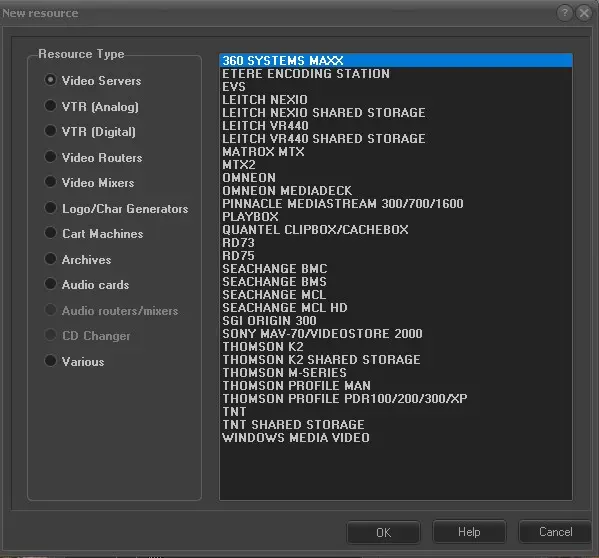
Click on the [Add Resource] button and select the Resource Type and the exact model,
Add_Resource
2. Configure the Resource
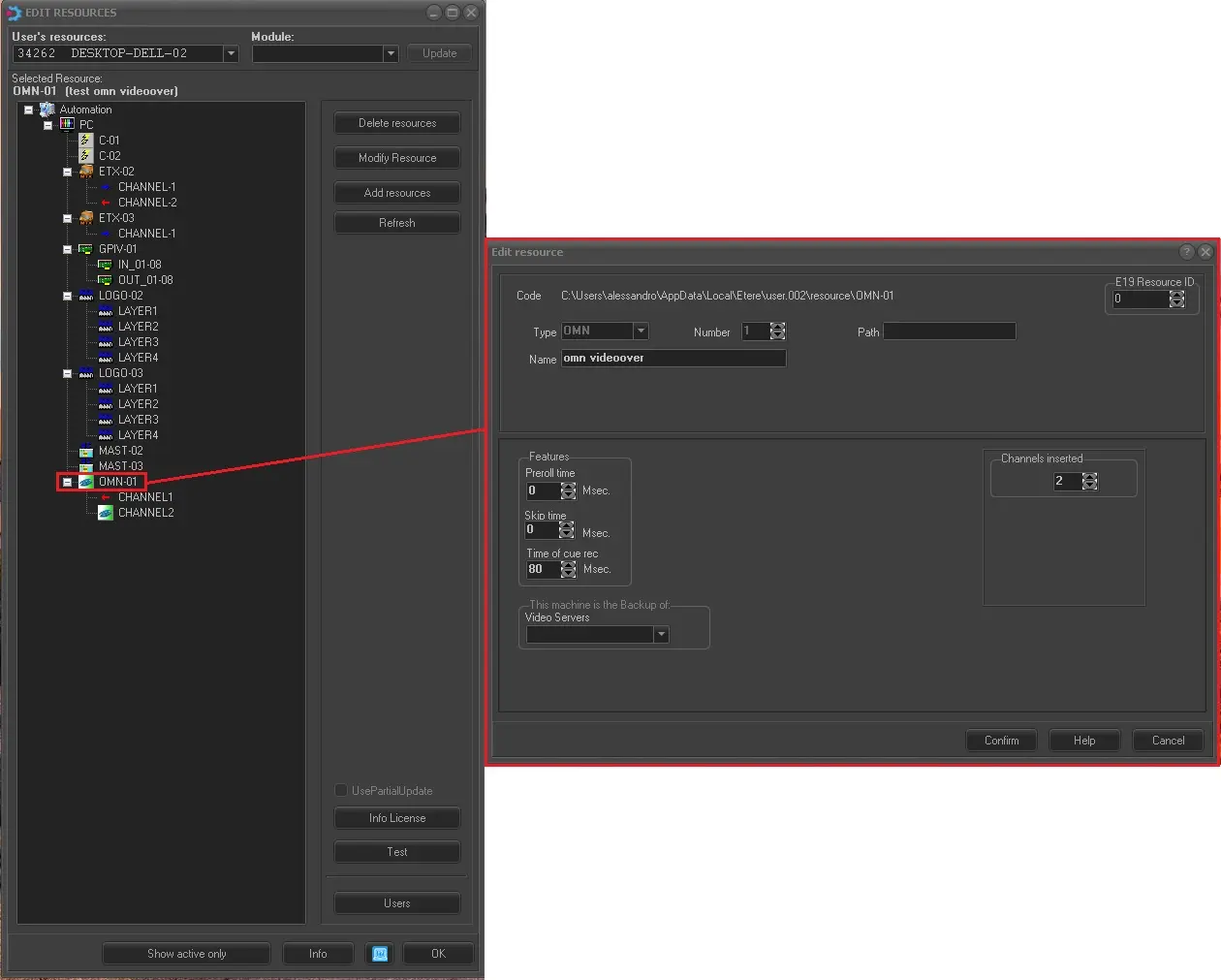
Once created, the 'Edit Resource' form will be displayed to set its parameters; it can be opened anytime by selecting the resource from the resources tree and pressing the [Modify resource].
Parameters required by the 'Edit Resource' form change from one resource to another; therefore, for detailed information on compiling them, please refer to the related section of the Supported Devices chapter. Spec parameters are explained below:
Edit_Resource
E19 Resource ID - This parameter, located in the top right part of the window, is the ID of the related resource created under the Resources Editor module. This ID is used to monitor the storage space usage of the resource, for example.
Path - This parameter, available only for video servers, allows configuring the path used by "Etere Ingest > Delete" to delete files without using the resource video channels.
NB: In case the resource is a multi-channel video server, each one of its in/out channels must be configured, as explained before.
3. Enable the Resources
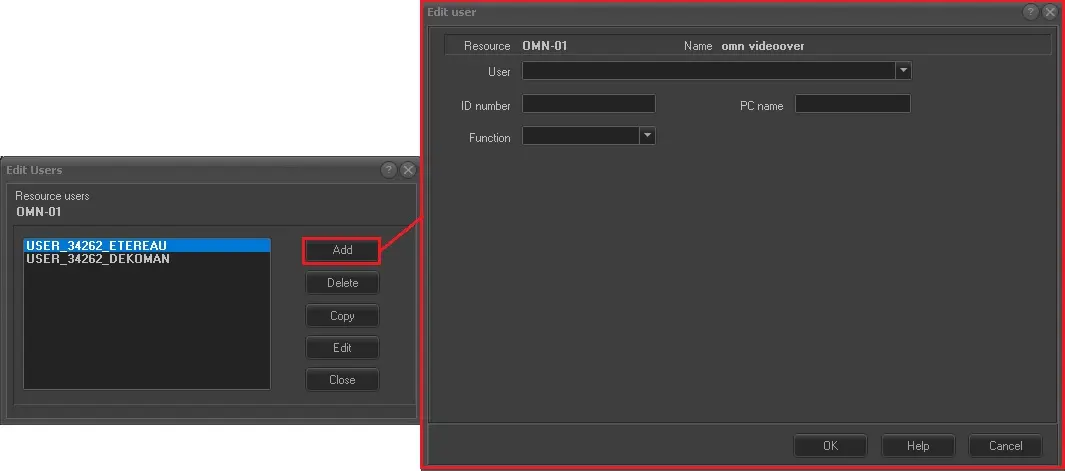
Selecting the legacy resource and pressing the [Users] button, the 'Edit Users' form will be opened, allowing to enable the resources to be used according to the following criteria:
Edit_Users
• User: Specify the specific workstation for which the resource will be allowed. Once selected, it will be automatically retrieved and displayed the ID number and PC name corresponding to the selected PC.
• Function: Indicate the module on which the User mentioned above can use the resource. Available functions include:
Asset form (Media Library) - Resource to be used by the Media Library module for censorship.
Automation - The resource is to be used by Automation for master playout.
Automation clone - Resource to be used by Automation for clone playout.
Cartwall - The resource is to be used by the Cartwall module for quick playout.
Commercials - A resource to be used by Airsales for previewing commercial events.
Ingest - Resource to be used by the Ingest or MAM module.
Media Manager (Data Mover) - Resource to be used by the Data Mover module.
Music Manager - Resource to be used by the Music Format module.
News browser - Resource to be used by the MOS Gateway module.
News filler - Resource to be used by the MOS Gateway module.
News playout - Resource to be used by the MOS Gateway module.
Object reel - Resource to be used by the Object Reel module for media archive.
Preview - For high/low-res preview, video assist playout, etc.
Scheduling - Resource to be used by Scheduling for hires preview.
Split (Ad Insertion) - Resource to be used by Ad Insertion for playout.
STMan - Resource to be used by STMan for graphics overlay.
• Others: Please note that other parameters required by the 'Edit Users' form change from one resource to another; therefore, for detailed information on how to compile them, please refer to the related section of the Supported Devices chapter:
NB: In case the resource is a multi-channel video server, each one of its in/out channels must be enabled as in this section.
4. View the Resource
At this point, when the legacy resource has been successfully created, configured and assigned, it's now ready to be used by Etere.
Contextual menu functions
Making a right-click on a particular resource will give access to a set of useful functions, including:
• Device test - Open the test form to connect and control the resource.
• Connection test - Test the connectivity and function of the resource by simulating a real action (e.g. play on a video server, take on a logo generator, etc).
• Delete - Deletes the selected resource from the db. This operation can also be done with the [Delete resources] button.
• Edit - Allow to edit the selected resource. The same operation described above uses the button [Modify resource].
• Add - Allow the addition of a new resource. It's the same operation described above using the button [Add Resources].
• User - Allow the assignment of the resource. It's the same operation described above using the button [Users].
• Properties - This function displays the detailed properties of the selected resource. The properties are read in the related .ini file, located in the path specified in the "Inifile" row of the properties.
• SNMP Test allows you to view SNMP messages, including Warning, info and Error messages.
• User replacement - Allows users to change their ID across all resources. This function is useful, for example, when reinstalling a workstation (with a new ID).
• Set the device as "tested" - Puts a Res_Test_A (green balloon) on the resource to indicate that its functioning has been tested.
• Set the device as "to test" - Puts a Res_Test_B (yellow balloon) on the resource to indicate that its functioning has not been tested yet.
• Change codecs - Replace the codec associated with the selected resource with another one the User gave.
• Change ID - Manually modify the ID of the resource.
• Update in SQL - Saves into the database all changes performed to the device.ini file. Please refer to the section below for information on editing said file.
• View Logs - Select this option to view the detailed message capturing how the resources were managed during modification.
 Resources_module
 user_resources
 Edit_Users
 Add_Resource
 edit_resource