59.4.14.16 Carbon Coder Watch Folder Transcoder
What is a Watch Folder Transcoding?
The Watch Folder Transcoding is another transcoding method supported by Etere. Unlike the two previous processes (i.e. Batch File Transcoder and Rhozet RZCP Transcoder), it is not configured under the Transcoding section but from the Copy section.
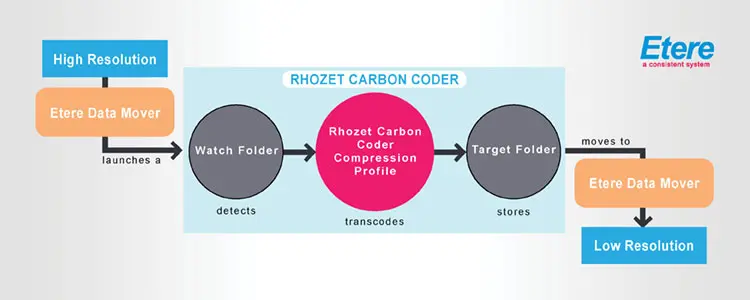
This method allows transcoding operations simply using a watch folder, that is, a monitored windows directory for which all video files dropped on it will be automatically transcoded using predefined compression profiles. The figure below shows exactly how this operation is performed::
Folder_Transcoding
Once saved, Batch file transcoders will be available as action blocks, ready to be included within T-workflows.
How to use a Watch Folder Transcoding?
To transcode video files using a watch folder, just follow the next procedure:
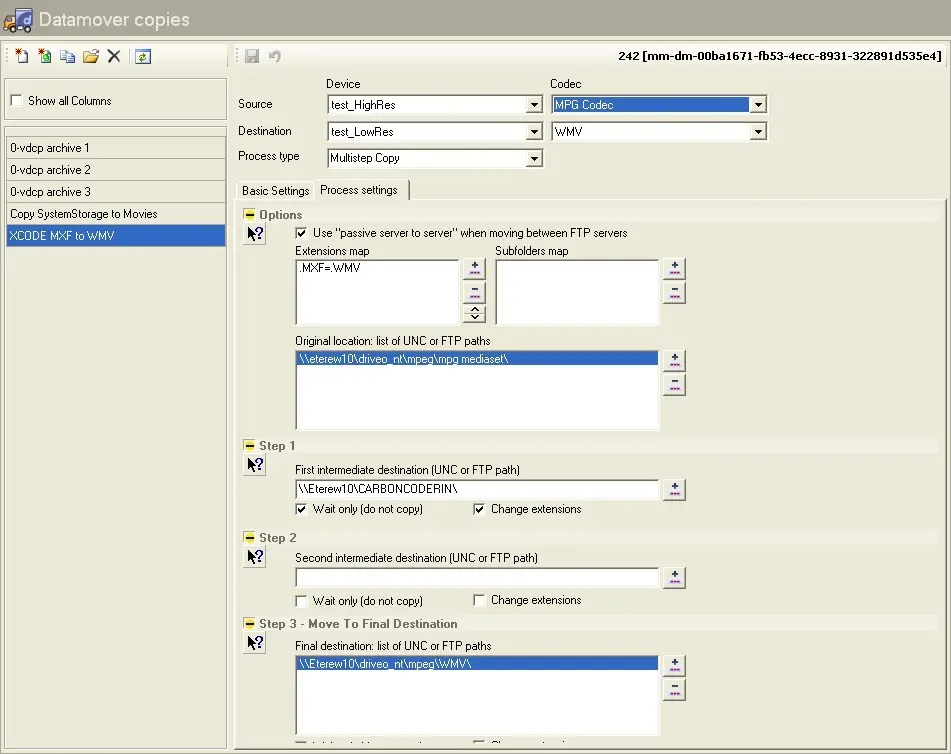
1. Create a multistep Copy action to place video files from a certain source location into a watch folder for their transcoding and then move them to a certain final destination; these actions could be defined as in the following example:
Datamover copies
•Set the extensions map, for example, if Carbon Coder will receive an MXF file to be transcoded into a WMV file insert (.MXF=.WMV).
•Specify the file's original location to be moved (i.e. the source location) (e.g., \\eterew10\driveo_nt\mpeg\mpg mediaset\).
•Specify Step1: a first intermediate destination where the file should be copied into. This field refers to the Carbon Coder Watch folder previously specified. Make sure that the 'wait only (do not copy)' parameter is disabled (Etere Data Mover will wait for the file to appear) as well as the 'change extension' parameter, which should also be disabled (Etere Data Mover will wait for a file with the same name but with a different extension).
•Leave Step2: second intermediate destination empty unless you want to move the file into a second folder.
•Specify the 'final destination', where you want the transcoded file to be copied into (e.g., \\Eterew10\driveo_nt\mpeg\WMV\).
2. Once compiled, save the action by clicking on the [SAVE] button; after then, the action will be ready to be included in a T-workflow,
3. Configure Rhozet Carbon Coder software to use a monitored watch folder for transcoding video files (see Setting a Watchfolder).
 Folder_Transcoding
 Datamover_copies