59.5.13 Tape Labels
Report Description
The Tape Labels report allows the print of a detailed document containing all those assets stored within certain tapes; for each asset, various information will be displayed, including genre, episode, description, rack location, tape code, tape type, tape format, etc.
To be included in reports, tapes must meet the following requisites. Otherwise, a message will inform about some incomplete data:
•Tapes must be linked to an asset (refer to the Asset Form section from the Asset Management chapter),
•Tapes must have (at least) a code, a title, a description and VTR info (consult the Tape Library section from the Tape Management chapter).
Report Filters
All the parameters that permit a detailed report generation have been spread across seven different tabs to allow a more manageable configuration. By default, all filters are disabled (i.e., either blank or unselected); it is enough to configure at least one parameter inside to enable them. Available filters include:
•Tape List: Click on the tape icon (tape_labels_02 ) and select a tape by double-clicking on it to insert it into the print list (only tapes with at least one asset on them will be inserted); once added, it will be possible to continue adding tapes just by pressing the tape icon again.
If more than one asset is in the tape, the operator will be prompted to select a reference asset for the label (i.e., which one will be used for the reference code).
•Print type: Choose between the print of the external label, the details contained or both of them; you can also select to print the segment details (i.e., segment SOM and EOM) and the predefined interruption points (i.e., segments including their SOM and EOM),
•Options: Here, you can mainly select the format of the barcode (e.g. 39E, 93, 128A, etc.) and its margins (i.e. upper and left),
•Information list to be printed: Here will be listed all the tapes selected to be included in the report:
- Code: It's simply the code of the tape.
- Title: It indicates the title assigned to the tape.
- Asset: It shows the code of the reference asset of the tape.
Notice that tapes can be deleted from the list. Just right-click on it and select the 'remove' option.
Report Preview
The [Settings] permits configuring the page layout of the outgoing document; once filters and settings have been set, it will be possible to select between displaying a preview using the related [Preview] button or printing the document directly using the [Report] button. Please note that some reports permit the export of the generated document in the most common formats (pdf, CSV, doc, xls, XML, etc) just by using the [Export] button.
•Tape Overview:
Tape_Overview
•Tape Details:
Tape_Details
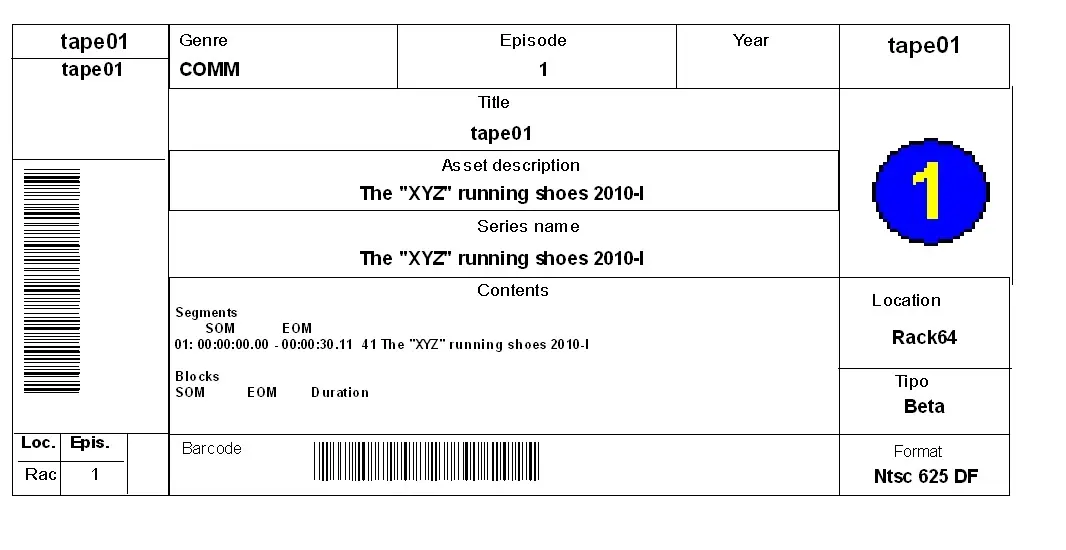 Tape_Overview
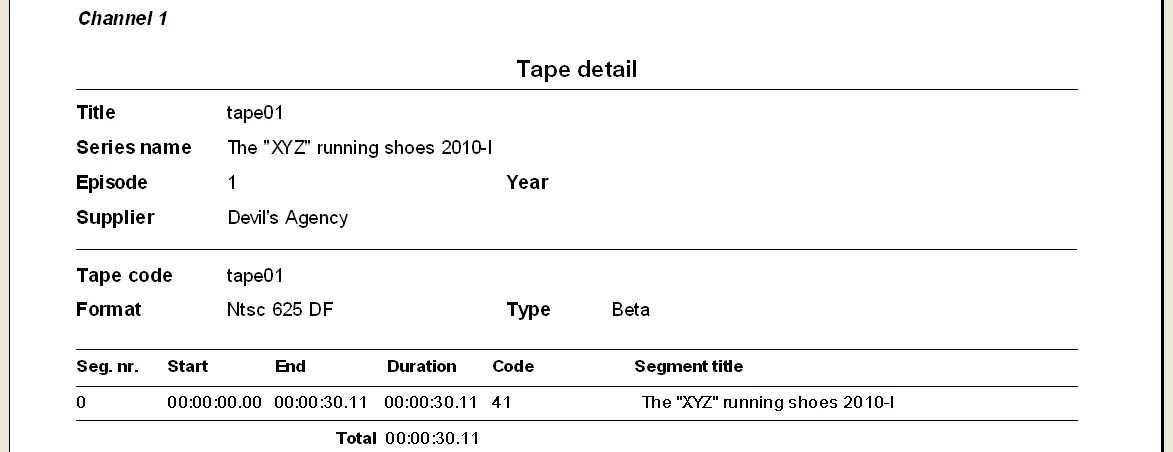 Tape_Details