WHAT IS ETERE MEDIA MANAGER SERVICE
Etere Service Media Manager is the new Etere Datamover Software, which works as a Service instead of a Desktop Application as it was previously.
The Etere Service Media Manager proved to be more reliable and faster than the old Etere Desktop Module.
In addition, the Software as a Service is easily deployable in physical or virtual environments such as any private or public Cloud.
ETERE MEDIA MANAGER SERVICE INSTALLATION
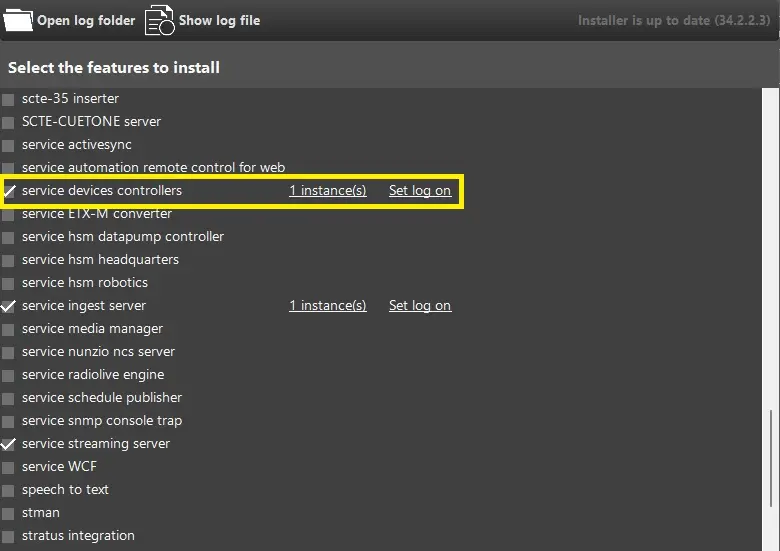
To start using the Etere Media Service, we need to install it using the Etere Update Module.
install_media_service
Once we select it, we can assign the user to whom the Service would run. We can rely on the Windows Local System account or insert a Windows Domain User, who has the rights to run the given Service.
install_media_service_logon
install_media_service_logon_domain
Next, click the "Set log on" to launch the user account selection to perform the service media manager installation.
From the log-on screen, you can select to log in as a specific user account to perform the installation. The installation will be completed using the default local System account if no user account is assigned. Click to confirm the login account.
Users can install only one instance per Server/Workstation of the given Service.
install_media_service_instance
HOW TO START USING THE ETERE MEDIA MANAGER SERVICE
Once the installation is done, we should have the related Windows Service, Etere Media Manager Service (1), up and running.
windows_service_run
From here, Etere Media Manager Service is ready for use within our system.
First, we need to start creating the Etere Data Mover Actions, which refers to the new Service, instead of relying on the old Datamove Desktop Application actions.
To do so, we need to go in:
Etere Configuration > Configuration Editor > T-Workflow > Action > New Action > Media Manager Service
media_manager_action_form
ETERE MEDIA MANAGER SERVICE FUNCTIONS
Following is a quick description of every field available in the given form:
There are different operations, such as:
If the FTP server supports SSL encryption, Data Mover would use a new set of libraries. Otherwise, Plain FTP would be used.
The Data Mover Configuration define the process settings when processing job requests in Data Mover.
DataMover Configuration
SCHEDULING CONFIGURATIONS
Database fetch interval: Set the frequency (in seconds) to fetch the om database;
Deferral factor to use when long fetching duration is detected: Define the long duration fetching to trigger the use of deferral factor;
Job check interval: Set the time interval (in seconds) to check for job requests;
Pending SQL Server updates retry interval: Set the time interval (in seconds) to retry those SQL updates in pending status;
Max number of internal retries on copy error: Specify the number of internal attempts DataMover can perform for copy action. The possible values are:
So on and so forth.
For performance measures, you should go against using the automatic retry option in the Data Mover action; instead, set the value to "0" (no retry) and include the retry option in the respective workflow action to suit your environment.
Note: Please note that the copy channel stays locked for the entire duration of the attempts.
Wait interval between internal retries (msec): Set the interval (in milliseconds) between 2 internal retries. The default is 120000 (2 mins);
Ignore non-ingested assets: If enabled, jobs requested for unrecorded assets (i.e. without a recorded media) would not be processed;
Note: If it is intended to manage either memory cut, content check or conforming actions, these parameters MUST be disabled to allow new unrecorded assets to be processed.
Background requests fetch: If enabled, a job listed through a thread to run as a background process to improve system performance would be fetched;
Lazy fetching: If enabled, checking of job listing would be performed on the time interval set in the Job Check Interval parameter;
Save T-workflow logs for each job (~100KB/Job: use only if needed): If disabled (default), logs file will be created only for T-workflow jobs and stored in the "%LocalAppData%\Etere\Log\dm.job\" directory;
If enabled, an additional log file will be created for each job (containing all related T-workflow rows) and stored in the "%LocalAppData%\Etere\Log\dm.wflog\" directory.
WARNING: Enable this option only when necessary; it would create several log files (~100KB per job) and may fill up the disk storage. As a preventive measure, set the "keep a copy of logs for following days" parameter (in the Troubleshooting tab) to a shorter timeframe. (e.g. seven days).
Automatically try to abort dead jobs: If enabled, Data Mover actions related to an aborted/reset T-workflow would be aborted automatically;
WARNING: DataMover automatically checks for dead jobs with a frequency of 1 minute (i.e. every minute).
Configuration Self Update: If enabled, Data Mover operations in the current station would be interrupted (with a popup error message) when the Data Mover configuration had been modified in other stations;
TROUBLESHOOTING CONFIGURATION
Troubleshooting configuration
Show text messages console: Enable this option to allow the application to display the operations message in the Data Mover console for operations performed;
Avoid logging: If disabled, the logging process for Data Mover operations will not be performed;
Disable SSL extensions (always use legacy FTP libraries): Data Mover actions allow SSL (Secure Socket Layer) encryption to be used for Multistep Copy, File Renaming and File Deletion actions. For troubleshooting purposes, use this option to turn off the SSL encryption in the Data Mover action and fall back to the legacy file transfer method to investigate the process. Click on the specific task and check this option to turn off the SSL extension, and the "SSL on" indicator will disappear from the bottom of the Data Mover display;
Select messages automatically sent by the event: Select the types of messages generated from the Data Mover actions:
You can select one or multiple message types or all messages.
Keep a copy of logs for the following days: Set the maximum days to retain the log files in the system.