59.7.2.1 Connections handling
Colours Legend
Connections are colour-coded depending on the Connection Type:
•Video = blue
•LAN = green
•GPI = red
•Other = black
•Only with Roles = turquoise (for an explanation of how to configure roles, see below)
Using Connections
Managing connections can be done manually by positioning the cursor over the device, holding the left mouse button, dragging across the connection and releasing the mouse. This will highlight the connection in question.
Alternatively, use the 'Manage Connection' function to insert the source and destination device and connection details and press the following manage connection button:
Manage_Connection
This function will automatically highlight the connection on the Resources Diagram.
Either double-clicking on a highlighted connection or in the 'Manage Connection' section at the bottom of the editor, once a connection has been automatically highlighted, press the 'Connection properties' button. A table opens, allowing you to manage the properties of the connection.
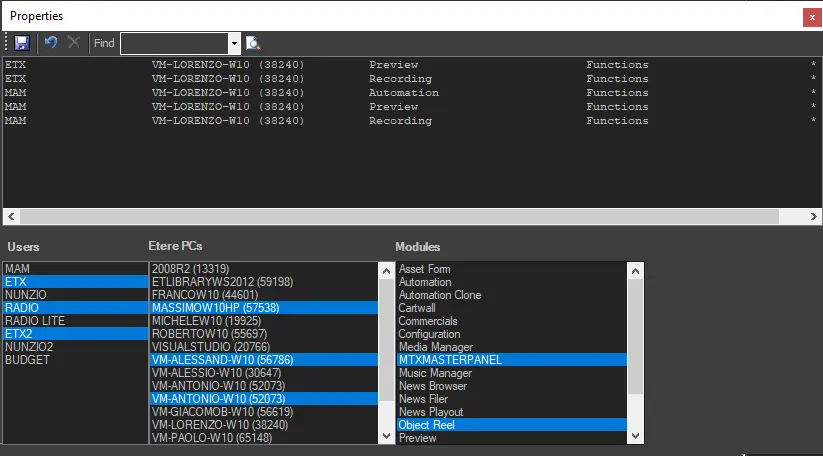
Here, you can configure the user Role of the connection in question. These are not obligatory but are helpful to manage the Resources Diagram better. A user (station) or multiple workstations can be selected; you can also set the Etere module and multiple functions if the list is available (dependent on modules). Upon selection, the role (or roles) specified in the bottom table will appear in the top panel by pressing the added role in the top left-hand toolbar.
3979_Properties
When many roles are configured, you can select or enter the module name in the "Find" column to view all defined associated roles and their relevant information.
Exclusive Role
If you want to set a particular role as exclusive (i.e., only one specific workstation in a particular station can carry out a particular function), simply tick the 'Exclusive' box, and the role will be exclusive to that configuration. By not selecting this parameter, the connection is shared.
 Manage_Connection
 Properties