201.10.5.5 Fill segments
The Fill Segments allows to fill segments within the current schedule using assets defined by the operator and contractual fillers defined within orders (or approved proposals). In order to use this tool follow the procedure described below:
Note:
The calculation of occupied space of segments considers only those events with a duration equal or greater than the one set in "Etere Configuration > Settings > Air Sales > Scheduling Rules", in the "Min. duration of events considered in space calculations" parameter. Events lasting less than this value will be ignored.
1.Fillers List
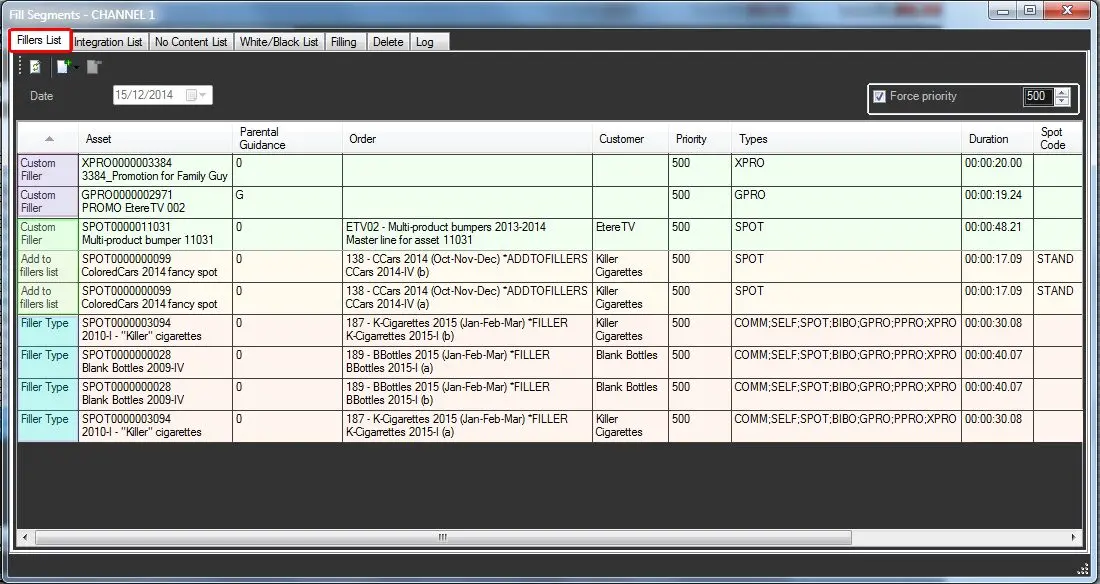
The Filers List allows to view and add/remove the fillers that will be used to fill the schedule of the selected day.
Airsales_strategiceditor_fillsegments00
• Filler type : These fillers, which are automatically inserted in the list, comprises all those order lines available for the selected day (scheduling validity and number of runs) that have been specified to be a Filler Type.
• Add to fillers list : These fillers, which are automatically inserted in the list, comprises all those order lines that have been specified to be Added to the fillers list.
• Custom fillers : These fillers are those manually selected by the user. Custom fillers can be inserted by pressing the Add button and select one of the following functions:
➢Add asset form : Use it to manually insert common assets into the Fillers List, searching and selecting them from the Etere's assets database; multi-selection is possible by selecting all desired assets and double-click while holding the Ctrl key. Before insertion, the application will prompt for the timeframe to which the selected assets will be inserted in the Fillers list.
➢Add commercials scheduled in this day Use it to automatically insert assets (of a certain type) belongs to order lines scheduled in the day in question; scheduled order lines can be inserted in two different ways:
•Single assets: It will add a unique distinct filler to the list for asset linked to a order lines scheduled in the day. For instance, if six order lines linked to the same asset scheduled in the same day, that asset will be inserted only once.
•All order lines: It will add one different filler to the list for each order lines scheduled in the day. For instance, if six order lines linked to the same asset scheduled in the same day, that asset will be inserted six times (one for each order lines).
Custom fillers can be easily removed from the list by select the filler and click on the remove button
NB: When inserting custom fillers (either by single asset or order lines), only those assets associated to a order line will be inserted, otherwise they will be ignored.
2.Integration List
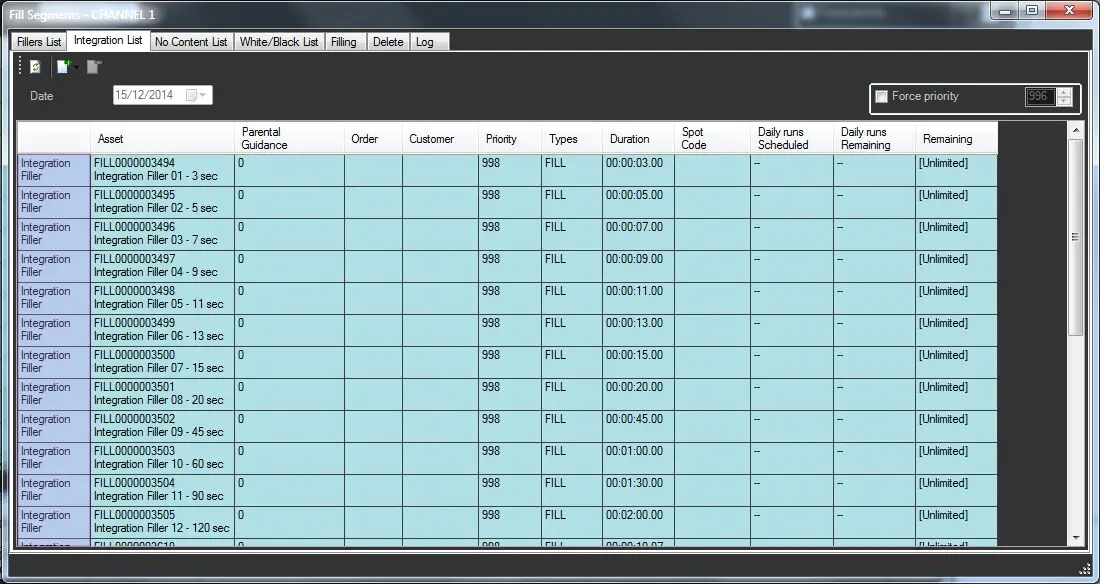
The Integration List tab permits to define a list of assets of a certain type (e.g. commercials, trailers, etc) that will be used to fill remaining segment spaces. This method fill segments using only one filler by segment (the one with the maximum possible duration respect to the segment empty space).
Airsales_strategiceditor_fillsegments15
•Add integration fillers: Use it to select the type(s) of the assets that will be inserted into the Integration List, the application will automatically insert all assets which are valid for the day in question, match the selected type(s), last more than one frame, and are able to be scheduled in the current station.
When added, integration fillers are inserted with a '998' priority at the end of the segment (even if 'bottom' events are scheduled in it).
To remove an integration filler(s) from the list, simply select the filler(s) and click on the remove button.
3.No Contact List
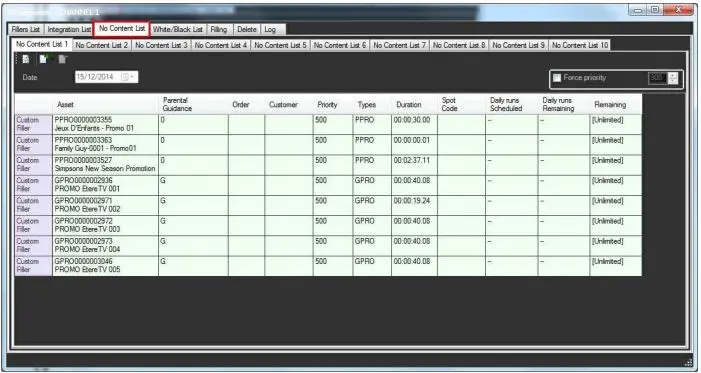
The "No Content List" section allows to create up to 10 custom filling lists composed by either repository assets and scheduled events.
Airsales_se_18
Material type - Customer filler
Description : Repository assets and Contractual events (which filler type is "none") scheduled in the selected day.
Selection : manual
Available functions
The No Content List can be managed through the following functions:
Refresh - Reload all information displayed in the list.
Add - Fillers can be manually added using the following buttons:
Media Library - Manually search and insert assets from Media Library.
NB: For multi-selection hold the <Ctrl> key while selecting assets and double-click on them.
Commercial already scheduled in this day - Automatically insert assets (filtered by type) from order lines scheduled in the selected day. Assets from scheduled order lines can be inserted in two different ways:
•Single assets: Add one filler for assets linked to multiple order lines scheduled in the same day.
E.g. if 6 order lines linked to the same asset have been scheduled in the same day, that asset will be inserted only once.
•All order lines: Add one separate filler for every order line scheduled in the same day.
E.g. if 6 order lines linked to the same asset have been scheduled in the same day, the said asset will be inserted 6 times (one per order line).
NB: Only assets correctly associated to an order line are inserted, incongruent ones are ignored.
Remove - Remove the selected filler from the list.
Custom fillers can be removed also by right-clicking on them and choosing "Remove".
Dates - Shows the current open date, the day to which fillers will be applied.
Force Priority - Give fillers a fixed priority (between 4 and 996). This option is useful, for example, make fillers fall-in after paid events scheduled with a lower priority (e.g. 600).
4.White/Black List
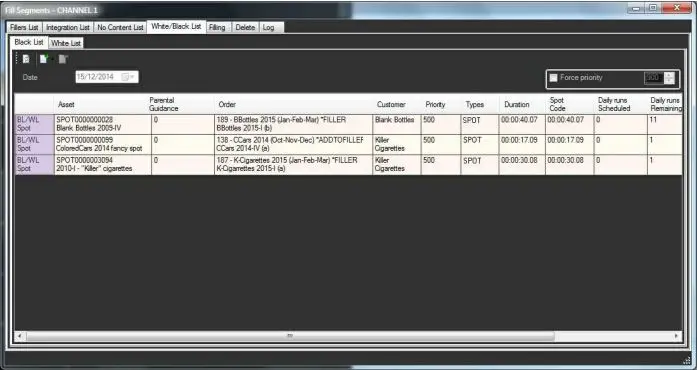
The "White/Black List" section allows to create a list of fillers composed by the following material types:
Airsales_se_19
Material type - BL/WL spot
Description : Contractual events placed in the White and/or Black lists of the selected day.
Selection : manual
Available functions
The While/Black List can be managed through the following functions:
Refresh - Reload all information displayed in the list.
Add - Fillers can be manually added using the following buttons:
Add spot from Black list - Manually select a contractual event from the black list of the selected day.
Add spot from White list - Manually select a contractual event from the white list of the selected day.
Add spot from B&W list - Manually select a contractual event from the black and white lists of the selected day.
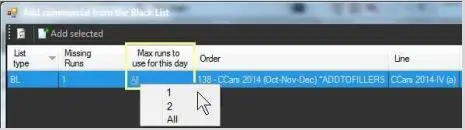
While adding fillers, you can define the maximum number of runs to use in a day by clicking on the related column.
(this value can be changed after in the main window, just by clicking the same column):
Airsales_se_20
Note: Choose "All" to fill segments using all runs in the BL/WL for the spot (see "remaining" column). The "max runs" number will decrease (until zero) as the spot will be scheduled in the day.
NB: When inserting spot to schedule, you can insert the spot to the Top/Tail in the schedule, or inserting spot to Top/Middle/Tail in the schedule.
Remove - Remove the selected filler from the list.
White list and Black list fillers can be removed also by right-clicking on them and choosing "Remove".
Dates - Shows the current open date, the day to which fillers will be applied.
Force Priority - Give fillers a fixed priority (between 4 and 996). This option is useful, for example, make fillers fall-in after paid events scheduled with a lower priority (e.g. 600).
NB: By default, integration fillers are inserted with a '998' priority (i.e. at the end of segments, after "bottom" events).
5.Filling
5.1 Once the list to be used have been populated (i.e. the fillers list or the integration list), under the Filling tab it define the insertion criteria to be used for filling the schedules of a certain timeframe. Available filling criteria includes:
Airsales_strategiceditor_fillsegments01
•Minimum free space: Enter the 'minimum number of free space' (in seconds) that a segment must have in order to fulfill for filling.
•Period: Specify the date range and the ad insertion network where the schedules are intended to be filled.
•Fill up to: Indicate if segments would be filled up to its normal duration or maximum duration.
•Don't use more than one filler per segment: If enabled, only one filler will be used to fill a segment, this filler duration is the closest (minor or equal) to the segment empty space; otherwise (if not enabled), fillers will be inserted (according to their position) filling the segment up to its possible maximum duration.
•Filling by: Select asset duration if it is intended to fill segments using the fillers with the nearest duration to the empty segment space, or select rotation to fill segments in rotating basis (i.e. repeating a sequence of fillers across the segments).
NB: If the list used for filling is the Integration List, the values set in the options fields (i.e. 'don't use more than one filler per segment' and 'filling by') will be ignored, because such list is inserted into the schedule once per segment and based on its asset duration.
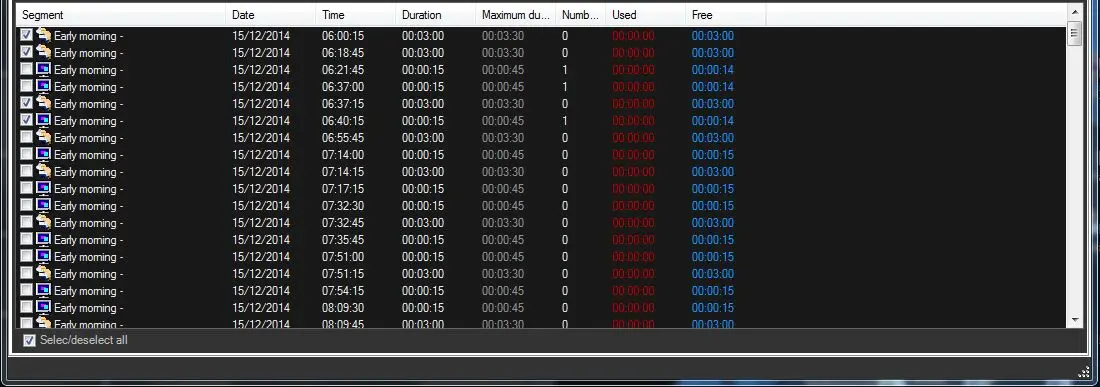
5.2 When all criteria have been defined, click on the 'Search' button to list all segments matching these criteria (i.e. period, minimum free space, etc).
Airsales_strategiceditor_fillsegments07
5.3 Select the segments that will be filled by the application, by default all segments are selected.
5.4 Click on the button related to the list intended to be used for filling segments. Please note that selected segments will be filled using only those fillers which type is supported by the segment, for example, 'PROMO' fillers won't be used for filling segments which only supports 'COMMERCIAL' events.
5.5 All inserted fillers will be highlighted within the Strategic Editor's schedule with a proper icon that indicate the 'filling nature' of the event:
Airsales_strategiceditor_fillsegments04
6.Delete
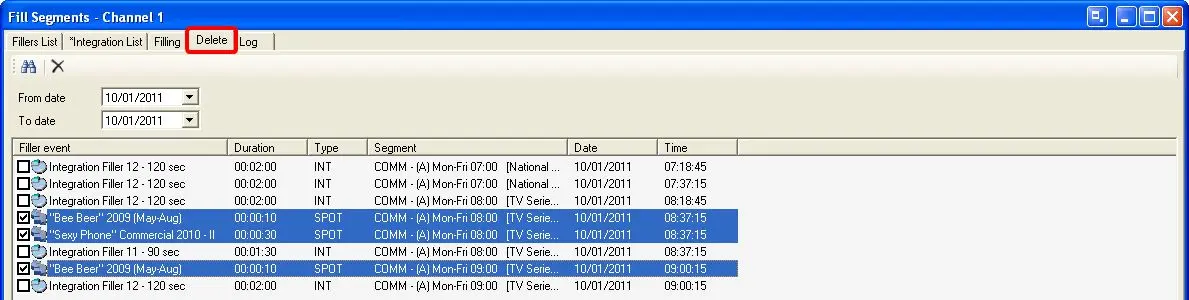
The Delete tab display all fillers scheduled within a specific time range, and the segment on which they have been placed:
Airsales_strategiceditor_fillsegments08
Select the filler events to be deleted and press the delete button to remove from their respective schedules.
7. Log
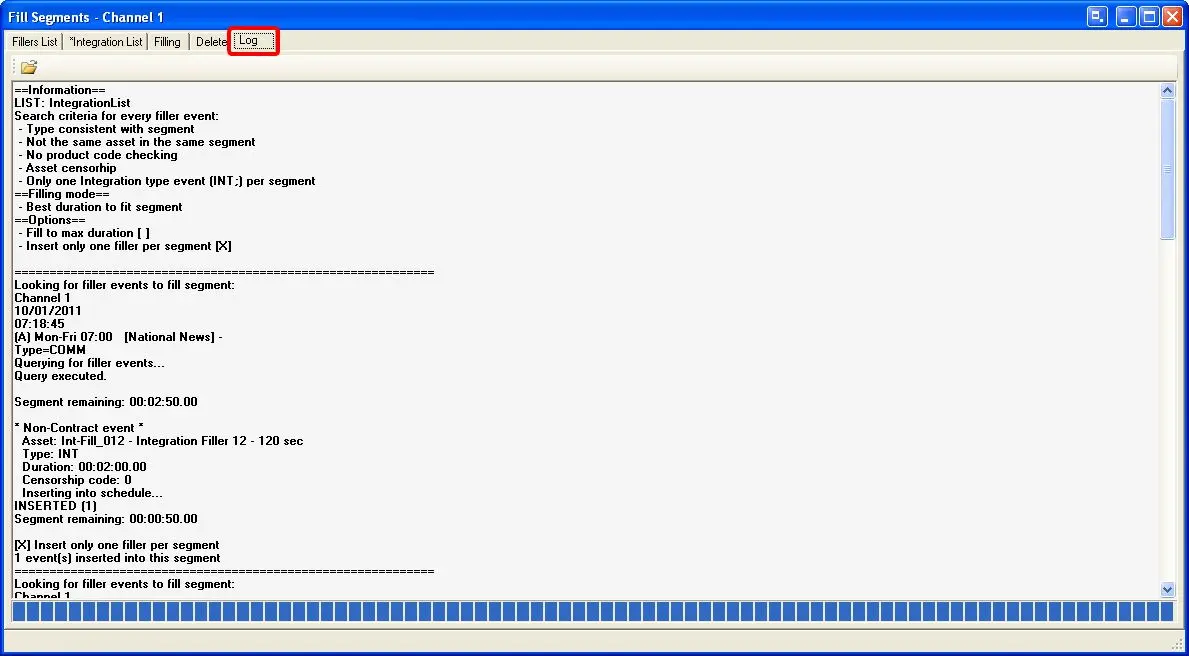
Under the Log section, it display all operations performed during the LAST filling process:
Airsales_strategiceditor_fillsegments05
The open button stored the log file (i.e. traffic.FillSegments.log) containing all filling operations performed by the current Etere PC.
 Airsales_se_19
 Airsales_strategiceditor_fillsegments08
 Airsales_strategiceditor_fillsegments15
 Airsales_se_20
 Airsales_strategiceditor_fillsegments00
 Airsales_strategiceditor_fillsegments05
 Airsales_strategiceditor_fillsegments04
 Airsales_strategiceditor_fillsegments07
 Airsales_se_18
 Airsales_strategiceditor_fillsegments01