84.6.1 Copy automation schedule
The Copy automation schedule tool allows to copy into the current station a specific daily schedule of a certain station, thus making copied schedules ready to be published and transmitted by the current station.
This function will copy -besides primary events- also those secondary events and logos associated to them according to a specific criteria specified in the chapter 84.6.1.3 Logos behaviour.
This function can be also useful to transmit shifted channels. Operators can copy schedules from a main station to a shifted station and then just "shift" the programming as required (e.g. +1hour).
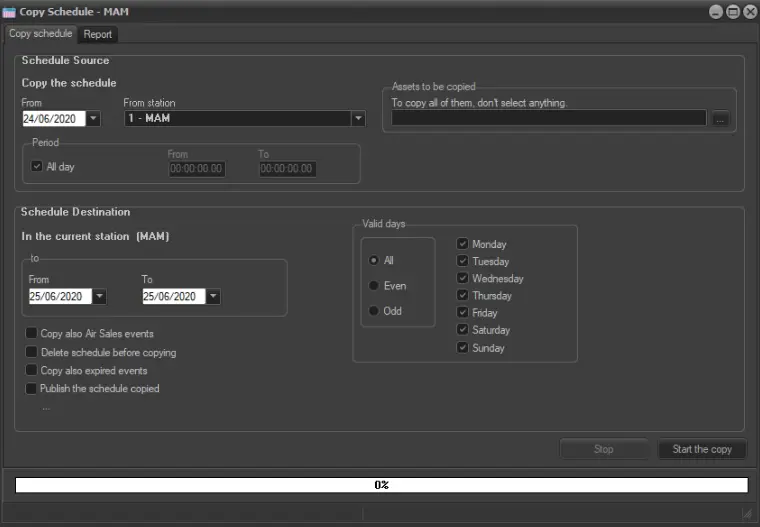
First of all, it is required to set the parameters related to the source schedule (i.e.: which scheduled events will be copied from) as well as the destination schedule (i.e. which scheduled events will be copied to):
Sched_utilities_copyautomationschedule
Source schedule
From: Select the exact day which contains the schedule to copy.
From station: Select the station from where the schedule will be taken.
Assets to be copied: Filter the types to be processed, only those selected will be copied. To include all the types, don't select anything.
Period: Select "All day" to copy the entire schedule or select a specific time range if you want to copy just a segment of it.
In case of Timezone.Main different from Timezone.Local do not change the times: This option defines the tool's behaviour when the parameters Main time and Local time, in Etere Configuration > Settings > System, are set to different timezones. If disabled, the times of the events in the destination schedule will be shifted according to the timezone set in Local time. If enabled, the times will remain the same as the source schedule.
Destination schedule
From / To: Select the days range where the source schedule will be copied to.
Valid days: Select specific days of the week as destination of the copy. It's also possible to choose "All" to select the entire week, "Even" to select only the even days and "Odd" to select only the odd days.
Copy also Air Sales events: By checking this option, will be copied also the events scheduled by Etere Air Sales application (e.g.: commercials, trailers, etc).
Delete schedule before copying: Perform the deletion of all the scheduled events in the target days before copying the new schedule on them.
Copy also expired events: If there are expired events in the source schedule, enable this option to include them during the copy.
Publish the schedule copied: Enable this option to trigger the publish of schedules in destination station upon copy. If the schedules are copied across multiple dates, all schedules would be published in a single "Publish" operation.
If you want to exclude publishing for secondary events after copied, simply disable the “Insert secondary events in any EE publication” option on the destination station.
Note: To ensure a successful copy of schedule between stations, the date format in Regional Settings in both stations must be in sync.
When all the parameters have been correctly set, click on the Start the copy button to perform the operation.
Upon completion, the report tab will show the operation report and in the station where Ad Insertion is installed, the copied schedules would be automatically inserted into the respective time slots in Executive Editor.
Please consult the chapter 84.6.1.1 Example of use for a practical example of how to use this function.
 5323_Sched_utilities_copyautomationschedule