72.7.3.8 Multiple Instances Connecting to CC Inserter
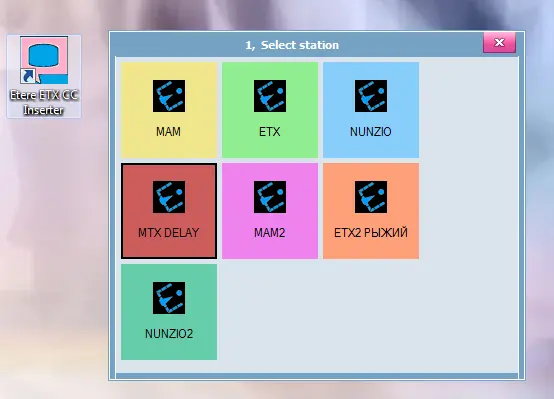
In ETX Closed Captions (CC) Server you can trigger multiple instances of ETX CC Server application (ETX-CC-Server.exe) communicating to the CC inserter without interfering each other. Upon activation simply select a station/channel to start the ETX CC server connecting to CC inserter.
Etere ETX CC Inserter
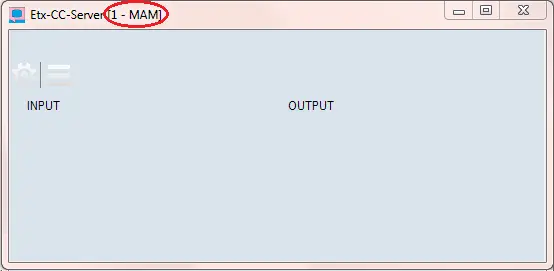
For this instance, you had selected the “MAM” station/channel when the ETX CC Server application was first launched.
etx_cc_server_station
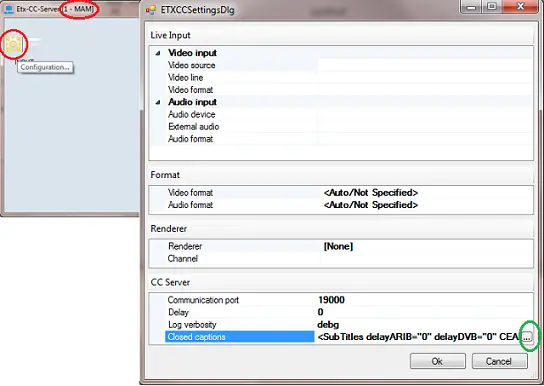
After which, you can starts configure the input source and output source as indicated below.
etx_cc_server_station_one_configure
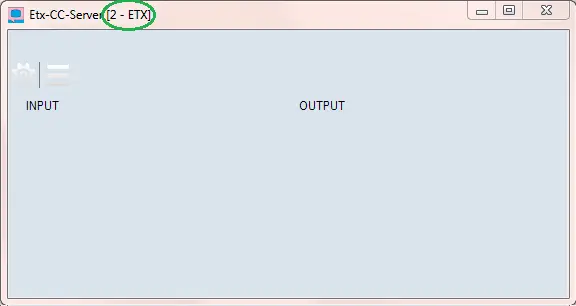
Next, you can trigger a second instance of ETX CC Server application and select a station/channel different from the previously selected station. For this instance, the CC server is started for ETX station/channel.
etx_cc_server_station_2
Repeat the same step above to configure the input source and output source for the second instance of ETX CC Server.
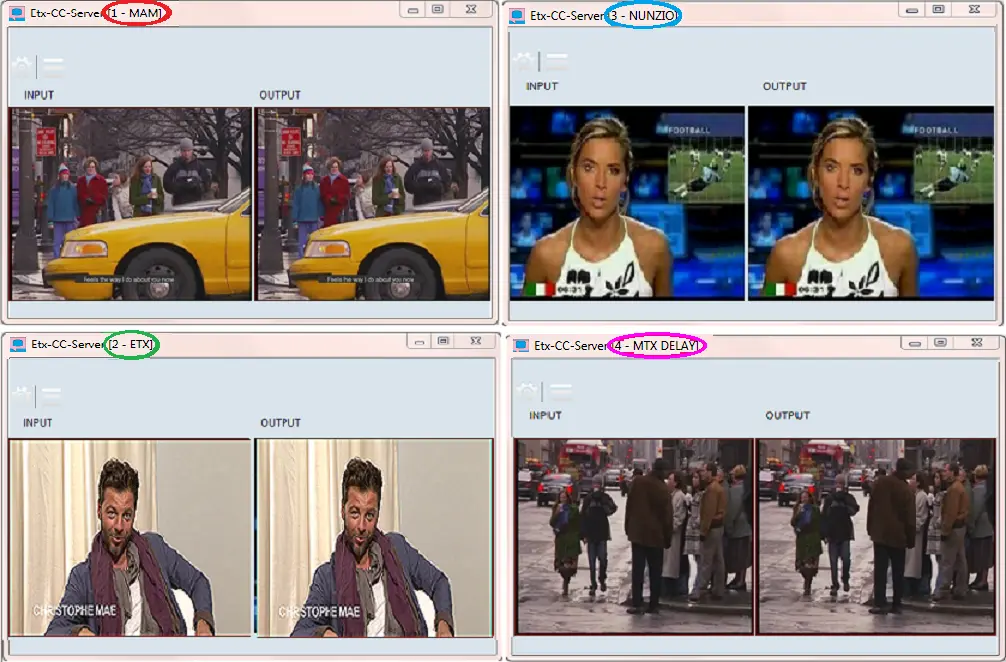
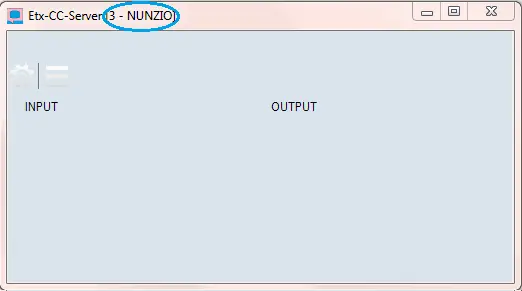
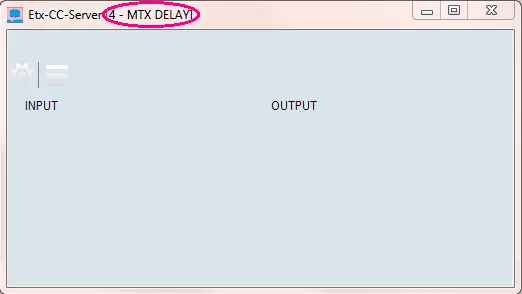
Subsequently, more instances of ETX CC Server sessions can be trigger by selecting a different station/channel to communicate with the CC inserter and configure the input source and output source. The station/channel name is indicated at the top bar.
etx_cc_server_station_3
etx_cc_server_station_4
Eventually, multiple instances are started communicating to the ETX CC inserted.
etx_cc_server_station_all
NB: In network perspective, only one usage of each socket address is permitted, accessing to the configuration parameters in CC inserter would only allowed after the connection is established.
Closing CC inserter
The ETX CC inserter can be closed by simply click on the “X” button.
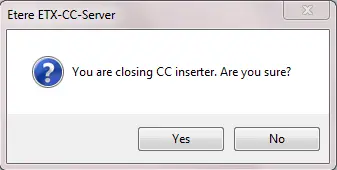
As an added precaution to prevent black screen during the On-air instance, a popup message would appeared to alert user and request for confirmation to execute the close command.
ETX-CC-Server
You must response appropriately to confirm the closure of the application in proper manner.
 Etere_ETX_CC_Inserter
 etx_cc_server_station_one_configure
 etx_cc_server_station
 etx_cc_server_station_all
 ETX-CC-Server
 etx_cc_server_station_3
 etx_cc_server_station_2
 etx_cc_server_station_4