56.1.5 Devices Tab
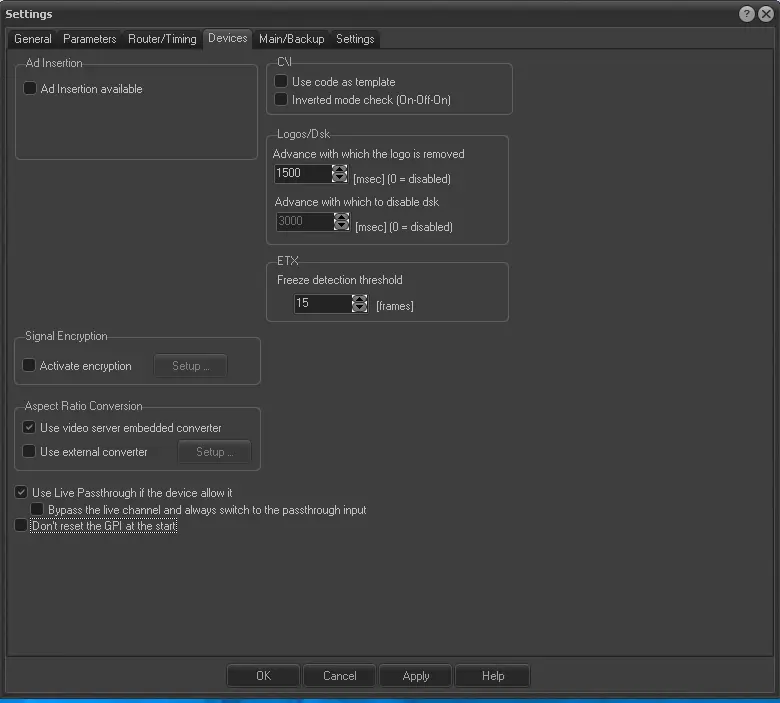
Set in the devices tab options related specifically to devices configured to work with Etere Automation:
automation_settings_devices
Ad insertion
Ad Insertion is available - Enable this option in case Etere Automation runs along with Etere Ad Insertion to manage local ad insertions.
Advance time to the start - In case the "Ad Insertion" is available, set the time (in milliseconds) to advance the start command for ad breaks concerning real start time
VTR
Advance alert time - Set the time (in minutes) for events to be pointed out before their broadcasting.
Activate sharing of resources - Enable VTR to be used by other Etere modules.
When Automation is stopped, it also stops all the VTR - As its name indicates, this option will automatically stop all VTR when Automation is stopped.
Load the first available event - By enabling this option, Automation will load the first public event contained in the tape.
Launch Cart Manager automatically - By enabling this option, Cart Manager will automatically launch each time it is required for playing events.
Never eject tape from VTR - Check off this option to keep the tape inserted in the VTR after events contained on it have been broadcasted.
Always disconnect heads when possible - If enabled (default value), this option allows to engage/release heads from the tape just before its playback (during the cue). However, if this option is disabled, the VTR will be forced to have heads engaged to the tape.
Logos/DSK
Advance with which the logo is removed - If Automation must change the logo, the command is sent within the specified time in advance. This value must be set identically in both Main and Backup Automation. The Automation must be restarted for changes to take effect.
Advance with which to disable the DSK - If Automation must disable a DSK, the command is sent with the specified advance.
Crawl
Use code as Template - If this function is enabled, Automation will use the asset code instead of using the numeric code for the crawl's template.
Inverted mode check (On-Off-On) - Usually, the crawl can start after the event begins and finish before the event is over - this sequence is represented in three steps:
- Step 1 crawl is Off
- Step 2 crawl is On
- Step 3 crawl is Off
If this check is flagged, the crawl will be enabled in steps 1 and 3 and Off in step 2. The crawl will be available just at the beginning and end of the event.
Aspect Ratio Conversion
Convert the aspect ratio of playout events using either embedded or standalone aspect ratio converters.
Use video server embedded converter - Enable this option if the aspect ratio conversion will be automatically performed by the internal ARC (if available) of the Automation's video server.
NB: This parameter exclusively concerns the ARC feature; the OAR feature of the remote control panel is always supported (although this option is disabled) only for TNTServer (Brio) servers.
Use external converter (Setup) - Enable this option if the aspect ratio conversion will be automatically performed by an external device (e.g. upconverter). Etere Automation will automatically activate the GPI signal to trigger the conversion required for the transmission.
Detailed information on this feature can be found in the "ARC from Automaton" section of the Etere Configuration chapter.
NB: Please note that to be used, GPI boards must be assigned to the current user for "automation".
Signal Encryption
Activate Encryption - If ticked off and correctly set, this option will enable the encryption of video signals via GPI. To use it, click on the 'Setup' button and 'add' a new action by pressing the '+' button or edit an action present in the 'conversion table' by double-clicking on it, indicate if the action will set the signal as encrypted (X) or non-encrypted (N).
Setup
Aut_devices_encryption01
You can additionally set the preroll time (frames before executing the action) as well as enable the pulse mode (to send out the GPI configuration associated with the selected code for a certain number of frames, and subsequently the Idle GPI configuration, that is, the checked-off Default Configuration').
Use Live Passthrough if the device allows it. If enabled, all passthrough commands will be permitted during live transmissions (a green icon (AU_Passthru-live) will be shown in the On-Air Automation | Status Column); otherwise (disabled), passthrough commands will be ignored during a live event transmission.
This option is turned off by default; it can be enabled only if the playout is configured with passthrough to avoid configuration errors.
Bypass the live channel and always switch to the passthrough input - Even if the "Use live passthrough if the device allows it" is enabled, by enabling this option, the live channel passthrough would be ignored, the passthrough would be performed by selecting the input device. By default, this option is disabled.
Don't reset the GPI at the start - This check must be enabled in case the same PC hosts more than one Automation.
ETX
Freeze detection threshold - Set the threshold for detecting the freeze frames.
 Automation_settings_devices