17.2.2 Scheduling
Once the container has been created, it's possible to start scheduling the events through the Scheduling section.
Before starting scheduling, the schedule structure must be defined in the Air Sales Weekly Schedule for the scheduled days. This means that blocks with the proper segments must exist in the database, and the blocks must be placed in a weekly schedule to form the structure of the scheduling day.
For more information, please refer to the related chapter in the Air Sales module.
General tab
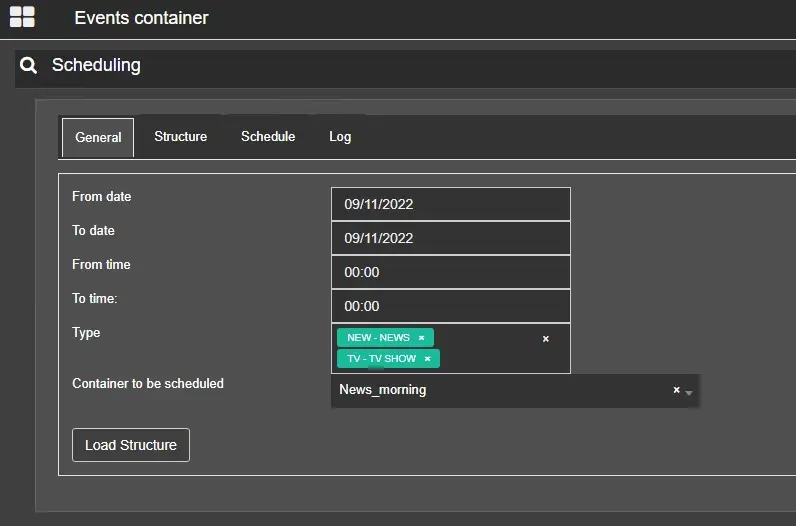
The scheduling process starts from this tab, where the user has to fill in the following fields:
From date - To date: Choose the range of dates where the container should be scheduled.
From time - To time: Choose the range of times where the container should be scheduled.
Type: Select the types of assets included in the container, which must also match the type of the block segments.
Container to be scheduled: Indicate which container (or containers) are intended to be scheduled.
scheduling_general_tab
If every information has been inserted correctly, click the Load Structure button to proceed to the next tab.
Structure tab
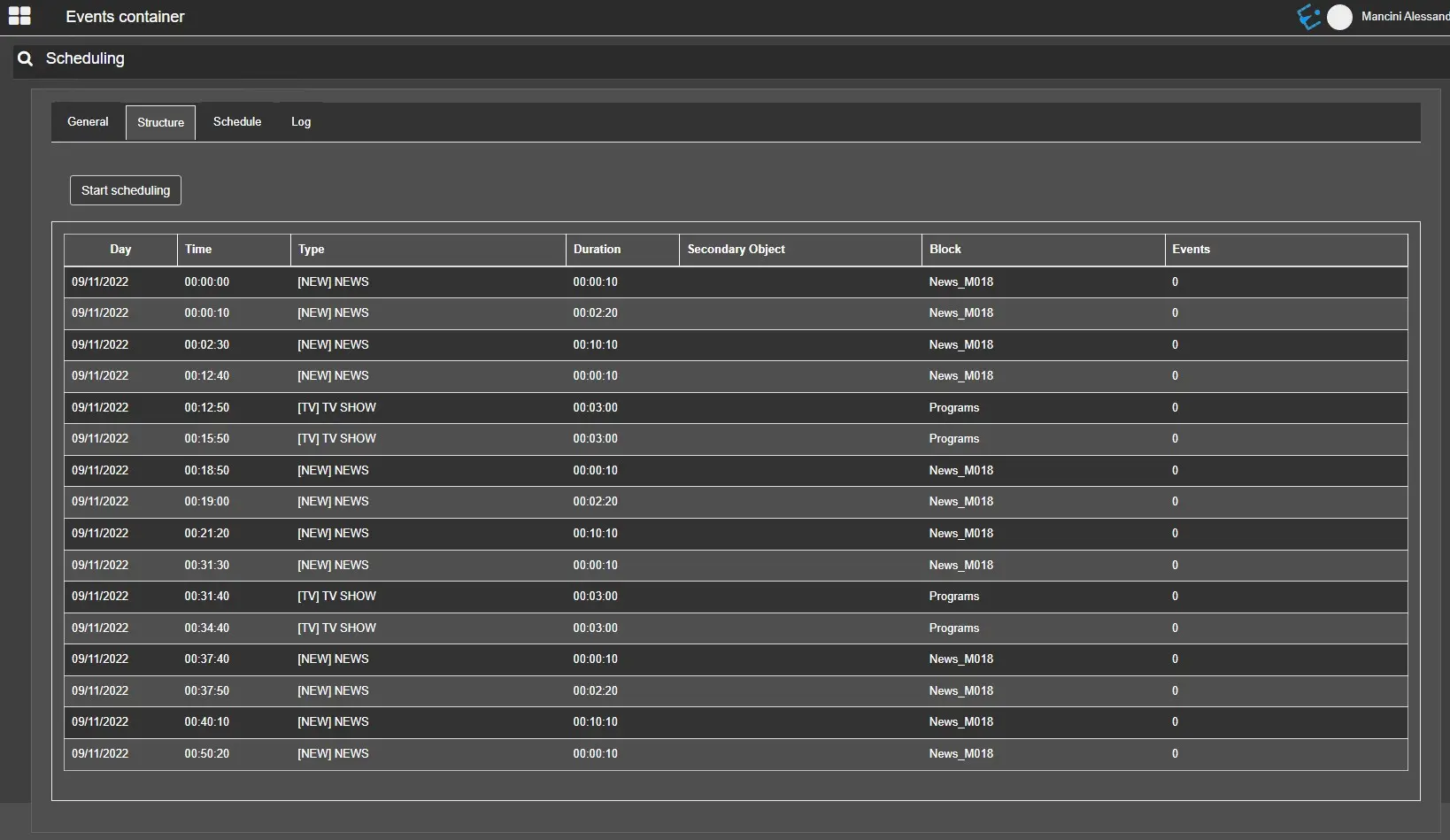
All the blocks and related segments used to build the structure will be listed in this tab.
The table shown below gives information about the following:
Date: The scheduling day where the block has been placed.
Time: Start time of the segment.
Type: Type of the segment.
Duration: Duration of the segment.
Secondary object: Shows which secondary object has been associated in the segment.
Block: Name of the block to which the segment belongs.
Events: This shows how many events are scheduled in a specific segment.
scheduling_structure_tab
The user can check the correct structure before going to the next step. If everything is correct, click the Start Scheduling button in the Schedule tab.
Schedule tab
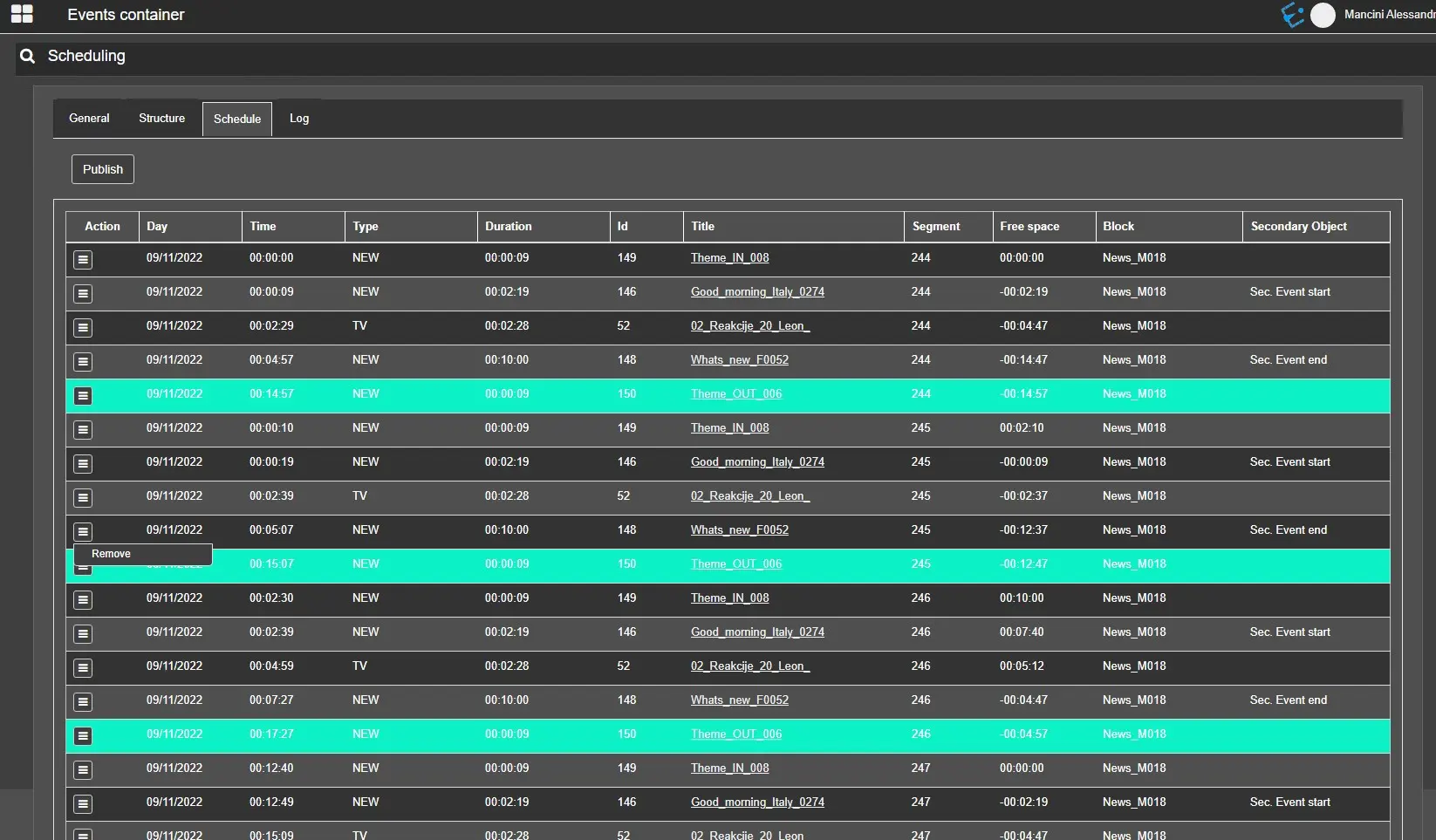
This tab allows you to preview the schedule before publishing. It's also possible to remove the wrongly scheduled events.
In the table below, information about the scheduled assets can be found:
Time: While the previous table shows the segment's start time, in this case, it shows the asset's start time according to the duration of the previous event.
Type, Duration, ID, Title: Information about the asset retrieved from its fields.
Segment: ID of the segment where the asset will be scheduled.
Free space: The amount of time left in the segment. If negative, it indicates that the asset duration exceeds the free time of the segment by a certain amount of time.
Block: Name of the block where the segment is inserted.
Secondary object: Shows if, during the container creation, a secondary object has been specified and how (start and end of it along with the primary event/start of the secondary event/end of the secondary event).
scheduling_schedule_tab
It's also possible to remove the assets by clicking the Action button and using the Remove function, as shown in the image.
Once the schedule is ready, click the Publish button to schedule the assets.
Log tab
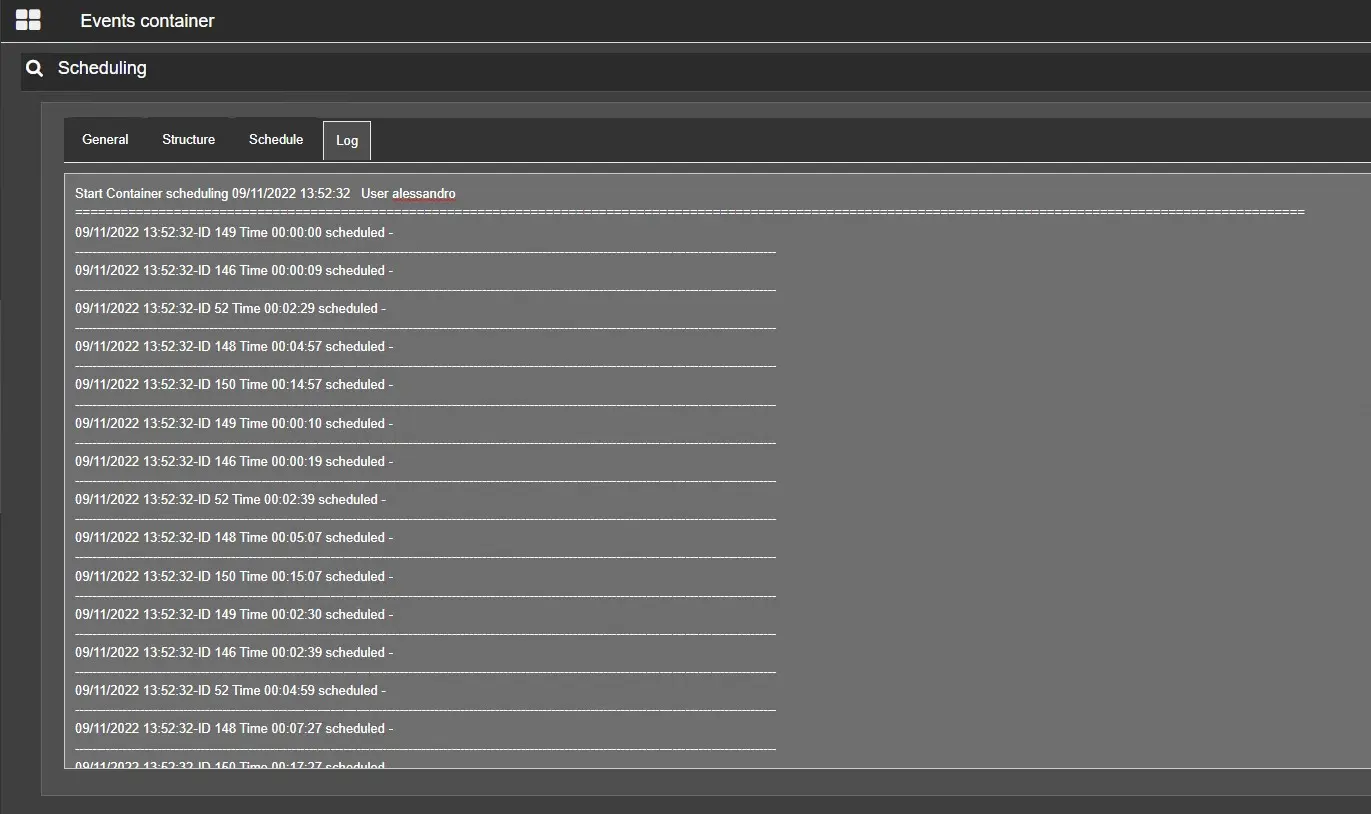
An operation log is available in this tab. The log field can be maximized to full screen, allowing the text to be copied.
scheduling_log_tab
 scheduling_general_tab
 scheduling_structure_tab
 scheduling_schedule_tab
 scheduling_log_tab