72.7.6.7 Import Rundown from FTP Server
This chapter describe the function to import Rundown (Queue) from FTP Server.
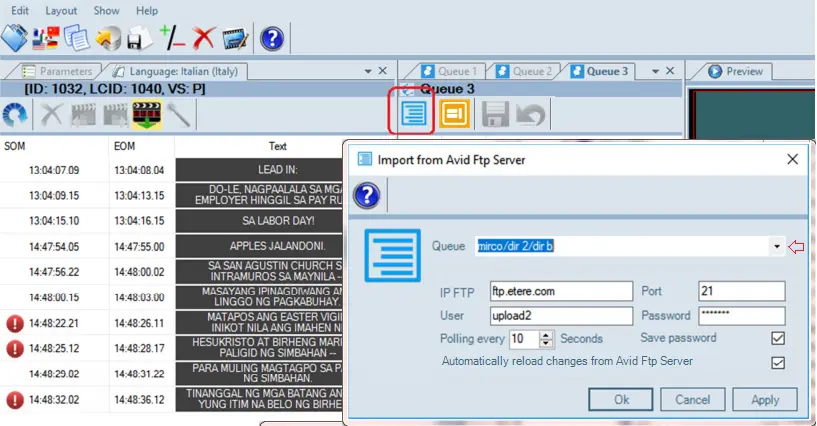
Start Subtitles Tool from MAM module, from the various “Queue” tab select the Queue where you want to import the rundown and trigger the import function by simply click on the function icon indicated below.
Queue tab
Enter the following information to connect to the FTP server:
•Queue: Specify the Queue name, e.g. Channel3.News.
In each Queue tab, you can click the down-arrow button to display a cascading list of previously accessed stories and paths, and reselect a path. For security reason, you can remove accessed path from the cascaded list by selecting the path and press the “Del” button.
•IP FTP: Enter the IP address or Domain name of the FTP server.
•Port: Enter the port number assigned to the FTP server.
•User: Enter a user name to access to the FTP server.
NB: The credentials are saved with the “Queue”, if the “Queue” name is not specified the login process would be denied.
•Password: Enter a valid password to authenticate the user name.
•Polling every 'n' seconds: Set the polling interval to reload the stories from FTP Server. The minimum interval can be set is 10 seconds. The reload has no impact on the rundown interface, the selected subtitles would remain at the same position after the reload.
•Save password: Enable this option to use the same password when subsequent polling is triggered from the same user in workstation.
•Automatically reload changes from Avid FTP Server: Enable this option to automatically reload the updated changes from the FTP Server. This option is enabled by default.
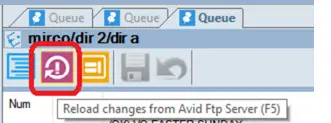
When the option "Automatically reload changes from Avid FTP Server" is disabled, a new refresh icon “Reload changes from Avid FTP Server (F5)” would be visible in the toolbar as indicated below.
Reload changes from Avid FTP Server
Note: Though visible, the “Reload changes from Avid FTP Server (F5)” is disabled when changes are not available at FTP Server. It would turned “enabled” when changes are ready for import, it served as an indicator to import the rundown from FTP Server.
In respective Queue tabs, you can have different parameter values and save those parameters specified in respective Queue when connecting to the FTP server.
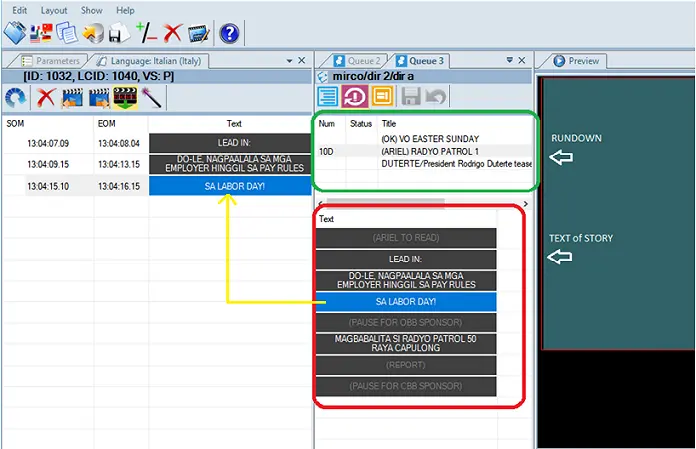
After the Rundown has been imported to Queue tab, they are displayed in two portions:
mam_subtitles_queue
Top: It contains various rundowns and titles imported from the FTP server.
Bottom: It displays the subtitles text (those in white characters) of the selected rundown. Those characters in gray lines are input/comments from the anchorman.
You can select a different rundown from the top panel and view the subtitles text in the bottom panel. To send the subtitles to Closed Captions Inserter simply double-click on the selected text in bottom panel, the subtitles text would be sent to the CC inserter which would be appeared in the left panel of Subtitles Tool. Subtitles that already sent to CC Inserter would be indicated with an icon.
 Reload_changes_from_Avid_FTP_Server
 mam_subtitles_queue
 Queue_tab