59.2.49.10 Web Ingest List
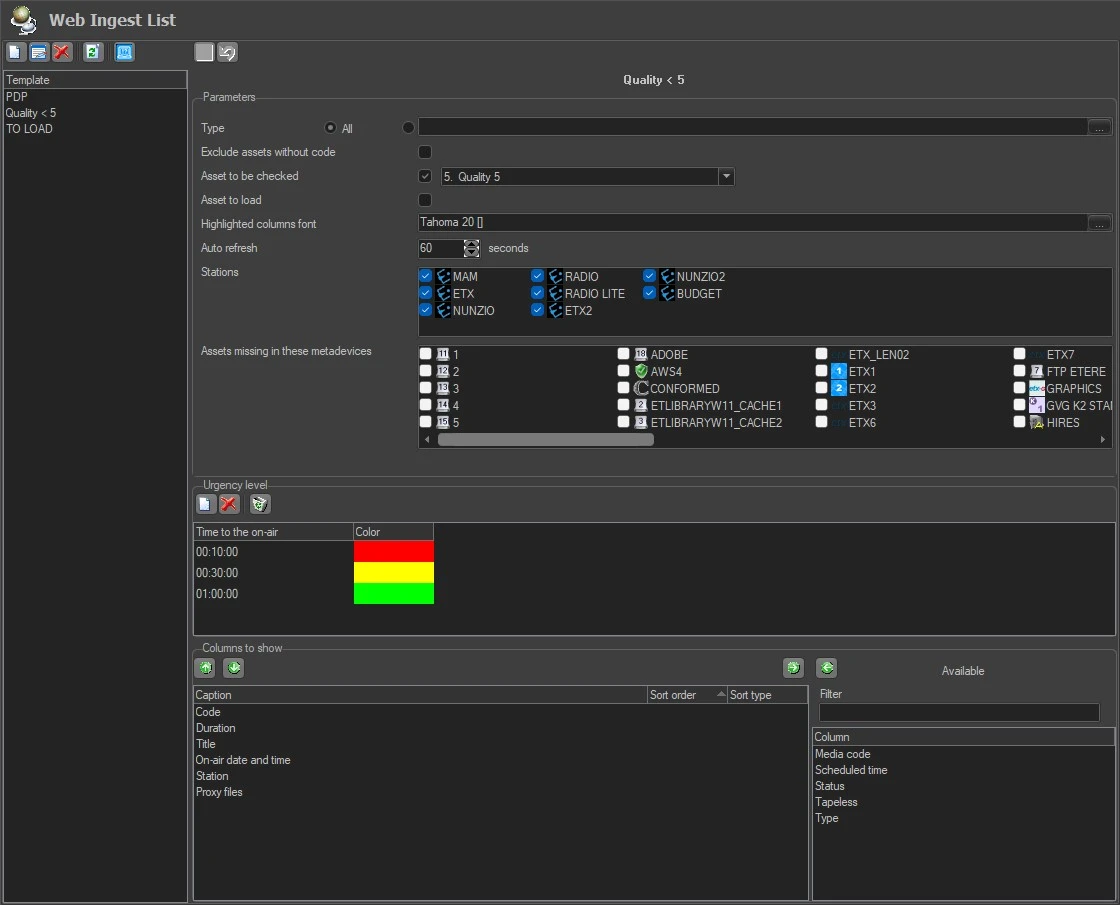
The Web List Ingest section allows for the creation of templates for the management and visualisation of the assets which have been scheduled to go on-air but which are still not yet ingested. The rules set here are applied to the Ingest list section in Etereweb (see chapter 5.1.0.0 Ingest list).
web_ingest_list
This section is mainly divided into the following three areas:
Parameters
Specify some parameters related to which assets will be included and how they will be displayed:
• Type: Indicate if the ingest list should display all pending assets or only those matching a certain type.
• Exclude assets without code: If enabled, those assets without a valid code won't be included in the ingest list.
• Asset to be checked: If enabled, only the assets with a media file linked from at least one of the videoservers (main or backup) and which quality is lower than the one set here, will be included in the ingest list.
• Asset to load: If enabled, only those assets which have no metafile linked will be displayed.
• Highlighted columns font: Set the font and size to be used in the ingest list.
• Auto-refresh: Set the frequency with which the Ingest List will be updated with assets matching the parameters set in this section.
• Stations: Select the stations on which assets to be included are scheduled to go on-air.
• Assets missing in these cloud devices: Define a list of metadevices for which the file availability will be checked. Assets without files stored in ALL these meta devices will be included in the ingest list.
Note: If both "Asset to be checked" and "Asset to load" options are enabled, both rules are applied. It's basically a logical OR between the 2 rules, so the list will display assets matching the rule [media file linked from at least one of the videoservers AND quality < value set in the template] OR [no file linked].
Urgency level
Create custom coloured priorities based on the time remaining to the asset's scheduled transmission (e.g. 30 minutes left, 1 hour left, etc.).
In the image, the the time ranges are configured in this way:
Red - 00:10:00.00 (all assets, matching the criteria, which go on-air between 0 to 10 minutes from the current time)
Yellow - 00:30:00.00 (all assets, matching the criteria, which go on-air between 10 to 30 minutes from the current time)
Green - 01:00:00.00 (all assets, matching the criteria, which go on-air between 30 to 60 minutes from the current time)
Columns to show
The following properties can be either added as columns (<-) or removed (->) from this section:
Code
Duration
Media code
On-air date and time
Proxy files
Scheduled time
Station
Tapeless
Title
Type
The order of the columns in the Ingest List can be customised by setting their sort order (1=first, 2=second, etc.) and sort type (ascending or descending).
It's also possible to not set any of the two and move the columns up or down with the arrow buttons. The upper column will be the one displayed on the left-hand side of the table.
 web_ingest_list