59.8.2.12 Zoomed view
Zoomed in view
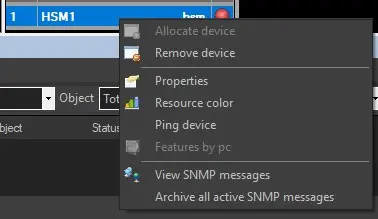
The detailed view of the resources map (i.e. zoomed in) allows consulting all the racks present in a certain room as well as managing the devices present on it through the following on-click contextual functions:
rack_contextual_functions
Allocate device - Select an empty slot and choose a device among the ones configured in the Resource Editor module to assign it.
Unallocated devices are displayed in the shown list, whereas already allocated devices are displayed at the end (e.g., to move them from their current location to the selected location).
NB: In the Monitoring Console, this function will be enabled only for users with system admin rights.
Remove device - Disassociates a previously allocated device from the selected rack slot(s).
Please note that when a device is removed from a rack slot, said slot keeps its size.
NB: In the Monitoring Console, this function will be enabled only for users with system admin rights.
Properties - Opens the "properties" form of the selected resource, allowing it to view and modify its parameters (e.g. name, location, IP address, volumes).
Resource Color - The Resource Color function launches a Windows Color template; it allows a user with System Admin rights to define the colour to identify the selected resource in the resource map.
Ping device - In the Resources Map view, you can perform a connectivity test on a selected resource by right-clicking the resource and selecting "Ping device" to send a request to the network and receive a reply. This feature works similarly to the Ping devices function in Resource Viewer.
Features by PC - If the selected device is a workstation, this function will list all the Etere modules installed on it (e.g. HSM, DataMover, etc).
View SNMP Messages - Displays all the received SNMP messages that are exclusively related to the device in the selected rack slot.
Archive all active SNMP messages - Set all the messages of the selected device as archived, thus cleaning any visual warning from the resource view.
NB: Please note that rack slots will be grey unless the device allocated on them counts with a configured colour (in this case, the device colour will be used).
Zoomed out view
The main view of the resources map (i.e., zoomed out) provides a global view of all the system rooms and the racks within them. This view will provide the following information for each room:
Room name - Shows the name of the room.
Rack name - Shows the name of the rack.
Rack status - Indicates if the rack contains devices with error messages (red ball) or not (green ball).
Rack devices - Indicates the number of devices allocated within the rack.
Please note that to manage a specific room, it is enough to select it and double-click on it.
 rack_contextual_functions