73.3.1 Encoder Configuration
The 'Encoder' tab allows selection of input and output devices and its supported format.
For incoming source, you can select the input from device source or input from IP stream (UDP/HTTP).
Encoder 1
Input: Source from device
Select video device - Select the input video device source
NB: If NDI Receiver is selected as input source, you can set the NDI bandwidth at “Lowest” level to achieve 20 MB throughput, or maximum of 120 MB throughput if set to “Highest”.
Select video line - Video line taking from the selected video device
Select audio device - Select the source of audio device. In this instance, select <From Video> if same device card contain both video and audio.
Select audio format - Etere strongly suggests to always use an audio sample rate of 48Khz when recording proxy video in order to improve the functioning of the Etere CMS loudness control (and thus permit the detection of abrupt loudness variations between assets).
Input: Source from stream
Type the stream URL: Select an input IP stream from UDP or HTTP.
NB: When recording via UDP streaming, Memory use “MPlaylist” feature instead of “MLive”, as “MLive” support low-latency video input with seamless device changes, while “MPlaylist” is flexible multi-level playlists with support for LIVE feeds, as well as support breaks, scheduling, and live configuration.
Output: Encoder Profiles
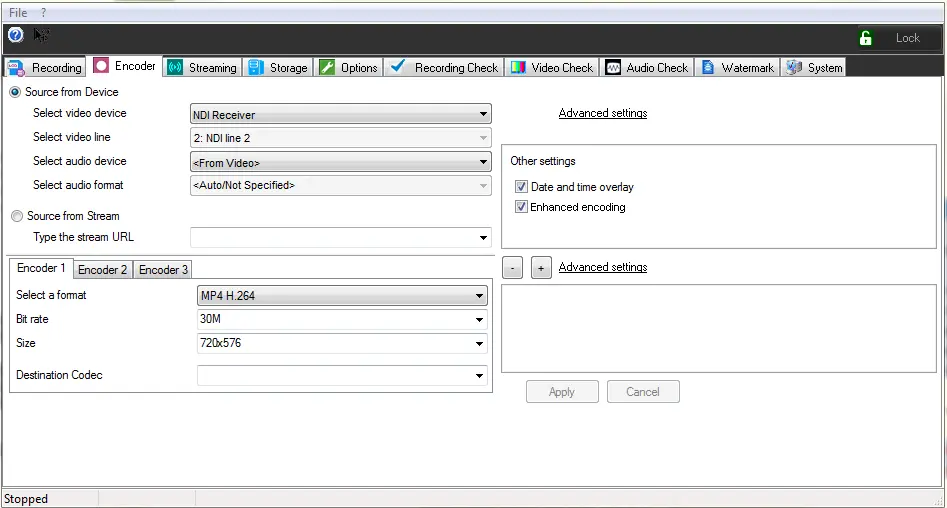
Select a format - Supported formats are displayed in the drop-down list:
- MP4 H.264
- MPEG 2
- WMV
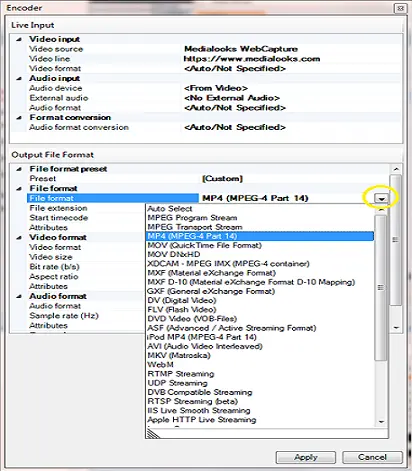
You can also click the “Advanced settings” to display a list of output file formats supported by Etere:
Encoder 2
From the list, select a desired file format and click <Apply> to confirm your selection.
For selecting NVENC format, first select format MP4 (MPEG-4 Part 14) in Advanced Settings. Once selected, the NVENC codec would be available for selection in the Video Format drop down list.
Bit rate - 1M (determined by file size of 854x480)
Size - Leave as default.
Date and time overlay - Enable this option if you want to overlay the date and time code on Memory file. When the Memory file is open in ETX Player, the date and time would be superimposed on the image. This option is only available if multiple encoding are selected.
When overlay date and time on video file, the date and time is the time set in local workstation.
NB: If you are running Memory in Windows Server 2016, MFPrint feature is used to overlay date and time code in MWriter’s OnFrame event
Enhanced encoding - Enable this option to prevent loss of frame due to misalignment between the input signal time and system time by enabling the “reader.getframe > writer.putframe” technique. You can also prevent missing frame by duplicating the frame it this option is enabled.
This option is always enabled if the “Date and time overlay”option is enabled.
NB: When encoding with NVENC’s NVidia P4000, if the “Date and time overlay” is enabled and more than one encoder has been set, you can disable the Enhanced encoding option to avoid encoding error.
Destination codec - For every Encoder profile, select a codec to save assets into database. This parameter is mandatory only if the “Save recording on Asset” option in Parameters tab is set to “Enabled”.
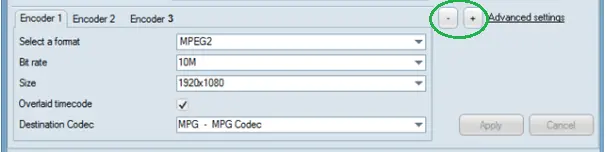
You can use the “Minus / Plus” icons Memory_Encoder_PlusAndMinus to remove existing Encoder profile from the output panel or add new Encoder profile to the panel .
Minus - Plus icons
Each Encoder profile can have its respective output format configurations. When there are multiple Encoder profiles in the output panel, one asset would contain files with similar time from all encoder profiles. The output files would be generated adhere to following naming conversion:
- Encoder 1: MEM001M-20180912-162159.mpg (unchanged)
- Encoder 2: MEM001M-20180912-162159B.mp4
- Encoder 3: MEM001M-20180912-162159C.wmv
Despite the file names, all above Memory files would be linked to the same asset.
Meanwhile, when configuring the output format in any Encoder profile, the “Advanced Settings” function is available for every Encoder profiles.
Upon configured, when you click <Apply> to confirm the settings and exist from Memory, the configuration settings would be saved when you re-enter Memory module.
NB: In the event if the <COD_PROGRA> tag contain null value, the output file would be created without file extension.
Configuration Summary
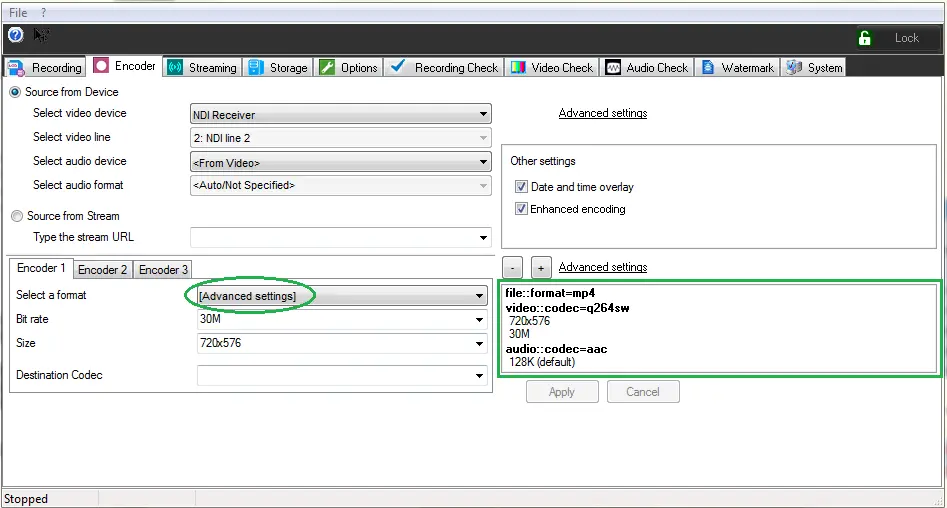
When configuring Encoder profile in Memory, the summary of the profile settings would be reflected in the right panel for respective Encoder profile after the settings were applied . If the “Advanced Settings” feature is used during the profile creation, the “[Advanced settings]” label is automatically selected in the <Select a format> parameter on the left panel to indicate the configuration process.
File 1
The Advanced Settings window present the overall attributes of the encoder configurations. To expedite the configuration process, you can manually copy the overall attributes from one encoder and applied to another encoder, and perform minor changes at target encoder.
NB: When the recording function is triggered, the device setup function in "Encoder" tab would be disabled to prevent interference to recording process.
Recording “Audio-only” File
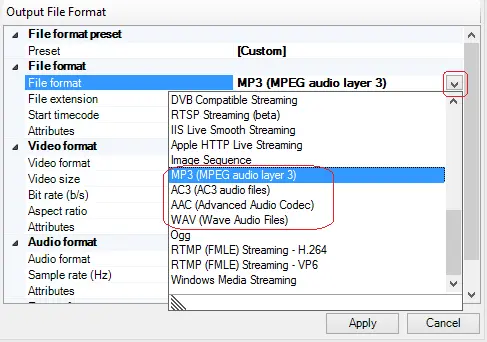
When configuring Encoder profile, you can configure to record “audio-only” file for the specific encoder. In the Encoder configuration click on Advanced Settings and select one of the audio-only file format as indicated in the screenshot below.
Output File Format
By select any of the “audio-only” file format, the video format setting would be ignored. After apply the selected file format, you can start recording file with audio-only.
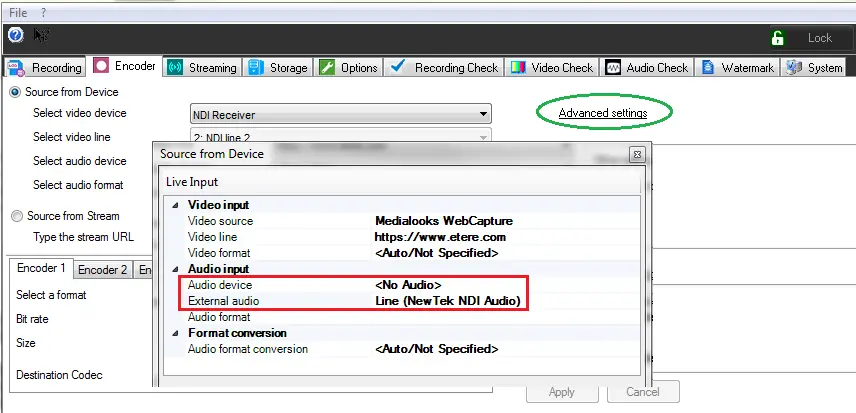
Alternatively, you can select any file format from the Advanced Settings and set the Audio Input as follow:
•Audio device = <No Audio>
•External audio = select the audio capture device
File 2
NB: In Audio Input parameter, if you select any “Audio Device” from the list, a warning message would be prompt to set preferable “External audio” over “Audio device”.
Using UTC Time in Filename
From Etere released version 28.2.7.17 onwards, if the asset forms are used to save recording to asset file (the "Save recording on Asset" option is enabled), the output asset files generated by Etere Memory would contains UTC Time in the filename, instead of the Local Time.
In the following example, output files in Local Time has been converted to UTC Time in filename format:
Filename in Local Time format: "MEMAAAB-YYYYMMDD-HHMMSSZZ.EXT"
•MEM001M-20180912-16215900.mpg (Local Time)
•MEM001M-20180912-16215900B.mp4 (Local Time)
•MEM001M-20180912-16215900C.wmv (Local Time)
UTC filename format: "MEMAAAB-YYYYMMDDZHHMMSSZZ.EXT",
•MEM001M-20180912Z14215900.mpg (UTC Time, with UTC + 2)
•MEM001M-20180912Z14215900B.mp4 (UTC Time, with UTC + 2)
•MEM001M-20180912Z14215900C.wmv (UTC Time, with UTC + 2)
where,
➢MEM = Fixed for Memory file
➢AAA = Station number, e.g. 001
➢B = This character can be M, N, O, P or Q if recording in Main Memory instances 1 to 5. For recording in Backup Memory, this character can be indicated as B, C, D, E of F for backup Memory instances 1 to 5.
➢YYYYMMDD = Recording date in year, month, date format.
➢Z = indicate the file name is in UTC time format.
➢HHMMSSZZ = Recording time in hours, minutes, seconds and hundredths of seconds format.
➢EXT = file extension.
The example above uses UTC Time in filename, replacing the hyphen (“-“) with a character “Z” to separate the date from time.
Note: If your Memory Browser version is 28.2.5.6 or higher, it is able to recognize Memory output filenames generated in UTC Time and Local Time.
 Encoder_2
 File_1
 Minus_-_Plus_icons
 Encoder_1
 File__2
 Output_File_Format