63.3.1 Ingest
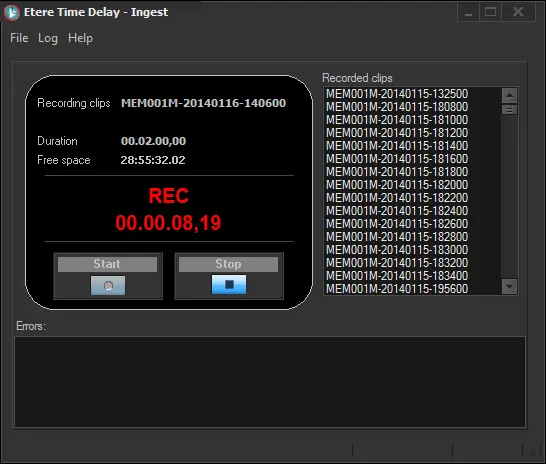
The "Time Delay - Ingest" automatically captures video arriving on a specific encoder with a given delay and a fixed duration. This module has a simple and highly intuitive graphical user interface, which is mainly formed by the following panels:
Time Delay - Ingest
LEFT PANEL
Recording controls and information. Here are displayed the following elements:
▪Recording clip: Name of the clip being currently recorded
▪Duration: Fixed duration of recorded clips
▪Free space: Remaining space for clip recording
▪REC status: Red indicates idle, green indicates recording.
▪REC time: Time elapsed since the recording started.
▪[Start]: Trigger a new recording
▪[Stop]: Interrupt an ongoing recording
RIGHT PANEL - List of all recorded clips stored in the server. Clips are displayed detailing the following information:
▪Name: Filename based on a specific file naming format (e.g. MEM001M-20130127-124853.MXF) that includes vital information for their future playback.
BOTTOM PANEL
Errors encountered during the recording process will be displayed in this section.
NB: Free space is automatically updated every 2 minutes (except within the last minute before the expected end of an ongoing recording).
Starting a recording
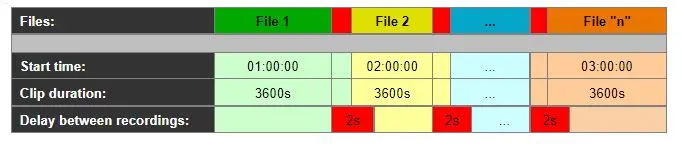
Press the [Start] button to start recording clips in the server, automatically and continuously, as in the following example:
Start recording clips
NB: For detailed information on all recording criteria involved in this process, please refer to the "Recording Criteria" chapter.
Once the recording has started, you can start playing out the recorded content (according to the delay parameters).
 Time_Delay_-_Ingest
 Start_recording_clips