72.2.2.29 Annotations - Download
The Download function allows to download a file held in the disc in question (from the SOM and EOM marks defined in the asset) to a predefined cloud-device. In order to download a media file just follow the next steps:
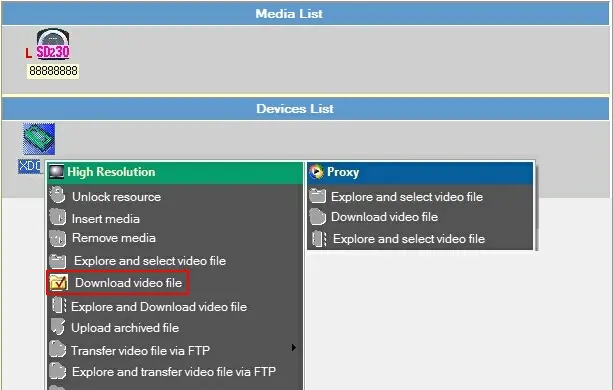
1. Select the download option from the devices's contextual menu:
Download
NB: Please note that downloaded clips are retrieved from XDCAM discs based on their timecode marks (SOM and EOM), therefore, it's highly advised to make clips stored in in the same disc to have different marks, otherwise, the first one matched will be retrieved for download.
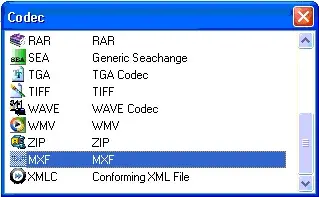
2. Select the codec with which the download file will be entered in the database:
Codec
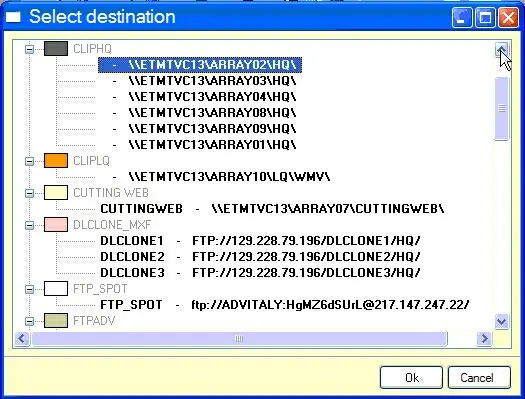
3. Specify the media folder (i.e. cloud-device path) on which the downloaded file will be stored:
NB: Please note that paths displayed here corresponds to the metadevice's translated paths (Configuration > Settings > Web > Media folders).
Cloud-device path
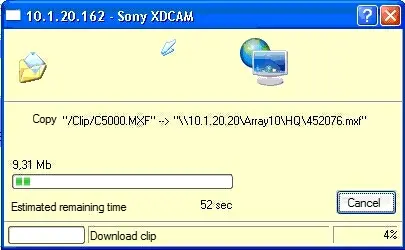
4. The download will start, displaying a progress bar:
Progress bar
NB: Please note that during the download, the system needs locking the XDCAM resource, therefore, in case the device is locked by another module/system, an error message will be displayed.
5. Once the download is complete, the Media List will be updated with the new media file:
Media List
 Progress_bar
 Download
 Cloud-device_path
 Codec
Codec