84.11.1 Edit Multiple Ticker Files
If there are multiple ticker files needs to be edited, you can open the ticker files by selecting the folder and open all ticker files and start editing, this feature only take effect if the ticker text files are resided in same root folder, ticker text files in sub folders would not be considered.
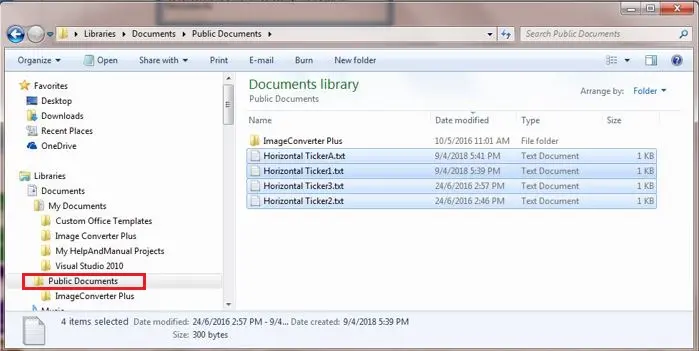
In the following example, 4 ticker text files are resided in the root folder of C:\Documents\My Documents, you can open all 4 files in single function for editing
Ticker_files_root_directory
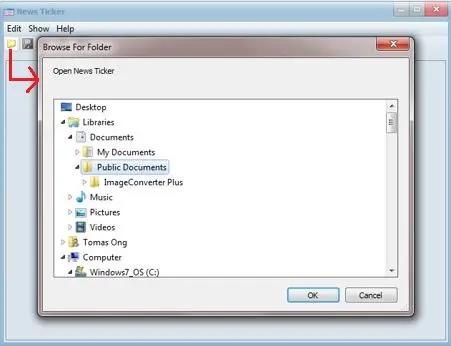
Now launch the Scheduling module and activate “News Ticker” from the Start menu. Click the <Open> icon to open and browse the file folder.
Open_root_directory
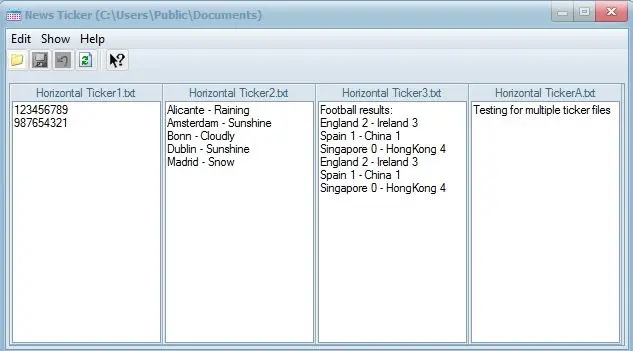
Select “Public Documents” folder where all the 4 ticker files are stored and click <OK> to confirm the folder selection. All files are opened in the News Ticker window for editing.
Open_multiple_ticker_files
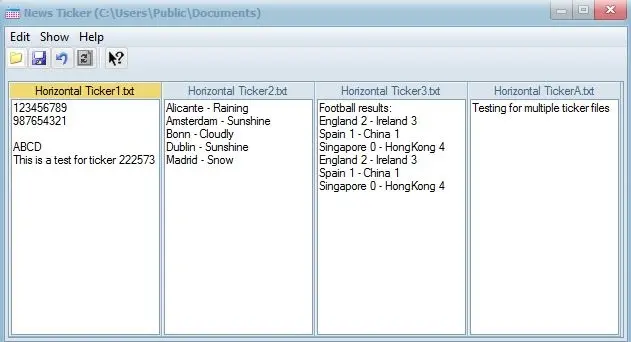
When you edit a ticker file, the header of the ticker file would be highlighted as shown in the image below.
Edit_multiple_ticker_files
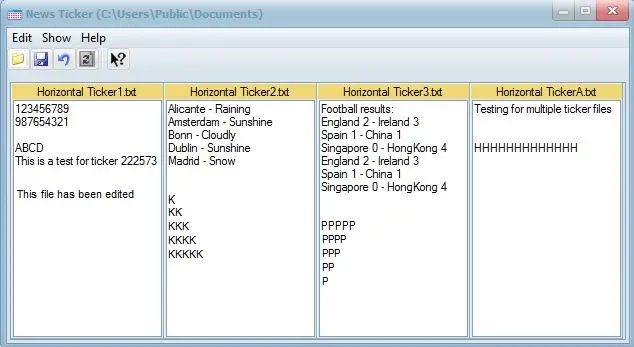
You can toggle among the ticker files and edit every file in single window.
Edit_all_multiple_ticker_files
when editing are completed simply click the Edit function and select “Save” to save the changes made to all ticker files to the same folder. Moreover, using the “Save as” function you can save all ticker files to a different destination folder (e.g. backup server), this feature enabled you to update the changes in two location within single operation.
Using Copy (or Cut) and Paste
During editing, you can use the common Copy (Ctrl+C), Cut (Ctrl+X) and Paste (Ctrl+V) function to copy / move the content between ticker files.
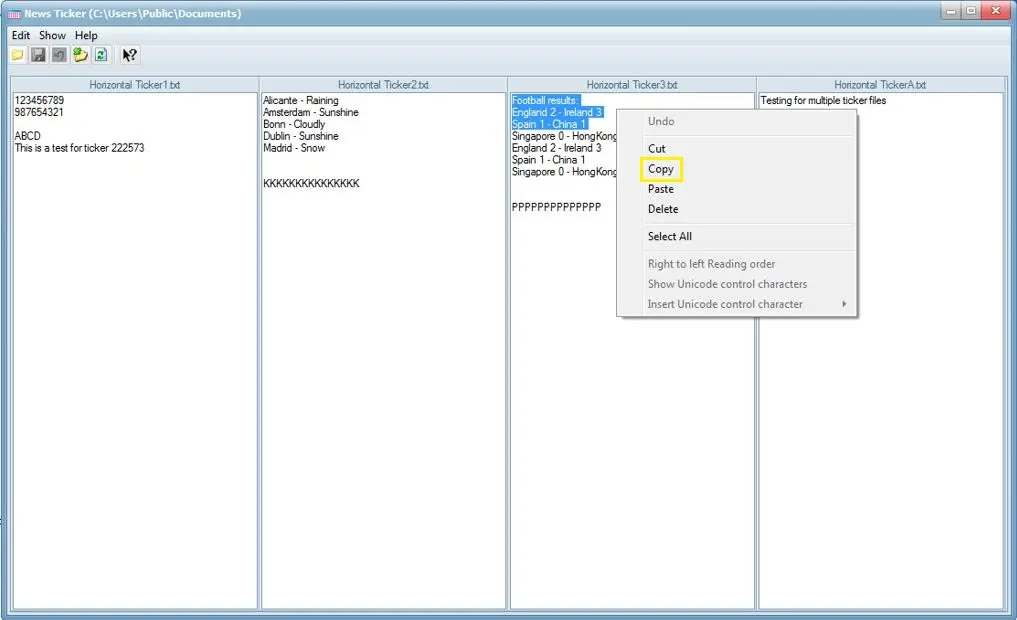
From the News Ticker edit box, simply select the content you want to make duplication, right-click and select "Copy".
Scheduling_news_ticker_copy_content
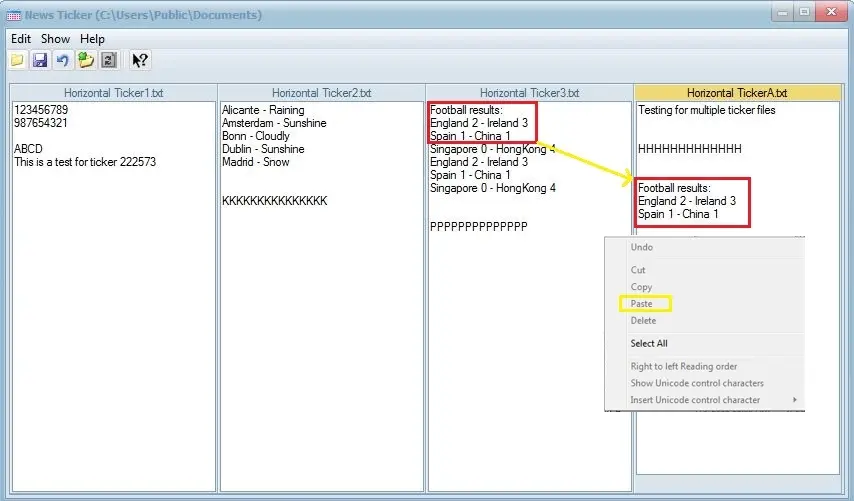
At the destination file, right-click and paste the content.
Scheduling_news_ticker_paste
 5379_Edit_multiple_ticker_files
 5378_Scheduling_news_ticker_paste
 5377_Open_root_directory
 5376_Ticker_files_root_directory
 5375_Open_multiple_ticker_files
 5374_Scheduling_news_ticker_copy_content
 5373_Edit_all_multiple_ticker_files