70.3.8.3 Drive panel
The "Drive panel", located in the top part of the window is mainly formed by the following sections:
Maintenance Mode
Local Device
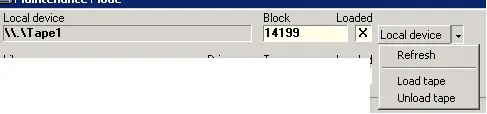
Located in the top panel of the window, it displayed the Tape Drive information managed by the server, this information includes the name of the device, the block on which the tape is positioned and a flag indicate if a tape is loaded in the drive reel:
Local Device
Additionally, by click on the "Local device" drop down menu, you can perform the following actions:
•Refresh: Update the tapes information on local device.
•Load Tape: Load the cartridge tape into the drive reel of the cartridge.
•Unload Tape: Completely rewind the cartridge and remove it from the drive reel.
Library drive
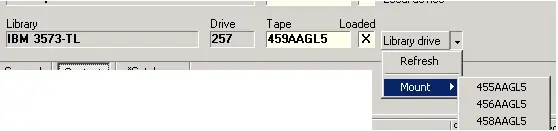
In this section it displayed the Drive information as provided by the library, including the library name, identification drive, mounted cartridge barcode and a flag indicate if the cartridge tape is loaded into the library drive:
Library drive
By click on the "Library drive" drop down menu, it will be possible to:
•Refresh: Update the mounted tapes information in Library drive.
•Mount: Mount a tape to the drive and select a tape number / barcode from the drop down list and assign to the tape. You can also type a tape number / barcode directly in the combo-box to be assigned to the mounted tape.
NB: When a single drive is replaced in library and the drive number (e.g. 256) remain unchanged, there is no need to remove the old Data Pump configuration, simply select the “New” option from the list of Data Pump to start and update the existing configuration.
 Maintenance_Mode
 Local_Device
 Library_drive