92.1.4.1 Mapping Channels and Commands
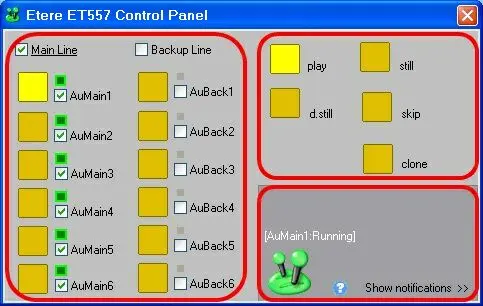
The main window of the Automation controller is a virtual representation of the EA1790 Control Panel, allowing to map all the automation and command buttons available to user-defined values, as explained in the following lines:
Etere_ET557_Control_Panel
Automation channels
The 12 buttons are deployed in 2 vertical rows (1 row for main and 1 row for backup) at the left panel of the EA1790 Control Panel. The possible functioning scenarios are:
i.If the Main Line is selected, the EA1790 Control Panel would control only 6 main automation channels, sending commands to the selected ones.
ii.If the Backup Line is selected, the EA1790 Control Panel would control the 6 backup channels, with the selected backup automation channels.
iii.If both Main and Backup Lines are selected (rarely used, and not recommended), the EA1790 Control Panel would control both lines simultaneously by using two different COM ports. Please note that in this case, it is not possible to use the Master/Clone configuration.
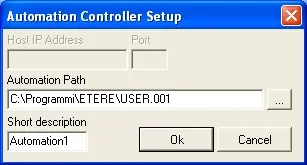
It is possible to assign all 12 buttons to control respective automation channel by clicking on the button, compiling the information and enabling the related checkbox:
Automation_Controller_Setup
•Automation Path: Specify the path (local or UNC) of the automation to be controlled by the selected button.
•Short Description: Enter a brief description to individuate the automation to which the selected button is related (e.g. automation1).
Once an automation has been assigned to a button (i.e. path is compiled) and enabled (i.e. checkbox is ticked), the Automation controller will automatically establish a connection to determine its functioning status, this status will be represented by the related light code as follows:
•Green: The connection to the automation has been established (i.e. automation is open).
•Red: The connection to the automation encounter some problems (e.g. the automation is open but the on-air module is closed). In this case a manual switching is required.
•Black: The connection to the automation is offline (e.g. the automation is either not ticked off or not assigned).
•Grayed: There is no automation associated or the one associated is down.
Moreover, the automation buttons present in this area (both Main and Backup lines) displayed with a different color according to their status on the EA1790 Control Panel:
•Steady ON: the related EA1790 Control Panel button is active (i.e. selected automation will receive remote commands).
•Steady OFF: the related EA1790 Control Panel button is not active (i.e. selected automation won't receive remote commands).
•Blinking: the related EA1790 Control Panel button is active BUT it encounter some problems (i.e. selected automation is offline, stopped or not working properly).
Automation commands
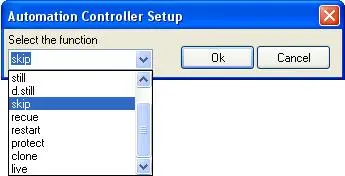
In order to map the buttons present in the right panel to specific automation commands, click on a button and select one of the following functions:
Automation_Controller_Setup_1
Command - NONE
Light status : ON ------------------------
Description : No automation command is associated to the button.
Light status : OFF ------------------------
Description : No automation command is associated to the button.
Command - PLAY
Light status : ON Automation in PLAY
Description : No PLAY command will be performed since the automation is already in PLAY.
Light status : OFF Automation not in PLAY
Description : Starts the automation playback from the current event's position if STILLED (if D.STILLED no action will be performed).
Command - STILL
Light status : ON Automation STILLED
Description : Starts the STILLED automation playback from the current event's position.
Light status : OFF Automation not STILLED
Description : STILLS the automation playback, pauses the current playing event.
Command - D.STILL
Light status : ON Automation D.STILLED
Description : Starts the D.STILLED automation playback from the current event start.
NB: The light will blink in case the current event's type is manual.
Light status : OFF Automation not D.STILLED
Description : STILLS the automation playback at the end of current playing event.
NB: The light will blink in case the current event's type is manual.
Command - SKIP
Light status : ON SKIP command sent
Description : Queues a new SKIP command.
Light status : OFF No SKIP command sent
Description : Skips a PLAYING automation playback (i.e. plays the event next to the current one). Restarts a D.STILLED automation playback.
Command - RE-CUE
Light status : ON RE-CUE command sent
Description : Positions the automation playback at the current event's start and Play it.
Light status : OFF No RE-CUE command sent
Description : Positions the automation playback at the current event's start and STILLS it.
Command - RESTART
Light status : ON RESTART command sent
Description : Starts the automation playback at the beginning of the current event.
Light status : OFF No RESTART command sent
Description : Starts the automation playback at the beginning of the current event, is not activated.
Command - PROTECT
Light status : ON Automation is PROTECTED
Description : Activates the automation "protect" function, that is, switches the Master Control to the clone's decoder.
Light status : OFF Automation is not PROTECTED
Description : Deactivates the automation "protect" function, that is, switches the Master Control back to the master's decoder.
Command - CLONE
Light status : ON Automation in CLONE mode
Description : Set the automation playback into "master" mode.
Light status : OFF Automation in MASTER mode
Description : Set the automation playback into "clone" mode.
Command - LIVE
Light status : ON Automation in LIVE Emergency
Description : Switches the Master Control back to the channel previous to the "live emergency".
Light status : OFF Automation not in LIVE Emergency
Description : Switches the Master Control to the "emergency live" channel set in the automation router settings (i.e. "channel to set during an emergency live").
NB: Please note that in case multiple automations are selected, the command lights will be all off to indicate their availability for sending the command associated to them to the selected automations (only if the automation supports them).
Notification area
Every time an automation is selected, a notification is sent to the editor managing it. By pressing the Show Notifications button the list of sent notifications would displayed together with possible verified errors:
Cp-notifications
 Automation_Controller_Setup_1
 Cp-notifications
 Etere_ET557_Control_Panel
 Automation_Controller_Setup