59.2.49.4 Web Assets Search
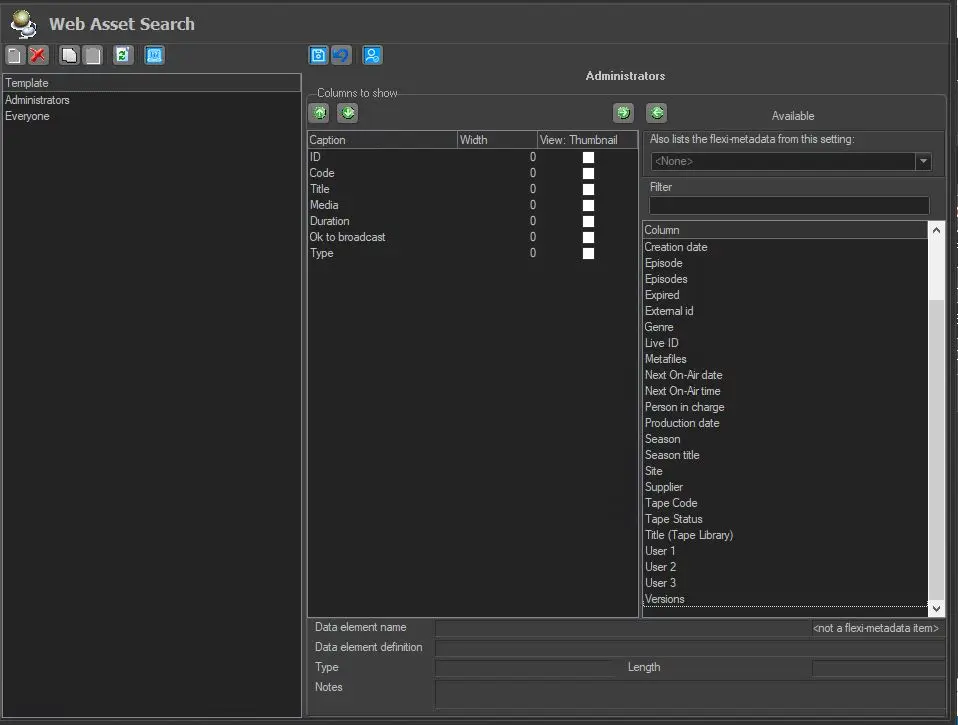
The Web Assets Search section allows customising the information (columns) included in the grid of results displayed every time a web user search for an asset using EtereWeb. Customised columns are saved as search layouts applied to specific groups; that is, search layouts are displayed according to the group to which the web user belongs.
Web_asset_Search
A list of user group templates is available for selection on the left panel; once a user template is selected, a list of available columns will be listed in the <Columns available> window. Users can select desired columns to be displayed in EtereWeb by adding or removing them from the central panel <Columns to show> using the left and right green-arrow buttons or double-clicking on them.
A few column properties can be defined in the "Column to show" panel:
Caption - The captioned columns selected by the user to be displayed in search results.
Width - You can set the width of each column. The default setting is "0".
View: Thumbnail - Display or hide the thumbnail view of the asset.
On a fresh installed Etere system, no search layouts are used. However, they can be managed for specific users groups through the use of the following functions:
Add - Create a new template for a specific group of users.
Save - Store all added columns in the database and open the "Group users" form to allow applying the current search layout to either all the group users or only some of them.
Undo - Cancel the last change performed to the search layout (e.g. the last column added).
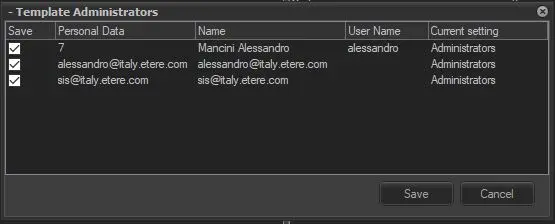
Group users - This form allows specifying (through the "save" form) the users to which the current search layout will be applied. The selection of users will depend on whether they belong to one or more groups:
group_users
• Users belonging to only one group: They will be automatically selected to make them use the current search layout. Deselecting this kind of user is not allowed.
• Users belonging to various groups: They will be automatically deselected to make them keep their previously applied search layout. Deselecting this kind of user will make their previously applied search layout overwritten by the current one.
Up / Down - Moves the selected column either up or down on the current search layout.
Remove / Add - Either remove or add the selected column from the current search layout.
Edit - Modify an existing template.
Delete - Removes the selected custom template.
Refresh - Updates all data displayed in this section by querying the database.
The filter in the right part of the window allow to filter available columns according to multiple criteria (asset properties and Flexi-metadata).
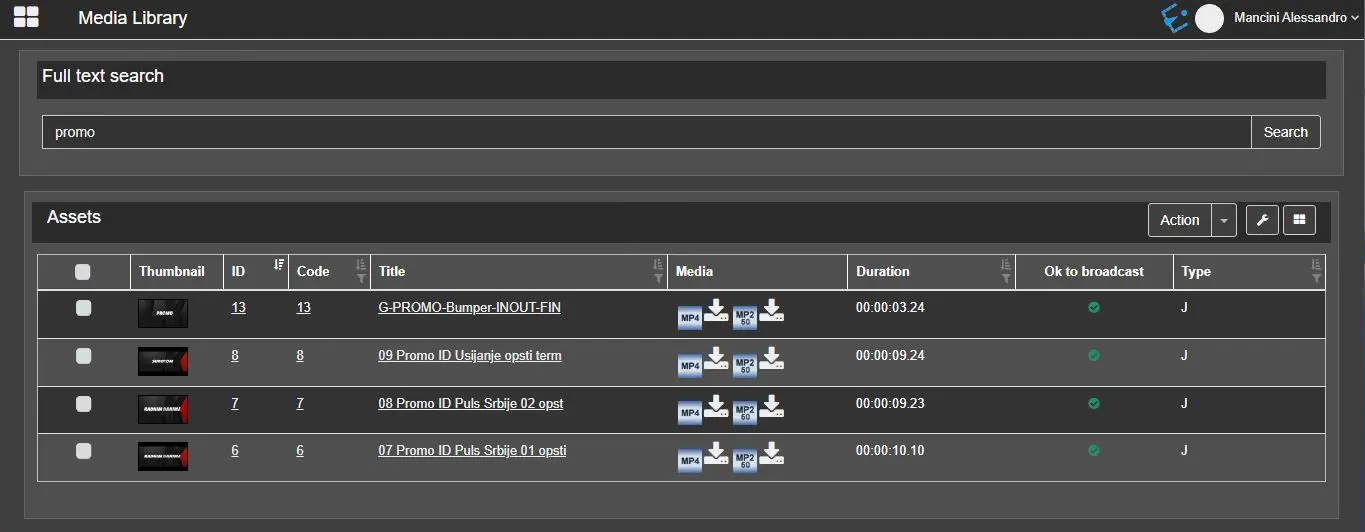
Once the search layout is configured, it will be used to display the proper results columns every time the related group users search for assets on EtereWeb:
Etereweb_assetsearch
Note: all columns will be displayed if the logged-in user has system administrator rights.
 Web_asset_Search
 Etereweb_assetsearch
 group_users