59.3.10.17 Asset Actions
Aspect ratio check: a b c d
Aspect_ratio_check
Description: Retrieve the aspect ratio conversion set for the Asset to know which conversion must be applied.
Results:
a. SD 4/3
b. SD 16/9
c. HD
d. Other
Can be broadcasted: a b
Can_be_broadcasted
Description: Check if the Asset can be broadcasted or not.
NB: The "broadcast allowance" of assets is set/changed through the "OK to broadcast" and "Not OK to broadcast" actions, also explained in this chapter.
Results:
a. OK to broadcast
b. Not OK to broadcast
Can delete Asset: a b
Can_delete_asset
Description: Check if the Asset can be deleted or not.
To be allowed for deletion, assets must accomplish the requisites detailed in the "Can I delete any asset?" section of the "Automatic Video Files Operations" chapter.
Results:
a. Asset can be deleted
b. Asset cannot be deleted
Check if read-only: a
Check_if_read-only
Description: Check if the Asset is currently "read-only" or "read/write".
Results:
a. Asset is read/write
b. Asset is read-only
Delete Asset: a
Delete_asset
Description: Delete the Asset to which the T-workflow is attached, permanently eliminating it and all its related information from the database.
Note: If the Asset has costs derived from worksheets, executing a "delete asset costs" action may be required.
Results:
a. Not deleted: A failure has prevented the Asset from being deleted.
Delete asset costs: a
Delete_asset_costs
Description: Delete the Asset's costs derived from worksheets, thus making the Asset available for deletion.
Results:
a. Deleted: All related costs have been deleted from the system.
Check if EDL # exists
Description: Check if the selected version (#) of the EDL actually contains at least a single element (keyframe, visible segment or black segment)
Results:
a. Yes
b. No
Expiry date check: a b
Expiry_date_check
Description: Verify whether the maximum allowed date for broadcasting the Asset has been reached.
Results:
a. Expired asset
b. Not expired Asset
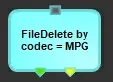
File Delete by [codec]: a b
File_Delete_by_[codec]
Description: Request to the "Operations by workflow" module the automatic physical deletion of all asset files matching a given codec (e.g. MPG).
NB: Automatic physical deletions can also be requested using the "file delete on device" default actions and the "Asset file delete" custom actions. For logical deletions (i.e. db references), use the "delete from device" action.
Results:
a. Metafile deleted: The Metafile has been successfully removed
b. Metafile not deleted: The system was unable to delete the Metafile
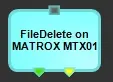
File Delete on [device]: a b
File_Delete_on_[device]
Description: Request via T-workflow the deletion of all asset files stored on a given device (e.g. MTX1). Please note that T-workflow deletion requests must be completed from the "Operations by workflow" module.
NB: Automatic physical deletions can also be requested using the "file delete by codec" default actions and the "Asset file delete" custom actions. For logical deletions (i.e. db references), use the "delete from device" action.
Results:
a. Metafile deleted: The Metafile has been successfully removed
b. Metafile not deleted: The system was unable to delete the Metafile
Is Asset 0 based: a
Is_asset_0_based
Description: Indicate if the timecode of an asset is either zero-based or not.
Results:
a. Yes: The asset timecode is zero-based.
b. No: The asset timecode is not zero-based.
Mark as active: a
Mark_as_active
Description: Set the Asset as not expired, as it is currently active for broadcast.
Results:
a. Active: The "expired" property has been set to false
Mark as expired: a
Mark_as_expired
Description: Set the Asset as expired, as not allowed to broadcast.
Results:
a. Expired: The "expired" property has been set to true
Not OK to broadcast: a
Not_ok_to_broadcast
Description: Set the media unable to be broadcasted by the automation. Please note that in case of completely avoiding broadcasting assets which are "not OK to broadcast", it's required to enable the following parameters in the system:
•Events which are not OK to broadcast must not go on-air: This parameter, set in "Configuration > Settings > EE > Schedule Parameters > Global", makes the scheduling insert events which are not OK to broadcast without media into schedules.
•Ignore (skip) events without media: This parameter, set in "Automation > Settings > Parameters", makes the automation skip (not transmit) all events which are not OK to broadcast.
Results:
a. Asset updated
OK, to broadcast. a
Ok_to_broadcast
Description: Set the Asset to be broadcasted by the automation.
Results: a. Asset updated
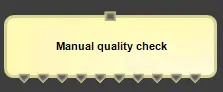
-Manual- Quality Check 0 1 2 3 4 5 6 7 8 9
Manual-_Quality_Check
Description: This action enables the operator to manually set the Quality of the Asset's audio/video content from either the Media Library or Ingest module.
It's worth mentioning that the name, colour and state of this action can be edited under the "Actions Editor".
Results:
0: Unknown media quality (not set)
1: Very poor media quality
2: Poor media quality
3: Very mild media quality
4: Mild media quality
5: Moderate media quality
6: Acceptable media quality
7: Good media quality
8: Excellent media quality
9: Optimal media quality
NB: Please note that T-workflows containing a "manual quality check" action will be temporarily halted on this action (to allow operators which count with rights over this action to assign a quality value either via desktop or web) ONLY if the Asset's Quality is "0" (i.e. unknown); otherwise (i.e. for 1-9 values) the T-workflow will bypass this action.
Quality Read - 0 1 2 3 4 5 6 7 8 9
Quality_Read
Description: Ask the database for the Quality of media.
Results:
0: Not set media quality
1: Very poor media quality
2: Poor media quality
3: Very mild media quality
4: Mild media quality
5: Moderate media quality
6: Acceptable media quality
7: Good media quality
8: Excellent media quality
9: Optimal media quality
Quality Reset - a
Quality_Reset
Description: Set the Quality of the Asset as "unknown" (i.e. 0).
Results: a. Quality updated: The asset quality has been set as "unknown".
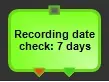
Recording date - a b
Recording_date
Description: Consults the database to know if an asset has been recorded in the past "x" days.
Results:
a. No
b. Yes
Retrieve on device - a b
Retrieve_on_device
Description: Retrieve a metafile (to be linked to an asset) referred to as a video file stored on a specific meta device.
Results:
a. Metafile retrieved: The file has been successfully retrieved
b. Metafile not retrieved: The system was unable to retrieve the file
Set read-only - a
Set_read-only
Description: Set the Asset as read-only; that is, all its data (e.g. properties, Flexi-metadata, media edl, workflows, etc.) will be protected against changes from the following modules: Media Library, Quality check, Multifunction ingest and Easy ingest (in all these modules a label will indicate the read-only status of the Asset).
Results:
a. Asset set as read-only
Set read/write - a
Set_read-write
Description: Set the Asset as read-write, enabling all its data (e.g. properties, Flexi-metadata, media edl, workflows, etc.) for manual changes from the Media Library.
NB: T-Workflows containing a "set read-write" action need to be launched from the "Search" tab of the Media Library using the launch workflow contextual function.
Results: a. Asset set as read/write
Set vtv asset data from file - a
Set_vtv_asset_data_from_file
Description: Set the Asset's general data (i.e. station, code, title and type) from the information contained in the filename of the current Metafile, which should be formatted as in the following name convention:
[station]_[type]_[title].[extension]
(e.g. VTV Cable_FILM_The shark.mxf)
The type and title will be retrieved from the filename shown above, whereas the code will be generated as follows:
[station]_[type]_[yymmdd]_[assetId]
(e.g. VTV Cable_FILM_141231_6548)
¹: If the type doesn't exist in the database, it will be set to "0000".
²: If the station isn't in the database, it will be "Unknown".
Results: a. Asset data set
Other categories:
Audio
Content Management
Lock
Schedule
Stations
Secondary events
Types
Video Assist
Web Request
 Aspect_ratio_check
 Can_be_broadcasted
 Check_if_read-only
 Can_delete_asset
 Delete_asset
 Delete_asset_costs
 Expiry_date_check
 File_Delete_by_[codec]
 File_Delete_on_[device]
 Is_asset_0_based
 Mark_as_active
 Mark_as_expired
 Not_ok_to_broadcast
 Ok_to_broadcast
 -Manual-_Quality_Check
 Quality_Read
 Quality_Reset
 Recording_date
 Retrieve_on_device
 Set_read-only
 Set_read-write
 Set_vtv_asset_data_from_file