72.2.2.48 T-Workflow
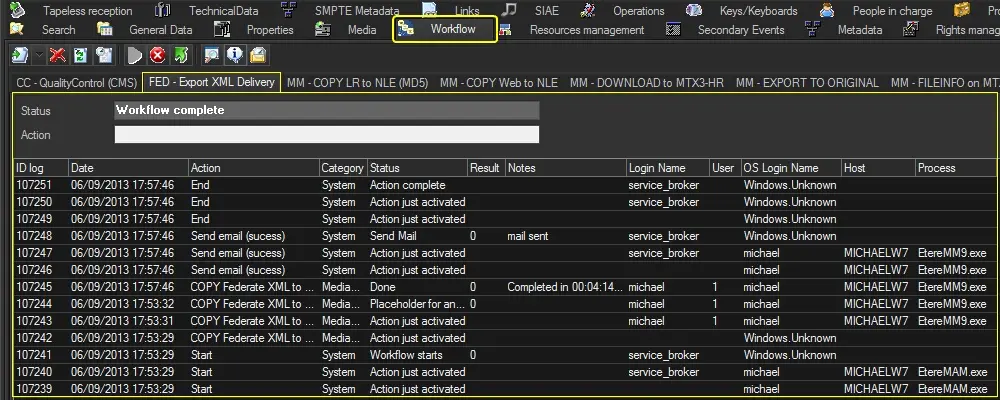
The T-Workflow tab allows to manage (add, launch, reset or remove) T-workflows attached to the current asset. For every T-workflow the following information will be provided:
Workflow
Running information
Status - Display the status of the T-workflow in question (active, completed, aborted, fault, etc).
The displayed colour depends on the 'status' dictated in the T-workflow itself.
NB: If the T-workflow ends but the status remains active, the workflow would be closed by the process.
Action - Shows the current operation that the T-workflow is performing.
The displayed color is the same as the current T-workflow action.
Progress - Available only for DataMover actions, displays the estimated progress of the action.
Log information
ID Log - Unique identification number of the log line. The log is initially sorted -in descending order- based on this column.
Date - Date on which the operation was performed.
Action - Action to which the log line is related.
You can delete any action associated to the asset in the T-workflow without interrupting the whole T-workflow process. Before deleting the T-workflow action you would be prompt to export/save all log files pertaining to the T-workflow action. The default destination path of the T-workflow logs is a new folder named as the T-workflow name in Etere log’s path. After exported to destination folder, a log file would be created for each associated assets in the T-workflow action.
Category - Category under which the processing action falls.
Status - Status of the action execution (i.e. activated, completed, done, etc.).
Result - This column contains the value that represents the result of the action. 0 means the action was successfully performed. A value different from 0 (e.g. -4, -3, -2, -1, 1) means the action FAILED due to issues specified in "Notes" column.
¹ For errors related to Etere components (e.g. 419430404, 419430415) refer to SNMP Traps List.
² For errors related to external systems (e.g. Baton) refer to the respective documentation.
Notes - Brief description on the action result (success or error).
Login name - Username of the action executor. Automatic database actions are referred as "service_broker".
User - Username of the action requester.
OS login name - Name of the windows user logged in the host when the action was performed.
Host - Computer from which the operation has been performed.
Process - Application that performed the operation (e.g: EtereMAM, EtereMM9, etc.).
Note:
For information regarding how to solve common T-workflow problems refer to the "Troubleshooting workflow issues" chapter.
Available operations
Along the top of the screen are various icons representing operations that can be carried out in the form. As T-workflows are associated to the form, they will appear as tabs below the icons bar:
Add workflow - List all available T-workflows that have not yet been assigned to the asset in question, allowing to select which T-workflow should be associated to the asset.
When new T-workflow is associated to asset, the T-workflow is inserted as a new tab named after the T-workflow and turned into an active workflow tab.
NB: Only T-workflows granted to the user will be displayed. See rights management.
Delete workflow - Remove the T-workflow association from the selected asset(s).
NB: In case the T-workflow contains "worksheet" actions which have generated costs, a warning message will be displayed to inform the operator about this issue.
Refresh workflow - Update the T-workflow status and current action of the T-workflow.
Auto-refresh - By activating this function, the system will automatically refresh the form every 30 seconds.
Launch workflow - Trigger the T-workflow execution for the selected asset(s).
Abort workflow - Force the T-workflow interruption by aborting it.
Reset workflow - Reset the T-workflow execution (i.e. it will be attached but not launched).
View workflow canvas - Open the "View workflow canvas" tool that displays the T-workflow execution through a "step-by-step" graphical view.
View log - Display log data containing all information about the execution of the T-workflow for selected asset(s). You can modify the retention period of the log file by configuring the section in Etere Configuration > Configuration editor > T-workflow > Options. In that same page is also possible to choose what to display in the t-workflow log panel of Media library, through the "Add log" section.
Refer to the described "Log information" for a detailed description on data columns.
View all archived logs - Show the same information as the "view log" function but for archived logs. This function will be available only if a historical database has been configured in the system.
Save logs on file - Creates in the Etere's log directory a zip file named [ModuleName], [UserName], [PCName], [Date-time].zip (where date = yymmdd, time = hhmmss), said file will contain two files related to the execution of the T-workflow:
▪ etere.wflog.xmlexport.[asset-id].[wf-id].xml: XML file detailing the concerning asset and T-workflow as well as detailed information for each action (time, name, result, login, host, etc.).
▪ wflogexport.xsl: XSL style sheet describing how to display the exported XML document.
NB: Information regarding how to Associate Multiple Assets to a T-workflow can be found in the Workflow Management chapter.
 Workflow