59.3.10.52 Default T-Workflows
The "Default T-workflows" section allows setting the T-workflows to be launched by default for performing specific media tasks or some pre/post operations.
To set the T-workflow to be used, just click on the related operation and use the "select T-workflow" option to associate one (or the "remove T-workflow" to disassociate one):
Default_T-workflows
Operation- After a media file import
T-Workflow: T-Workflow is to be launched subsequently to a media file import operation from the Media Library.
Stations: All
Operation- After a media file link
T-Workflow: T-Workflow is to be launched subsequently to a media file link operation from the Media Library.
Stations: All
Operation- After a project folder import
T-Workflow: T-Workflow is to be launched subsequently to a Project file import operation from the Media Library.
Stations: All
Operation- After a tapeless upload
T-Workflow: T-Workflow will be launched when a file is uploaded via Tapeless Reception (only if the user doesn't have a custom default T-workflow set on its Personal Data > Web and rights).
Stations: Current
Operation- After an asset update
T-Workflow: T-Workflow is to be launched every time an asset is modified by any module (e.g. description, duration, file, metadata, quality, T-workflow, etc.).
Although the workflow properties must be configured permanently to allow a "restart", its restarted execution will be prevented in case it's already running. For a correct status check, it's strongly advised to use a delay action at the start of the T-workflow.
NB: T-Workflows used for this purpose can be based, for instance, on Gen21 set actions.
Stations: All
Operation- After an Etereweb upload
T-Workflow: T-Workflow will be launched when a file is uploaded via Etere Web (only in case the user doesn't have a custom default T-workflow set on its Personal Data > Web and rights).
Stations: All
Operation- After an ingest operation
T-Workflow: T-Workflow will be launched after an ingest operation (non-streaming) when the recording is completed and confirmed under Etere Ingest.
Stations: Current
Operation- After a project update on Adobe Panel
T-Workflow: T-Workflow is to be launched when a user updates a project on Etere Adobe Panel.
Stations: All
Operation- After a sequence update on Adobe Panel
T-Workflow: T-Workflow will be launched when a user updates a sequence on the Etere Adobe Panel.
Stations: All
Operation- After the asset graphic file import
T-Workflow: T-Workflow is to be launched subsequently to an "After asset graphic file import" operation from the Media Library.
The above operation is available only with assets with Etere Graphics codec and type (ETXG) and when the graphics global path is set.
Stations: Current
Operation- After asset scene file import
T-Workflow: T-Workflow is to be launched subsequently to an "After asset scene import" operation from the Media Library.
The above operation is available only with assets with Etere Scenes codec and type (ETXS) set.
Stations: Current
Operation- At the start of a streaming ingest
T-Workflow: T-Workflow is to be launched when a streaming ingest operation starts, that is, when the asset media is made available for use (at precisely 13 seconds from the beginning).
If no T-workflow is specified, the one configured as default for "after an ingest operation" will be launched.
Stations: Current
Operation- After Executive Editor Publishing
T-Workflow: T-Workflow is to be launched daily when a starting schedule of the new day is successfully published. T-Workflow will send a warning email to the user if there are missing media files in the video server or assets not ready to broadcast.
Stations: Current
Operation- Catch up
T-Workflow: T-Workflow will be launched on the asset as soon as the results are transmitted.
Stations: All
Operation- Conforming
T-Workflow: T-Workflow for creating one video file from various video segments, from News Story Creator or the Media Library.
NB: Only those T-workflows containing a conforming action (based on EtConform.exe) will be displayed here.
Stations: All
Operation- Conforming of a portion of the playlist
T-Workflow: T-Workflow for selecting the correct profile to create one video file from various selected events on Executive Editor. It will then start the Conforming T-Workflow selected on the field above.
Stations: All
Operation- Dragon Transcription
T-Workflow: This T-workflow extracts the audio tracks in the media file into a WAVE file and delivers the WAVE file to the output folder in the Media Library in TXT format.
Stations: Current
Operation- Media is removed from an asset
T-Workflow: T-Workflow will be launched every time Etere Active Sync removes a link between a no-longer-existing video file and an asset.
Stations: Current
Operation- Media is associated with an asset
T-Workflow: T-Workflow is to be launched every time a link between a video file and an asset is added by Etere Active Sync.
Stations: Current
Operation- Memory Asset Created
T-Workflow: T-workflow is to be launched when there is the creation of Memory assets (with asset type 'MEMO") or modification of existing Memory assets.
Stations: All
Operation- Memory cut
T-Workflow: T-Workflow for creating an asset form holding a custom video segment of another asset.
NB: Only those T-workflows containing a Memory Cut action will be displayed here.
Stations: All
Operation- Memory Delete
T-Workflow: Set a T-workflow for deleting redundant files in the Memory Web module. The search function to filter the redundant files will be disabled if a T-workflow is not set.
Stations: Current
Operation- Memory Post-operations
T-Workflow: Upon completing the "Memory Delete" T-workflow to delete redundant Memory files from the system, this T-workflow action sets the remaining Memory files to be edited as requested by the customer.
Stations: All
Operation- Partial retrieve
T-Workflow: T-Workflow for creating an asset form holding a video segment of another asset, keeping it linked to the source EDL segment.
NB: Only T-workflows containing a partial retrieve action will be displayed here.
Stations: All
Operation- Restore files missing on Adobe Panel
T-Workflow: T-Workflow makes files available for download/rendering on the Etere Adobe Panel.
Stations: All
Operation- Restore clips in the playlist
T-Workflow: T-Workflow is to be used by Etere Aligner to make video files available on the playout servers each time they are scheduled in the playlist.
Stations: Current
Operation- Restore for conforming
T-Workflow: T-Workflow for making files required by a conforming task available in a specific meta device. This T-workflow is used, for instance, by News Story Creator to restore video files present in the conforming playlist.
Stations: All
Operation- Restore files scheduled in the Nunzio's rundowns
T-Workflow: T-Workflow will be launched in Nunzio's Rundown to restore files stored in specific devices.
Stations: Current
Operation- After exporting the XML file in News Story Creator
T-Workflow: T-Workflow will be launched when an XML file is saved in News Story Creator in Media Asset Management.
Stations: All
Operation- Adobe Panel after rundown sequence update
T-Workflow: T-workflow will be launched when a video file is uploaded to Nunzio Story on Etere Adobe Panel.
Stations: Current
NB: The "RAI Partial Retrieve" default operation will be available only for RAI licenses, allowing to set any T-workflow (even without a partial retrieve action). This T-workflow will be launched each time a partial retrieve operation is applied from the Executive Editor, creating a new asset form (event code = ???????? & asset code=Rxxxxxxxx) to hold the partially retrieved file.
IF T-WORKFLOW IS RUNNING?
The "if T-workflow is running" parameter allows to specify which actions should be taken in case a default T-workflow intended to be executed is already running for an asset. Possible scenarios are detailed below, along with the related actions:
RUNNING - In case the T-workflow is running (e.g. attached but not ended), one of the following actions will be taken depending on the "if T-workflow is running" parameter:
The operation allowed (default) - The operation (e.g. media file import) will be allowed, but the T-workflow instance will not restart.
Force T-workflow reset - The operation (e.g. media file import) will be allowed, and the T-workflow instance will be automatically restarted.
NB: The default T-workflow will be restarted even if the "running" status is not enabled on its "reset on start command if" property.
Ask for confirmation - The user will be asked for confirmation to allow the operation (e.g. media file import). In this case, the T-workflow instance won't be restarted unless an operator specifies otherwise.
Operation denied - The operation (e.g. media file import) won't be allowed, and a warning will be displayed to the user. Set this to avoid transfer interruptions, double executions, etc.
NOT RUNNING - In case the T-workflow is not running, one of the following actions will be taken:
WF is not attached - The operation will be allowed, and the T-workflow will start.
WF is attached but not running - The operation will be allowed, and the T-workflow will attempt to restart.
NB: Restart depends on whether the T-workflow property "resets on start command if" is enabled for its current status (aborted, faulted, completed, never, always).
NB: This parameter is not required for the "memory cut" T-workflow as it is exclusively related to new assets (without attached T-workflows).
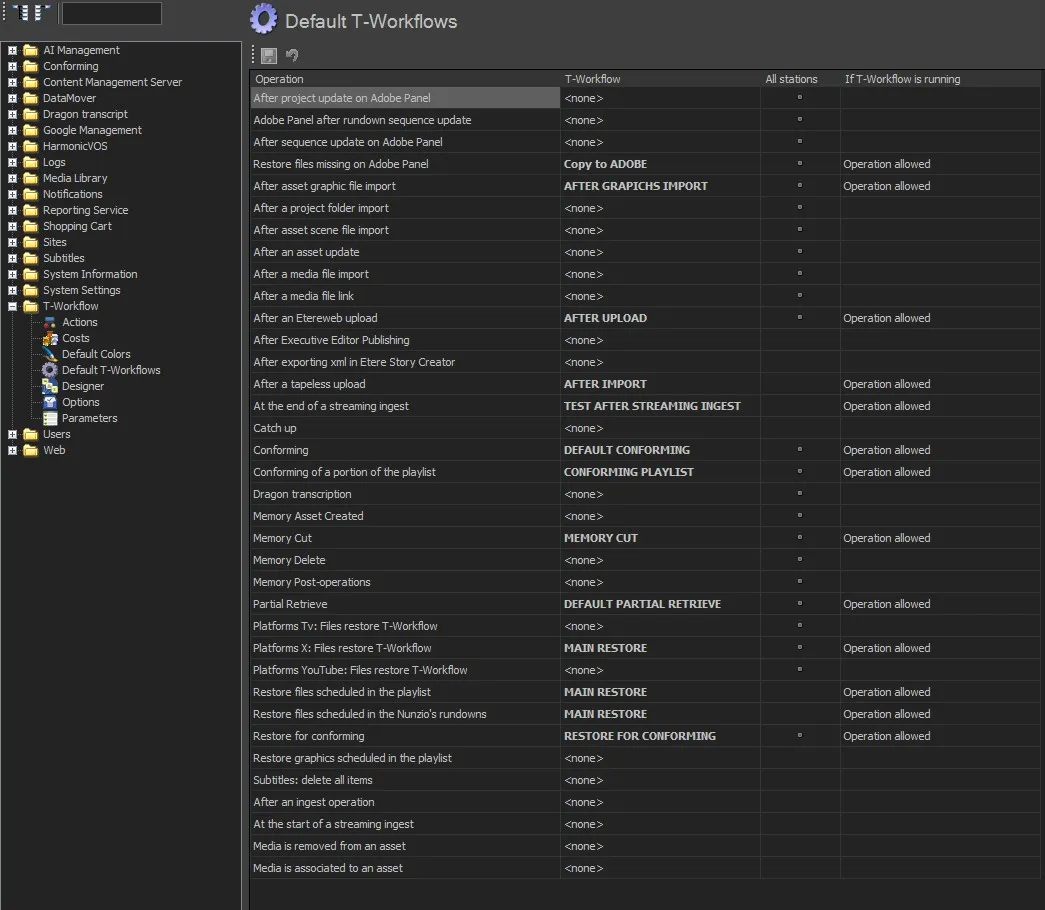 Default_T-Workflows