59.2.48.3 Types
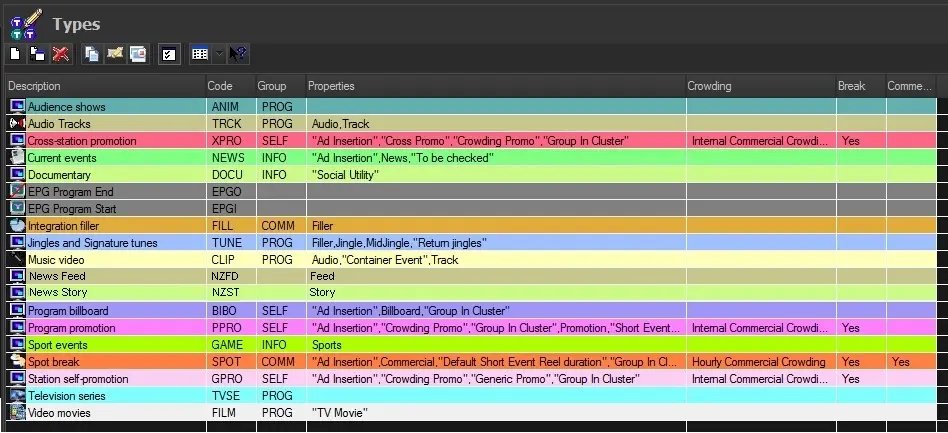
Under the 'Types' section, the user can create, modify and delete the types of events that will be managed within the schedules through a user-friendly interface:
Types section
Some of the most commonly used types have been listed below:
Audio tracks - Events contain only audio (i.e. without any video).
Current events - Events are arriving from a live feed (e.g. news).
EPGI - Non-transmittable event inserted before multiple consecutive events to group them as a single program (featuring the EPGI description and the grouped duration) for EPG generation purposes.
EPGO - Non-transmittable events inserted after multiple consecutive events to group them as a single program for EPG generation purposes.
Integration Filler - Events used to fill remaining spaces in broadcast playlists.
Jingles & Themes - Jingles are short events identifying an advertisement or program.
Themes are short media transmitted before and after a particular television program.
News Feed - Feed for Nunzio's News Room management.
News Story - Story for Nunzio's News Room management.
Program promotion - Event broadcasted to promote a specific program (e.g. new movie).
Spot break - Commercial event aimed to advertise a certain product.
Television season - Group of events (episodes) recurrently broadcasted under the same name.
Video movies - Individual films which have a one-off broadcast.
Link asset to live - Enables the warning "No asset linked to live. Go to Media Library > Relationships, add link to child" for the lives with this type
Available functions
Functions related to 'Asset Types' can be used by accessing either the toolbar located in the top part of this section or by making right-clicking on a certain type:
•New: It creates a new type; it will be made by default with a new colour which not belong to other existing types; this colour can be subsequently changed,
•Edit: It allows to modify a currently selected type, consult the sub-chapters present in this chapter for specific information,
•Delete: This option will delete the highlighted type, use this function carefully. Please note that types cannot be deleted in cases they are in use either by an asset form or an EDL segment; in both cases, it will be possible to overpass this issue by performing one of the following actions:
- One or more asset forms: Open the Media Library module and search for all assets matching the type intended to be deleted, open them one by one and change their type. Alternatively, it's possible to create a wf to launch on all the assets, using the action Set Type to change the type of all the selected assets at once.
It's also possible to use the Merge function described below.
- One or more EDL segments: Open The selected type is associated with one or more EDL segments.
•Copy: It simply creates a new type with all the characteristics of the selected type,
•Rename: Allows to change the CODE of a certain type; the rename process might take several times since the update will be performed on all assets belonging to the selected type and their relative operations (i.e., scheduling, ingest, etc.),
•Properties Panel: If enabled, it will display in the bottom part of the window a summary (i.e., code, group, properties, etc.) of the more relevant properties of selected types,
•Merge This function, as its name indicates, allows to merge of a certain type into another one; that is, once it is launched, a message form will appear indicating how many assets belong to the type in question (source) and it will allow the user to select the type to which they will be re-assigned (target). Please note that once merged, the type in question is deleted.
Create or Modify Asset Types
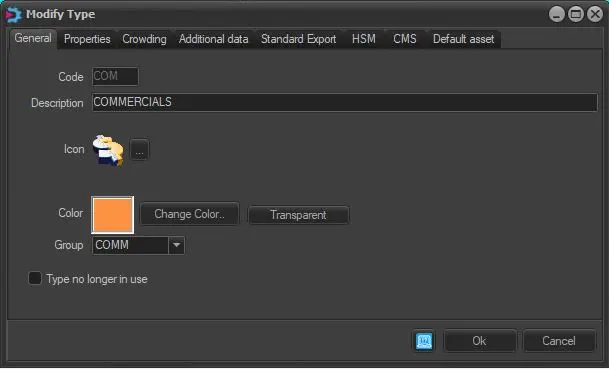
Each time a type is either created or modified, it is possible to set the most relevant parameters that make them differ between them; this window is divided into ten key tabs, as shown below:
Create_or_Modify_Asset_Types
•General,
•Properties,
•Crowding,
•Additional data,
•Standard export,
•HSM,
•CMS,
•Default Asset.
 Create_or_Modify_Asset_Types
 Types_section