90.1 How to configure Face Recognition inside the Etere System
Installation
The Face Recognition feature is included in the Media Manager Service (MMS), starting from Etere 33.3 or later.
Face Recognition needs EA1451 license available inside the customer license. Subsequently EA1451 must be set on the workstation where the MMS enabled to process the action of Face Recognition is installed.
Here's an example
LicenceAssigned_EA1451
In this example we've enabled for the MMS running in the workstation VM-LORENZO-W10 the licence EA1451 to allow it to execute the Face Recognition actions.
To apply the licence to a workstation we have to open Etere Configuration > Resources Editor > select the correct Workstation by double left click of the mouse over it > go inside the section "License for current station" > inside "License assigned" digit EA1451 > click on save button to apply the license to the selected workstation.
Under License Assigned we can see the available licenses by clicking the meatball button.
Important Information about the License EA1451
The EA1451 license is a license per-process.
Example: 1 license -> 1 simultaneous process possible, 2 licenses -> 2 simultaneous processes possible.
To enable this license we have to contact the Marketing department writing an email to marketing@etere.com
Create a Face Recognition action in the Workflow Action Editor
To create a new Face Recognition action we have to open Etere Configuration > Configuration Editor > T-Workflow > Actions then click on the "add a new action" button.
Then, in the left part of the "new action" window we have to select "Use a predefined template" then we have to scroll down through the list of actions and select Face Recognition by clicking over it.
Now, in the right part of "New Action" window we have to fill the following fields:
Name: it's the name to assign to the new action we want to create.
EDL version: it's the EDL level to assign where the faces recognized in the segments will be stored. This will be the edl_version= parameter in the command line.
Sampling step: Face Recognition will parse a frame every N seconds (decimal values can also be set). This will be the mediastep= parameter in the command line.
Similarity threshold: Face Recognition will take faces similar to templates over this threshold. This will be the similarity = parameter in the command line.
Attributes recognition confidence: Face Recognition also recognize some attributes (age, gender) and expressions (smile, eyes closed) and will take the one recognized over this confidence threshold. By default we setup the confidence to 80%, that is a good value, but if the artist uses a lot of make up, it can be ineffective, so if we prefer a more wide recognition we can set a lower value like 50 for example. This will be the face_attr_conf= parameter in the command line.
FaceRecognitionNewAction
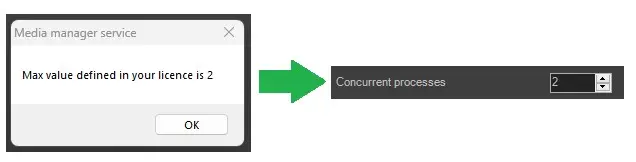
Once a Face Recognition action is created the System checks and sets the correct Current Processes based on LicenceAssigned_EA1451
MaxValueActionsUsable
Set other parameters for the Face Recognition action just created
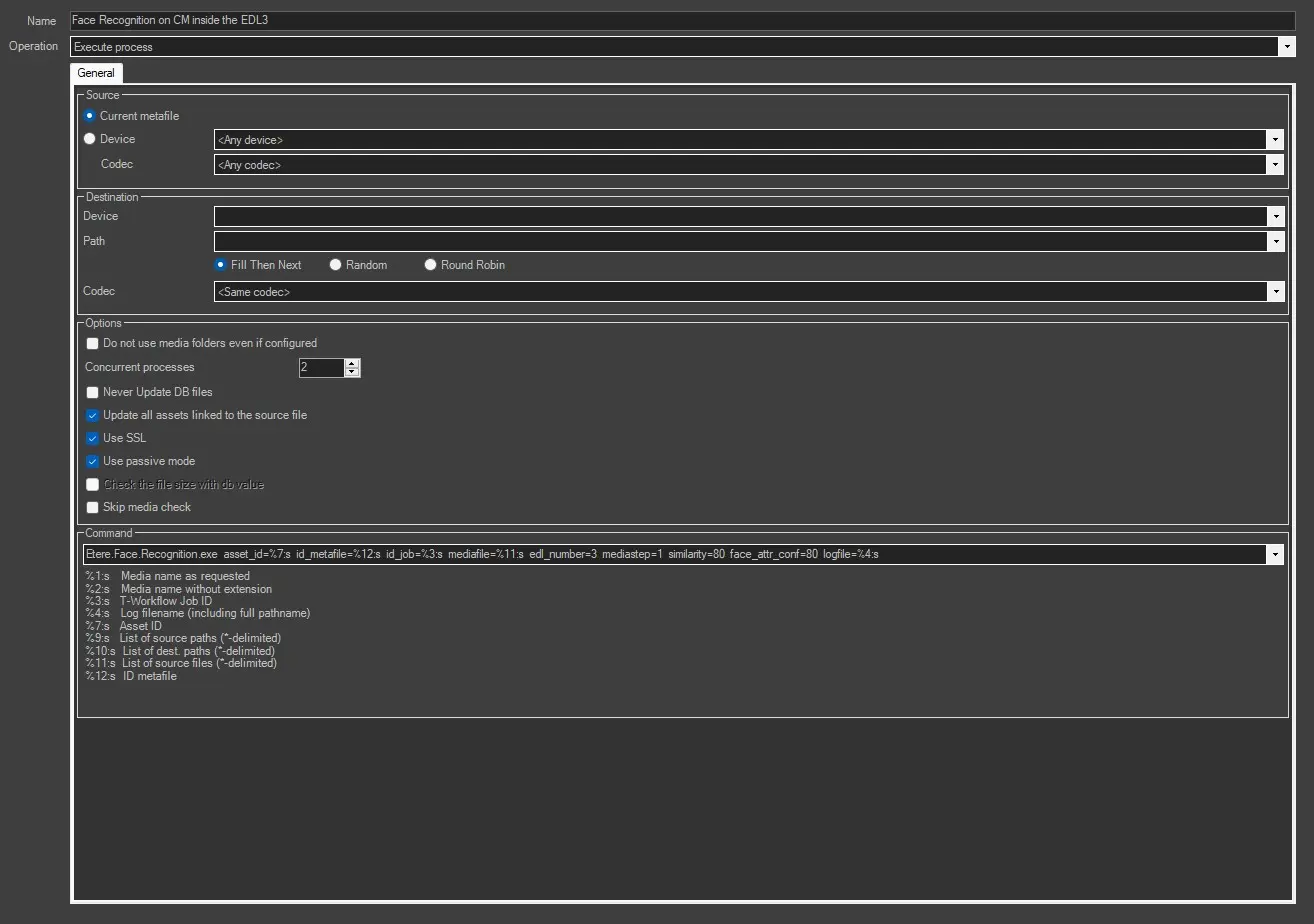
Once the system has verified and set the correct Current Processes for the newly created action, a new window opens where we have to set the following parameters:
FaceRecognitionActionEditor
Name: it's the name set in the previous step
Operation: it's the Etere process to set to perform the Face Recognition action and it must be set to "Execute process".
- Source -
Current metafile: Select this option to use the current metafile.
Device / Codec: Select the source device and codec. If the metadevice contains multiple versions (codecs) of file, select the codec we wish to copy or delete.
- Destination -
Device: Select the destination device where the files would be copied to.
Path: In case the selected cloud-device contains more than one path, this parameter allow to choose one of them as destination path.
Fill Then Next: If enabled, Media Manager Service starts with the first path and checks whether that path has enough space, if it has enough space Media Manager Service uses it, otherwise Media Manager Service checks again until the next available path is found.
Random: If enabled, a random path selection among the available ones is chosen.
Round Robin: If enabled, the path is chosen starting from the first to the last of the available ones and then starting again at the top of the list and Media Manager Service continues to search in this sequence. The selection status is shared globally among all instances of the Media Manager Service that work on the configured cloud device. This means that if a MMS selects the 1st path, then another Media Manager Service on a second machine or another instance of the same action in the same Media Manager Service, will select the 2nd one.
Codec: Select the destination codec where the files would be copied to.
- Options -
Do not use media folders even if configured: Enable this option to ignore the translated path, even if it's configured.
Concurrent processes: Indicate the maximum number of actions to be taken by the workstation at the same time. The maximum number is based on the license and cannot be exceeded.
Never update DB files: The file won't be updated in the database.
Update all assets linked to the source file: If enabled (default), the copied file will be associated with all the asset forms linked to the source file. Enabling this option is useful, for instance, when a single file is used by multiple assets (e.g. which transmit it overlaid with different logos); in this case, every time the file is copied, the new copy will be updated across all linked assets. If disabled, the copied file will be associated only to the asset form for which the T-workflow has been launched. Disabling this option is useful, for instance, when a single big file (e.g. a live feed recording) is used by multiple assets which partially retrieve a smaller file from it; in this case, only the support from which the partial retrieve has been executed will be updated.
Use SSL: Enable this option to use SSL (Secure Socket Layer) when saving the file in a destination path over the network. If enabled, the service media manager would attempt to complete the action using the following authentication steps in sequential order:
- FTP over TLS (Transport Layer Security)
- FTP over SSL (Secure Socket Layer)
- Plain FTP (without encryption)
If the FTP server support SSL encryption, Media manager service would use a new set of libraries for copying files. Else, Plain FTP would be used.
Use passive mode: If checked, the FTP client will try to use passive mode for all file transfers (upload/download/move); otherwise (if disabled), the standard active way will be used.
Check the file size with db value: If enabled, an additional check would be performed, that is the compare between the size of the copied physical file and the file size stored on db. This is useful to signal if the file has not been copied entirely in the destination folder. In this case, its file size is different than the original one and this check can alert the operator by signaling error in the wf. It is unusable for this action.
Skip media check: Allow to avoid to check if the source file's device and codec match with the ones defined in the action.
- Command -
Command line optional parameters: face_attr_list= by default, Face Recognition recognizes all attributes (age, gender) and expressions (smile, eyes closed). If we want to restrict this feature we can set this parameter with one or more of the following values: Age;Gender;Expression separated by semicolons. Or if we want to disable it, set this parameter with: none.
sdk.threads= by default, Face Recognition uses all processor cores. If we want to restrict it, we can set this parameter with the number of cores to use.
The FR action insert the thumbnail of the frame to each segment automatically using default format jpeg. If we need to change or remove it we can add in the string these vaules:
thumbnails=jpeg (default) or png or no (do not assign thumbnail to segments)
Examples of command string:
Etere.Face.Recognition.exe asset_id=%7:s id_metafile=%12:s id_job=%3:s mediafile=%11:s edl_number=6 mediastep=1 similarity=55 face_attr_conf=55 thumbnails=jpeg logfile=%4:s
Etere.Face.Recognition.exe asset_id=%7:s id_metafile=%12:s id_job=%3:s mediafile=%11:s edl_number=7 mediastep=2 similarity=75 face_attr_conf=75 thumbnails=png logfile=%4:s
Etere.Face.Recognition.exe asset_id=%7:s id_metafile=%12:s id_job=%3:s mediafile=%11:s edl_number=8 mediastep=3 similarity=85 face_attr_conf=85 thumbnails=no logfile=%4:s
How to insert a Face Recognition action inside a Workflow
To insert the Face Recognition action just created inside an Etere workflow we have to follow the steps indicated below.
Once the FR action has been created, we have to open Configuration > Configuration Editor > T-Workflow > Designer and click in the "new" button icon, then we have to fill the correct information inside the New T-workflow window just opened.
- New T-Workflow -
Id: it is the ID of the workflow just created.
Friendly name: Give the T-workflow a short and self-explaining name (preferably in english).
Local name: Give the T-workflow a name in your local language.
Category: Group under which the T-workflow will be categorized.
Description: Enter a brief text describing the scope of th T-workflow.
Reset on start command if: In case an already started T-workflow receives a "start" command, it will be automatically restarted only if its current state is one of the ones selected here: aborted, faulted, completed, running, never (default) and always.
We can confirm the information by clicking on Save button.
Now the EDITOR form will open and here we can create our workflow.
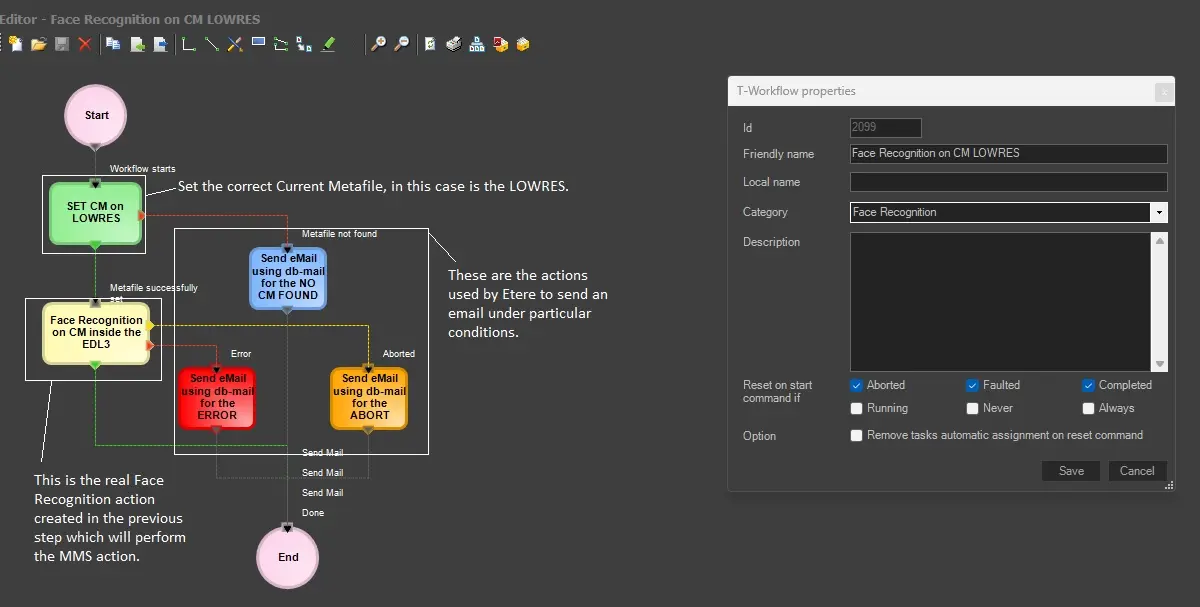
Here's an example of a Workflow used to execute the Face Recognition action in the Current Metafile Lowres.
WorkflowFaceRecognitionOnLowres
Here we can see all blocks inserted inside the workflow and what they mean:
Start: it is the block that indicates the start of the wf.
SET CM on LOWRES: is the block that sets the Current Metafile to use, in our case we will perform the action in the Lowres file.
Face Recognition on CM Inside the EDL3: it is the real action of Face Recognition (MMS) that will be performed in the CM set in the previous step using the parameters set under its configuration.
Send Email actions: they are the blocks that will send an email to certain senders in particular situations according to how they have been configured.
End: is the block that indicates the end of the wf
The creation of our workflow is completed and before to use it, we have to create the Artists usable by Face Recognition actions.
 LicenceAssigned_EA1451
 FaceRecognitionNewAction
 MaxValueActionsUsable
 FaceRecognitionActionEditor
 WorkflowFaceRecognitionOnLowres