59.4.14 Transcoding action
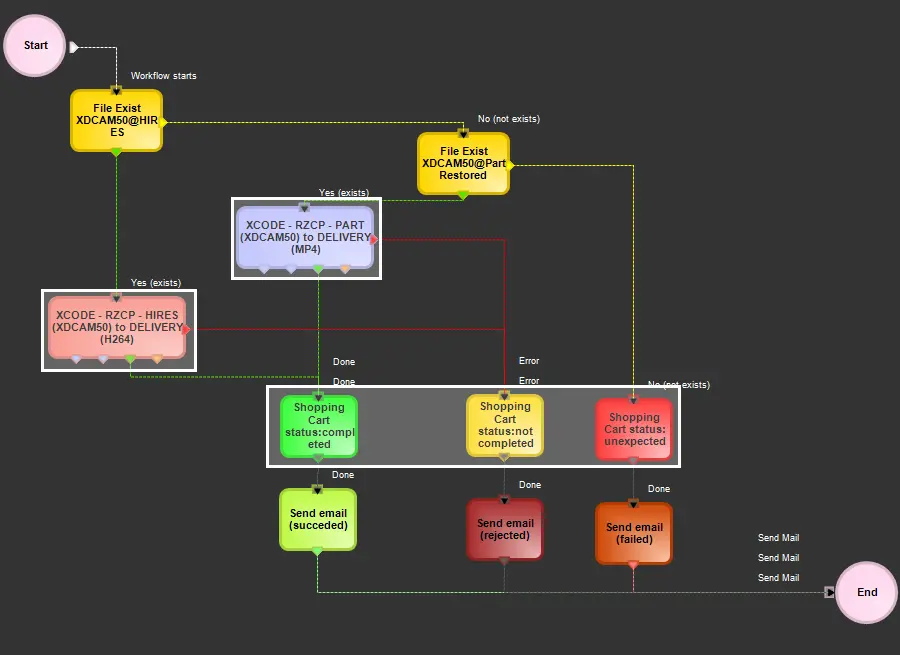
In the Transcoding section located in the Configuration Editor module, it is possible to define Transcoding actions, a special kind of workflow actions used (as workflow action blocks) to encode/decode media files (i.e. to change their format, bitrate, resolution, audio levelling, etc.), usually transferring converted files into specific devices:
Transcoding
To start managing transcoding actions, select under the toolbar located in the upper part of the window tone the following options:
Name: Create new action
Description: Creates a new Transcoding action from an empty form.
Name: Bind to
Description: Alternatively to a new action creation, this function makes a table appear listing various Copy actions used by Etere versions previous to 19 (e.g. ftp_cache to ftp_onair, ftp_onair to low_res, etc.).
NB: Make sure to select the 'new action' option before using the 'bind to' option because it will overwrite the last opened action.
Name: Duplicate action
Description: Create a new action with the same parameters set on the currently open action.
Name: Existing Open action
Description: List all the existing actions and allows you to open them.
Name: Delete action
Description: Removes the current open action completely.
NB: It is only possible to delete actions that are not currently used by a T-workflow. Otherwise, a warning message will inform about the issue indicating the related T-workflows.
Name: Refresh
Description: Update the list of actions located at the left of the window.
NB: You are advised to refresh the configured T-workflow and ensure the configured actions are loaded correctly before executing the T-workflow action.
1. Main Information
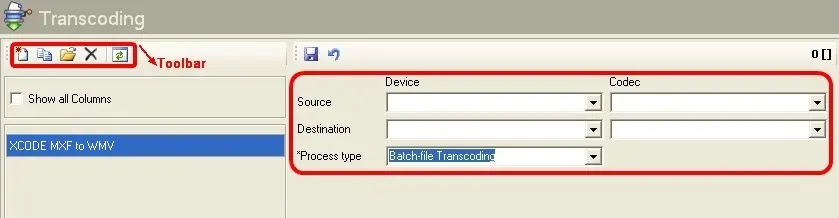
At the left is located the checkbox Show all columns; if ticked, beside the action name will also be listed the main properties of the action (i.e., source device, destination device and process type).
source_device,_destination_device_and_process_type
At the right of the Transcoding copies windows, the following options are available:
Device and Codecs
Parameters: Source
Description: Select the metadevice where metafiles to be processed are located. The dropdown list will contain all those metadevices set in the Resource Editor.
Select the codec with which the metafile is stored in the source metadevice.
NB: If the source device and codec have been defined, the "Current metafile" option must be unchecked.
Parameters: Destination
Description: Specify the metadevice where the files will be placed once processed. The dropdown list will contain all those metadevices set in the Resource Editor. Select the codec with which the metafile will be stored in the destination metadevice.
Parameters: Process type
Description: Choose from the drop-down list the executable to be used for the current transcoding action; it could be:
Batch File Transcoder
Rhozet RZCP Transcoder
Flexy Converter
Etere Transcoder
FFmpeg Transcoder
2. Basic Settings
Once you have compiled the fields above and have saved the action, two tabs will be enabled to enter relevant data regarding how the transcoding will be performed. The 'Basic Settings' tab holds the basic information about the current action, including:
Identification and Appearance
Parameters: Name
Description: It usually starts with the "XCODE" string to indicate a Transcoding action related to the information handling (e.g. XCODE MXF to WMV).
Parameters: English name
Description: If the previous name is given in a non-English language, insert its translated version here for the easiest multilingual recognition.
Parameters: Color
Description: Indicate the colour to display the action block in the T-Workflow Designer section.
Parameters: Description
Description: Insert a brief text explaining what the action is intended to do.
Behaviour
Concurrent processes - This parameter indicates the number of instances (by default, only one) of the current action that each Etere Data Mover server will be allowed to run contemporaneously.
NB: Etere suggests using concurrency, for example, if the current action will be used simultaneously by various T-workflows or if the source and destination count with a wide bandwidth.
Run each task using a separate agent process. Etere Data Mover will launch each instance of the current action in a separate Etere Data Mover agent, thus avoiding possible concurrency issues. Etere suggest allowing this parameter in case of high concurrency.
NB: Please note that detailed information on concurrency and agents is available in the Distributed concurrent processing section of the Etere Data Mover chapter.
Note:
To speed up the transcoding processing, Etere highly suggest setting the "concurrent processes" parameter to 8 and "using separate agents". In this way, in the case of using a "quad-core hyper-threading processor", each transcoding agent will be executed by a different system processor.
Maximum Bandwidth - NB: The max. bandwidth option is only supported for multistep copies to limit the bandwidth used for data transfers.
Do not use media folders even if configured - If disabled (by default), the file transfer will be performed by reading the source/destination paths from the selected metadevice's media folder (i.e. etereweb path); otherwise (if enabled), it will be performed reading the paths directly from the database (i.e. media folder for the asset forms).
NB: Please note that media folders are available only for Copy actions that read data (i.e. files/paths) from the database (e.g. multistep copy, transcoding, etc.).
Destination metafile - Specify the method to be used for naming the metafile (not the physical file) stored in the final destination; available methods include:
Keep source name - The metafile (file_id) will be named as the transcoded file.
Use asset ID as a name - The metafile (file_id) will be renamed using the asset's ID.
Use asset Code as a name - The metafile (file_id) will be renamed using the asset's Code.
Use asset Code + NewType as a name - The metafile (file_id) will be renamed, concatenating the asset's code and type (e.g., COM, NEWS, PROMO, etc.).
Generate a unique name - Enable this option to generate a transcoded file named using a unique name (UID).
Use rule - Rename the destination metafile according to one or more Flexi-metadata; the ConfEd_XCode_Metadata01 button will allow you to define a custom name through the editor as explained in the Rhozet RZCP Transcoder chapter.
NB: The value of this field is displayed as read-only, being it possible to copy it.
3. Process Settings
The 'Process Settings' tab display and allows to modify the various steps performed by the system to perform the action in question. Since parameters present in this section depend on the selected Process Type, the following chapters will explain how to configure each.
NB: Etere strongly suggests using a sample rate of 48Khz (e.g. 192kbps, 48khz) when generating proxy video files, maintaining a compact loudness and thus allowing a better Etere CMS loudness analysis (e.g. detection of abrupt loudness variations between assets).
See also in this chapter:
Creating compression profiles
Integrating Avid OP-Atom codecs
 Transcoding
 source_device,_destination_device_and_process_type