72.7.3.7 Connect STMan to ETX CC Inserter
Configure STMan role in ETX CC Inserter
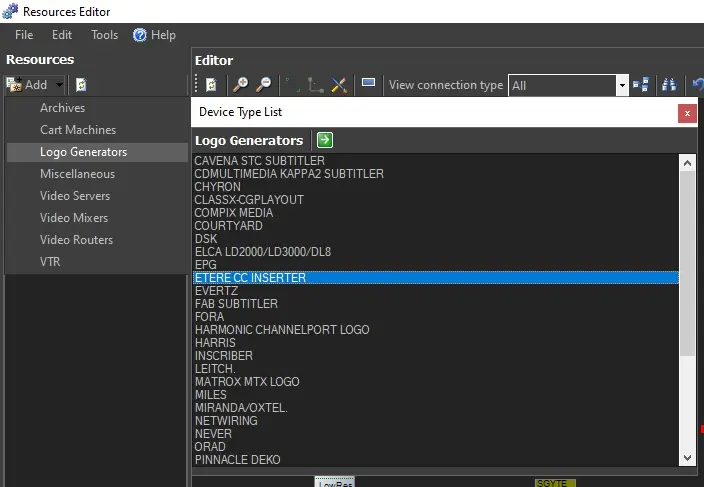
Before you begin, the ETX CC Inserter must be configured in the workstation where the resource is connected. Launch Resource Editor from Configuration module, click on <Add new resource> and select Logo Generators to list all available devices.
CC Inserter
Select ETERE CC INSERTER from the list and click the green arrow icon to launch the properties settings.
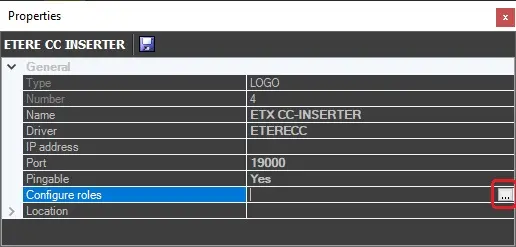
mam_etx_cc_inserter_properties
•Name: Give a name to the device.
•Driver: Select ETERECC
•IP address: The IP address of the workstation where the CC inserter is installed.
•Port: Default to 19000
•Configure roles: Click on the browse button to launch the properties setting.
mam_etx_cc_inserter_configure_roles
Select user and workstation, ensure that STMan module is selected to use the inserter device. Save the configuration and the assigned role would be appeared in top panel.
mam_etx_cc_inserter_roles
Save the properties settings and exit from Resource Editor.
Connect STMan to Inserter
First, create a media library object with subtitles using the Subtitles Tool, schedule and publish the media library object in MAM.
mam_create_subtitles_object
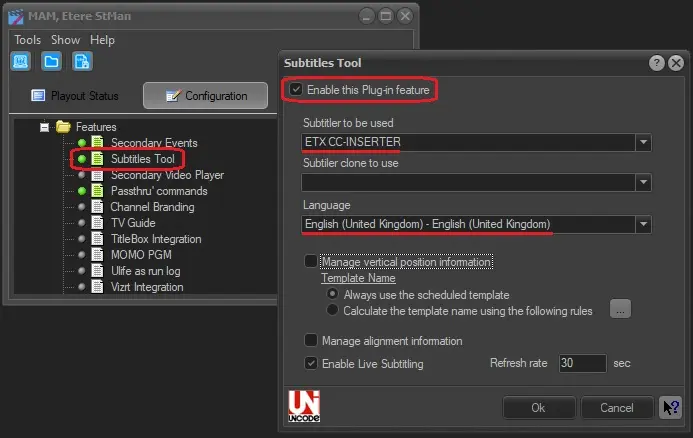
Next, start Automation and STMan. In STMan, double click the Subtitles Tool feature and enable the plug-in feature.
Subtitles Tool
•Select “CC-INSERTER” as Main subtitler to be used, or select a subtitler in Clone server if Main server is not available.
•Select the language for subtitles
Click <OK> to confirm settings and restart STMan.
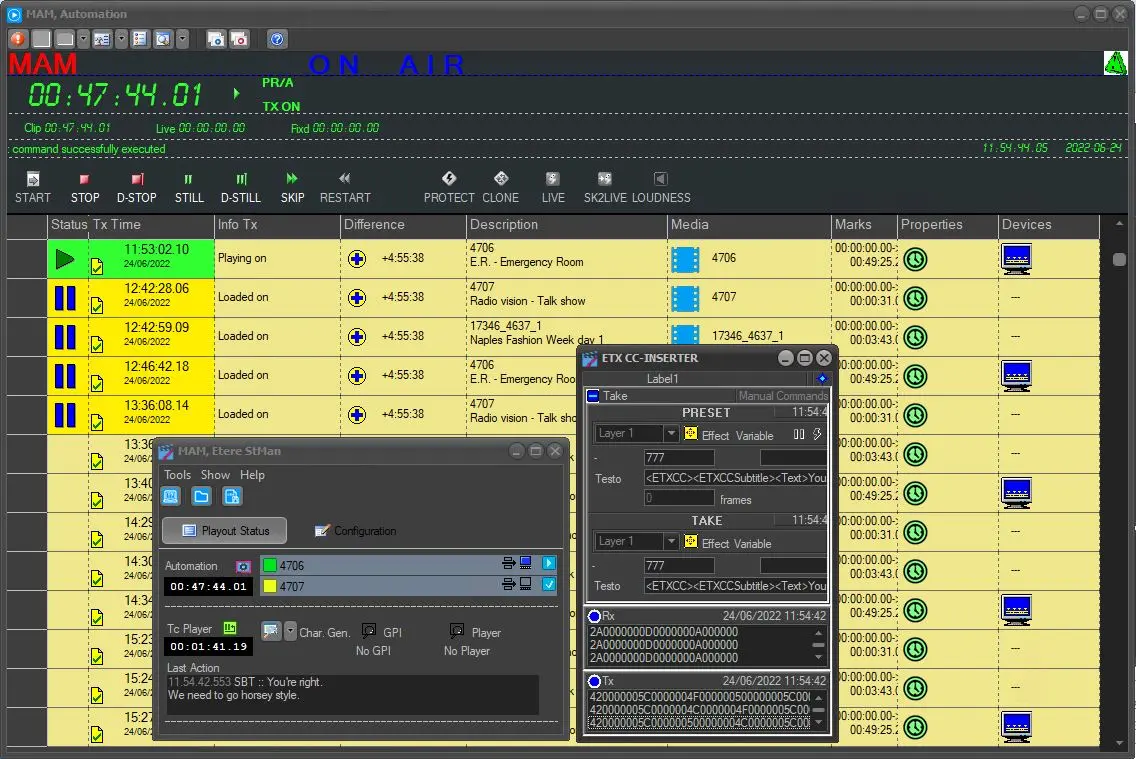
In Automation, when the media library object is on-air STMan would start sending commands to the ETX Closed Captions Inserter.
mam_stman_connect_inserter
 CC_Inserter
 mam_stman_connect_inserter
 mam_etx_cc_inserter_properties
 Subtitles_Tool
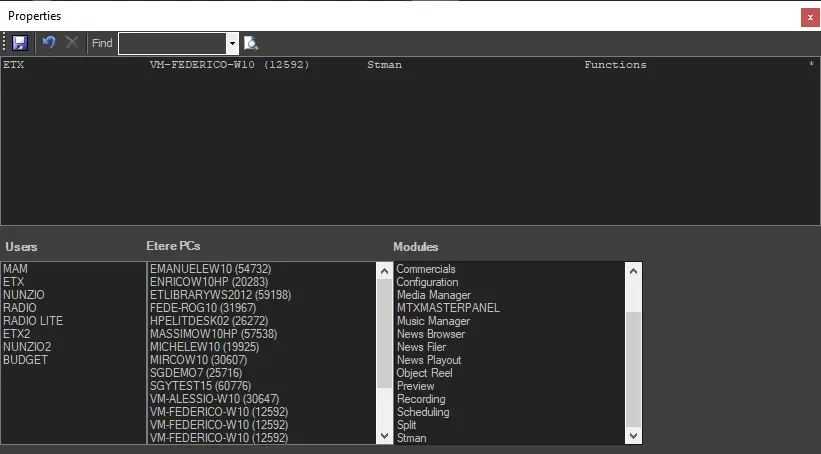 mam_etx_cc_inserter_roles
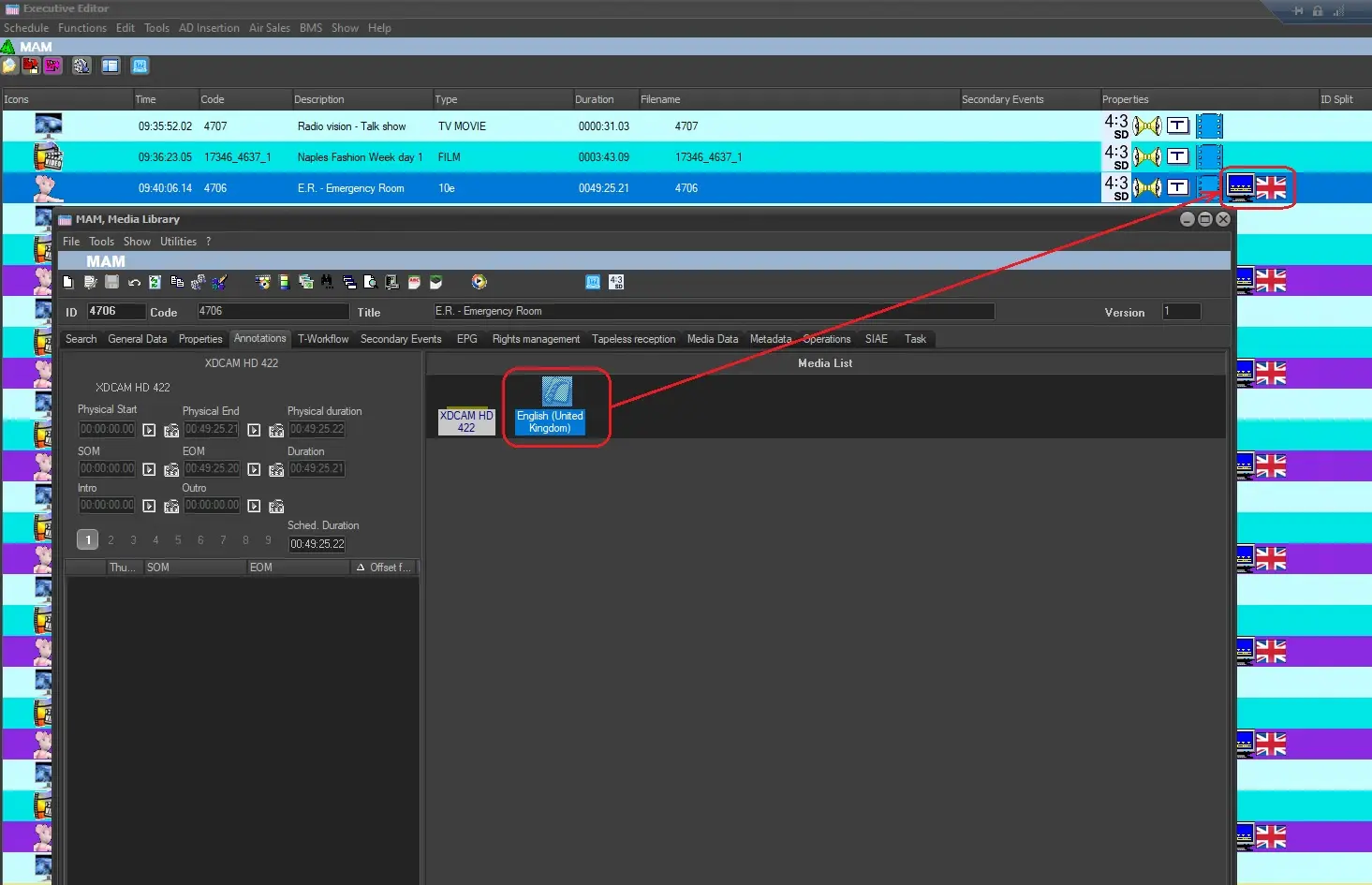 mam_create_subtitles_object
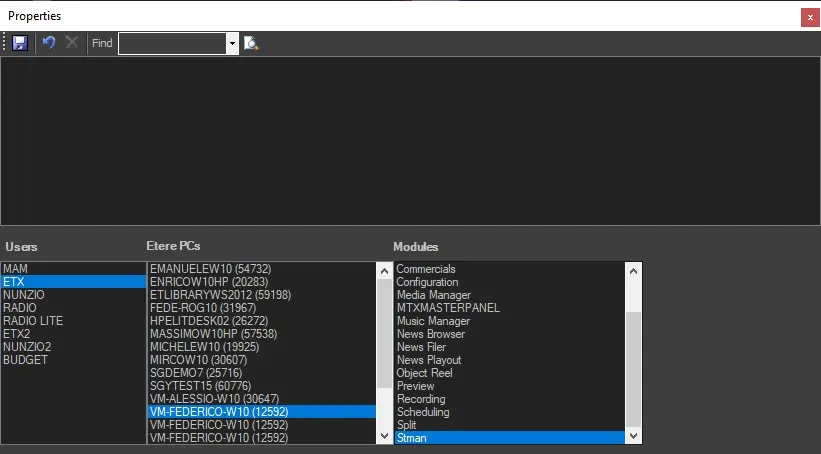 mam_etx_cc_inserter_configure_roles