84.4.5.78 CUSTOM > SWOM > PLAYLIST XML
IMPORT SCOPE
The "SWOM - Playlist XML" import is able to import an XML file named as "ddmmyyyy.xml" (e.g. 30112013.XML) which contains data related to a certain daily playlist.
Import tab
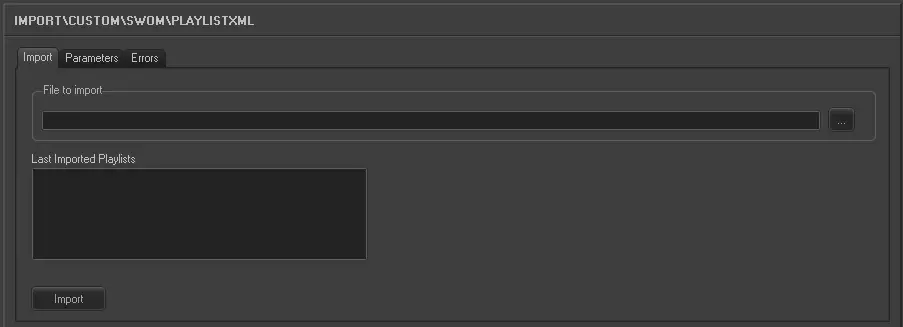
Import_custom_swom_playlist_xml
• File to import: Browse for the file from which data will be imported, only .XML files will be displayed since they are the only supported. The file will be first searched on the path specified in Default import path parameter.
• Last imported playlists: This window displays the filename of the last imported playlists. Maximum of 30 playlists can be displayed.
Parameters
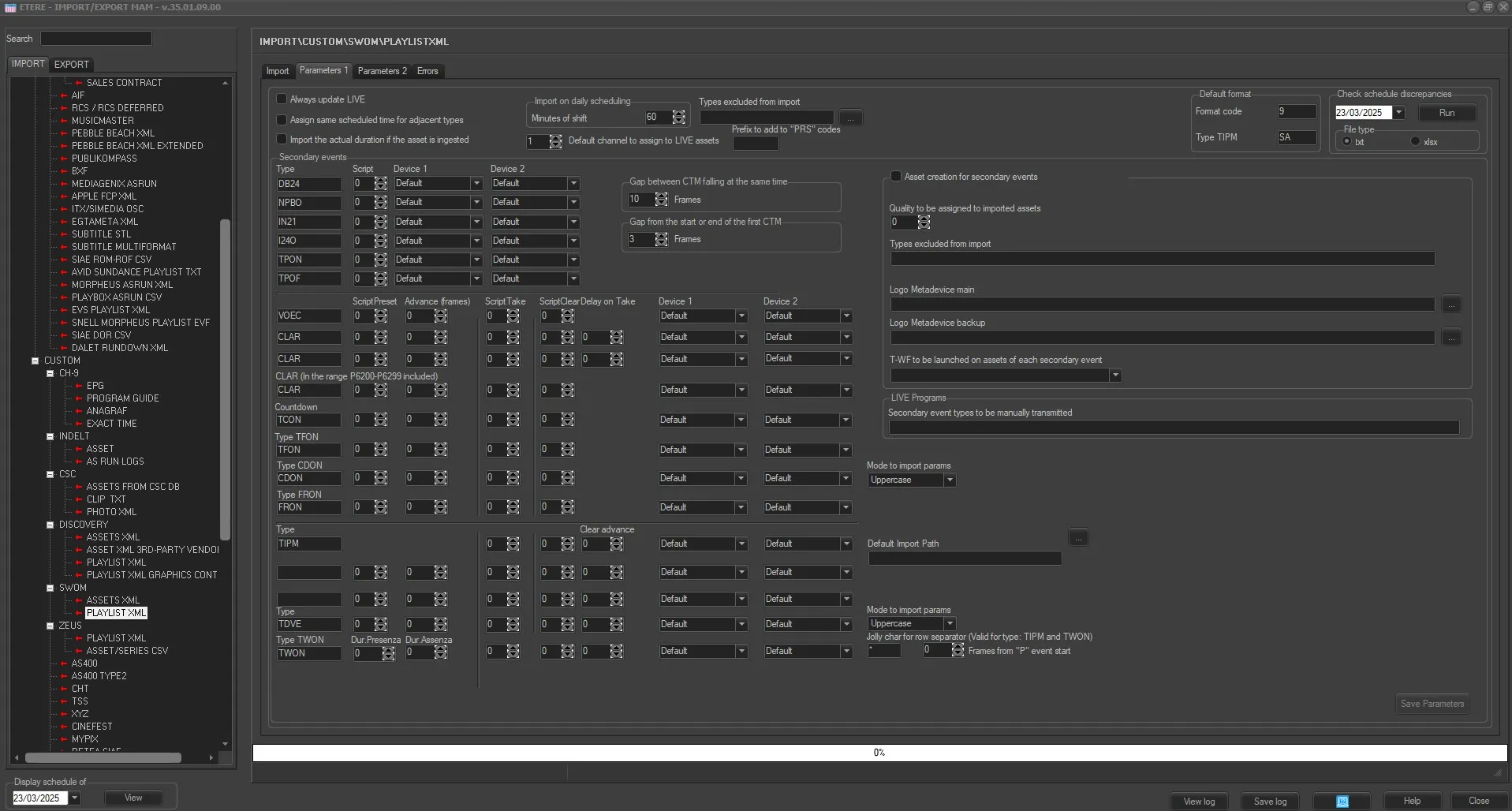
Import_custom_swom_playlist_xml_1
❑ Always update Live: Allows you to always update the Live events, even if they already exist in the archive.
❑ Assign same scheduled time for adjacent types: For events that have the same typology and fall adjacent to each other in the schedule (e.g. commercials in a cluster) this parameter allows you to assign the same scheduled time to these events. In the 'Data' to import under the previous tab the field HOUR must not be activated for this parameter to work.
❑ Import the actual duration if the asset is recorded: Allows you to import the real duration of the asset form in a situation where it has been recorded, even if the scheduled duration is present and different in the imported file.
• Default channel to assign to LIVE: Specify the channel to associate to LIVE events.
• Prefix to add to "PRS" codes: Specify the prefix to be added to the "MediaID" when it starts with "PRS".
Events related to SWOM and Discovery have the same MediaID (even if their data is different), using a prefix to differentiate them will prevent processing the wrong asset.
Note: The MediaID is used to generate the code of imported assets.
• Import on daily scheduling: If you are importing the schedule for the current day, this parameter defines what time on the schedule the import starts from. It is calculated as Current time + Time shift. Events with a start time before the current time will not be imported.
• Types excluded from import: Specify the types of assets to be skipped (i..e not imported) during the import process.
• Check Schedule Discrepancies: This is the build-in function to detect the discrepancies between the imported file and scheduled playlists for comparison. You can select to generate the output file in text file format (.txt) or Microsoft Excel new format (.xlsx) and save the file in dedicated path. The last 20 discrepancies reports would be retained in the system.
• Default format: Set the format code (e.g. 9) and conversion code (e.g. SA) to be assigned by default to imported assets.
Secondary events
Set here the parameters related to the import behaviour regarding secondary events associated to primary events:
▪ Type: Enter the code of the secondary object.
▪ Script: Specify the identification number of the related script.
▪ Device 1: Indicate the main device to be assigned to the object.
▪ Device 2: Indicate the simulcast device to be assigned to the object.
Note: Whether 1 or 2 devices are set only 1 secondary object is created.
▪ Gap between CTM falling at the same time (frames): Specify the time gap to be applied to CTM scripts starting at the same time.
▪ Gap from the start or end of the first CTM (frames): Specify the time gap between the start and end of the first CTM script.
Scripts
Specify secondary events with the following parameters:
▪ Code: Enter the code of the secondary object. You can enter up to 3 secondary type objects, with each object separated by a “,” (comma).
▪ Script preset: Specify the identification number of the script preset.
▪ Advance (frames): Indicate the time before the event start to performing the Preset script.
▪ Script take: Indicate the time at which the Take script is performed.
▪ Script clear delay on take: Indicate the time after the Take script to performing the Clear script.
This option is applied only to ELEVATOR objects (i.e. CLAR out-of-range).
▪ Device1: Indicate the main graphic device to be assigned to the object.
▪ Device2: Indicate the main graphic device to be assigned to the object.
When importing secondary events, the following conditions are applied:
- If a VOEC object is preceded by a CLAR (within range), only the Preset script will be applied to the latter one, omitting the Take and Clear scripts.
- The TFON parameter determine the mode to import title text during importing of playlist XML and pass the parameter to CTM for processing, the title text can be entered in UPPERCASE, or lowercase, or remain as original letter case. The TFON indicate begin of title text, where TFOF indicate the end. The TFON and TFOF have the same features as TCON and TCOF except the countdown.
- The CDON parameter import the secondary type graphic template title and pass parameters with a computed countdown to CTM for processing. The graphic title can be entered in UPPERCASE, or lowercase, or remain its original letter case. The FRON and FROF parameters has the similar function as CDON and CDOF except it does not have countdown.
- The Import would consecutively check the presence of secondary event types TCON/TCOF, TFON/TFOF, CDON/CDOF, and FRON/FROF, if any of the “ON/OF” commands is not presence the import would be aborted.
▪ Mode to import params: Select the characters font when entering the values, e.g. Uppercase, Lowercase, or its Original font.
▪ Type "TIPM": This parameter manage the secondary event type “TIPM”, only secondary events matched the specified condition (in UPPERCASE) would be imported.
▪ Type "TDVE": This parameter manages the secondary event type “TDVE” during the import. There are 2 possible values of the secondary events, namely “DVN1” and “DVL1”.
DVN1 – Same import criteria as “TIPM”
DVL1 – The import criteria are defined as follow:
✓ Make reference to value indicated in the <Comments> tag, e.g. if the value is “TOD1020” the import would search the program schedule on “today” at “10:20” AM.
✓ Make reference to parameter indicated in tag <EPGSeasonsName>, and value in tag <SeasonsID>, e.g. if the value is “MON1125” the import must look for relative program scheduled on next “Monday” at “11:25” AM.
✓ The “Day” codes are defined below:
TOD – Today
TOM – Tomorrow
MON – Monday
TUE – Tuesday
WED – Wednesday
THU – Thursday
FRI – Friday
SAT – Saturday
SUN - Sunday
When importing TDVE secondary event type, the following conditions are applied:
➢ If a TDVE event is preceded by a CLAR (within range), the Preset script, Take script and Clear script would be applied.
➢ If there is another TDVE event preceded by a CLAR (within range) at the same time, the Take and Clear scripts would be omitted.
▪ Mode to import params: Select the characters font when entering the values, e.g. Uppercase, Lowercase, or its Original font.
▪ Type "TWON": This parameter manages secondary event type “TWON” which would be broadcast in all “P” type events scheduled between “TWON” and “TWOF”, starting from the “n” frames from the start of “P” type events.
When a “TWON” type secondary event is detected in the playlist, all subsequent events with “P” type would be added to one or more subevents with a “PRESENCE DURATION” and ends with “ABSENCE DURATION”. The subsequent “P” type events would be managed in similar sequence.
The scheduling of “TWON” type secondary events would be stopped when “TWOF” is detected in playlist.
▪ Type "TWS1" & "TWS2": This parameter manages secondary event types “TWS1” and “TWS2”, where:
TWS1 = STATIC AUTOMATIC WATERMARK ON
TWS2 = STATIC AUTOMATIC WATERMARK OFF
- The event types are scheduled between “TWON” and “TWOF” starting from the "n" of frames from the starts of the “P” type events.
- The “PRESENCE DURATION” and “ABSENCE DURATION” fields of the events would not be populated into database.
- The event graphics would remain on-air upon import
- The new event types and current event types can be scheduled and co-exist on the same day schedule, occupy the same layer and same position on the screen.
- If event types “TWON” and “TWS1” are overlapped in the same timeslot, the import process would be aborted.
Note: In the import file, if the duration of the “TWS1” secondary event is shorter than “00:03:30:00” the event would not be imported into program.
▪ Type "DAS": This parameter manages the import of secondary event type “DAS” in the playlist which will identify the break to be replaced. The import of DAS as secondary event is based on the scheduled time and launch relative sequential commands Preset, Take and Clear.
- If the above 3 commands are not launched in sequential order, the import would be aborted.
- If there are others secondary events scheduled at the same time, the DAS type event would take precedence by shipping the time of other secondary events.
▪ Jolly Char for row separator: Specify the wildcard character used to substitute one or more characters in a string of events.
▪ Frames from “P” event start: Specify the number of frames in “P” event to start managing the “TWON” secondary event.
Note: In the imported file, if the duration of the "TWON" secondary event is shorter than “00:03:30:00” the event would not be imported into program.
▪ Advance on take: Set the number of frames in advance before the launch of Take command.
▪ Clear Advance: Set the number of frames in advance before the launch of Clear command.
▪ Default import path: Choose the default path where Etere Import\Export will look for the file to import, when clicking on Import button. This will be also the path opened when saving the discrepancies xlsx file. Instead, with the txt file type this setting is not considered.
▪ Frames from the start of the event following the live: In case of a PPON falling on a live event, indicate here how many frames before the start of the break should it be placed.
Notes:
▪ From EtereInstall_34.2.423.8123.zip the secondary event PPON is positioned 4 sec. after the end of the previous primary event.
▪ From EtImpExp.dll ver. 34.2.31.0 (included from EtereInstall_34.2.429.8129.zip) the PPOF secondary event is positioned 4 sec. after the end of the previous primary event.
▪ From EtImpExp.dll ver. 35.1.7.0 (included from EtereInstall_35.1.335.8480.zip ) the PPON secondary event is positioned 1 sec. after the start of the break, if inside a Live event.
Launch the import
Once all parameters have been correctly set, just press the <Import> button to launch the import operation.
Sample file to import
The file to be imported using this method will have to the following structure in order to be correctly imported:
<?xml version="1.0" encoding="UTF-8" standalone="yes"?>
<Playlist>
<!-- ... -->
</Playlist>
Discrepancies Report
When import completed, a log file containing a list of assets with discrepancies (between the submitted / processed files and scheduled playlists) detected would be launched automatically to alert the users. The comparison of the marks in the schedule is done as the asset had exploded in the schedule. Details information in the log file includes asset ID, asset code, asset type and description of the asset. The discrepancies captured in the log file includes:
- The number of assets in the playlist and all scheduled assets.
- The marks of the assets and those assets scheduled in on-air playlist.
- The marks of the assets of the parties and those assets scheduled in on-air playlist.
- The asset does not contains a compatible file Automation.
- For secondary event type “TIPM” only program type “P” would be taken into account.
The log file can be saved as text file (.txt) or Windows excel open XML format (.xlsx), or printed as hardcopy for follow-up investigation.
Note: To be saved as .xlsx file, it requires Microsoft Office Professional Plus 2010 (or later) to be installed.
Asset Creation for Secondary Events
This feature allows to create assets for the Secondary Events only.
The created assets would have their Code as their Tag MediaID and their Type as Type TAG.
• Quality to be assigned to imported assets: Quality to assign to the imported materials.
• Type Executed from Import: Types to exclude from the import procedure. Multiple types can be inserted, separated by a comma (',').
• Logo Metadevice Main/Backup: feature not managed yet;
• T-WF to be Launched on Asset of each Secondary Events: Etere T-Workflow to launch once the asset is created.
 import_custom_swom_playlist_xml_1
 5292_Import_custom_swom_playlist_xml