51.1.1.2 Sync files stored in the video server
This section allows the configuration of parameters for synchronising high-resolution video files (e.g. mxf, DV, etc.) stored in specific video server(s). It also allows synchronising low-resolution video files (e.g. WMV, mpg, etc.) and subtitles/captions files (e.g. STL, SCC, etc.). The following options are available in this section:
Parameters
If asset exists, update its media data: This option allows updating the data (i.e. SOM and duration) of all video files currently associated with an asset form onto the database.
All files in the video server are zero-based: This option checks if the selected video server(s) are '0-based', e.g. if the SOM is '0'. If checked, the video server's decoder would be released, boosting the video file search.
Delete media entry if the file doesn't exist: If enabled, all the asset forms associated with video files stored in the video server are processed during the synchronisation. The association is removed if the asset form is associated with a non-existent video file.
Check only ingested assets with duration <= 1 frame: Enable this option to process and update those asset forms with an unspecified duration (i.e. duration <= one frame) currently associated with a low-resolution video file.
Consider all files as high resolution: Enable this option to ignore all low-resoultion video files on the video server(s) (e.g. WMV and . MPG files).
Create new assets if they don't exist: This option would enable the creation of a new asset if the asset cannot be found.
Search for file data on existing .xml file: Before the process, search existing XML files for data.
Process the file only if the descriptive file (.xml) exists: If this option is enabled, the file will not be processed if the descriptive file (XML) cannot be located.
NB: For ActiveSync to process, an XML file with a valid structure must be in place. Only one top-level element (tab) is allowed in the XML file. If the element is missing, the synchronise process will be aborted.
Video Server Resource to use (1,2,3,4): Set the decoder of the video server where files to be synchronised are stored. Press the [Resources] button to drag & drop the channels from the Resource tree to the related text boxes (1/2/3/4).
Try to search the asset by clip: If the asset code differs from the clip name, enable this option to search for the asset linked to the clip in Video Server. Otherwise, the assets would not be updated.
Additional notes
- ActiveSync is enhanced to link closed captions files with extensions ".STL" and ".SCC" even though the error message "This file is not a video file" is captured in the ActiveSync log.
- If a path has been configured in the resource of the video server used for sync, the path and filename will be stored in the database for all ingested files, assigning a supported extension (.mpg .mpeg .mxf .avi .mp4 .mov .gxf .lxf).
- At the end of the synchronisation, ActiveSync updates the "path" and "filename" fields of all synced files (e.g. updates missing information).
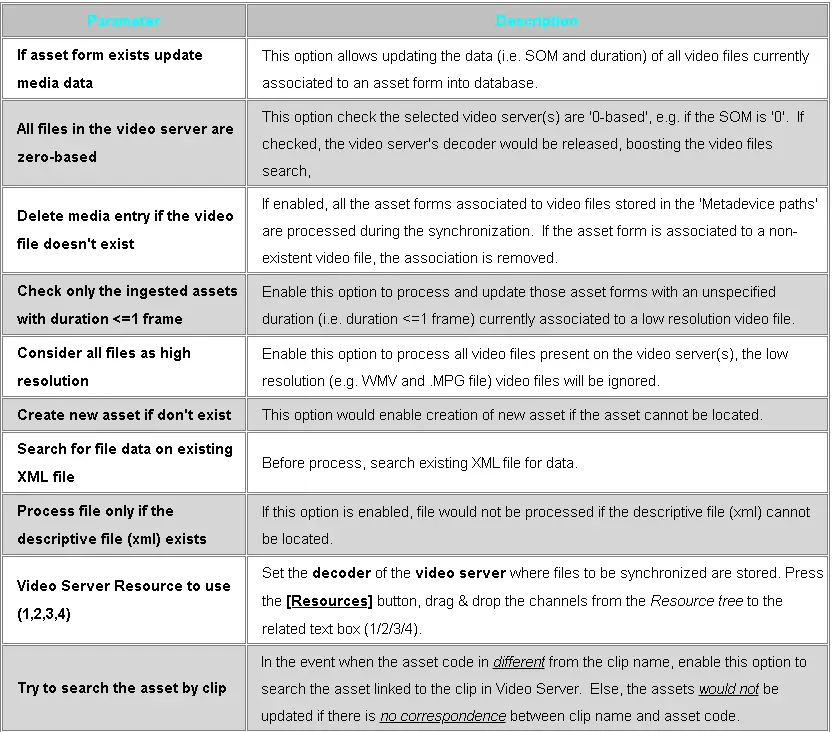 Parameteres and descriptions
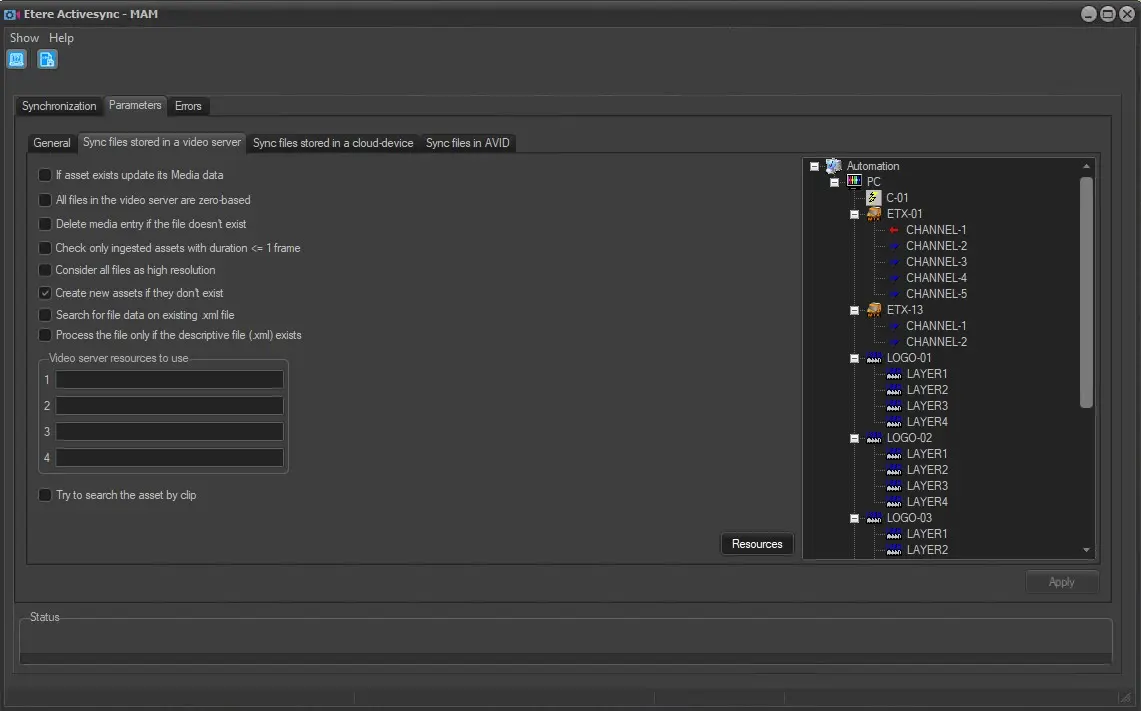 parameters