71.18.14 Logically Lock VS Channels
Physically locking a video channel while being used is a feature available in almost all video servers. In case you video server doesn't have support this feature, Etere allows logically locking encoding/decoding channels during their use (e.g. ingest, playout) to prevent their use by other Etere applications in the meanwhile. In order to accomplish this it's enough to follow the procedure below:
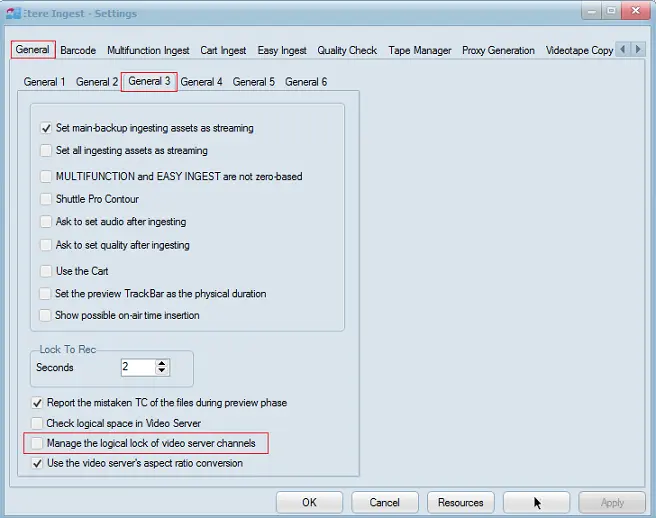
1. In "Ingest > Settings > General 3", enable the "Manage the logical lock of video server channels" parameter:
Ingest - Settings
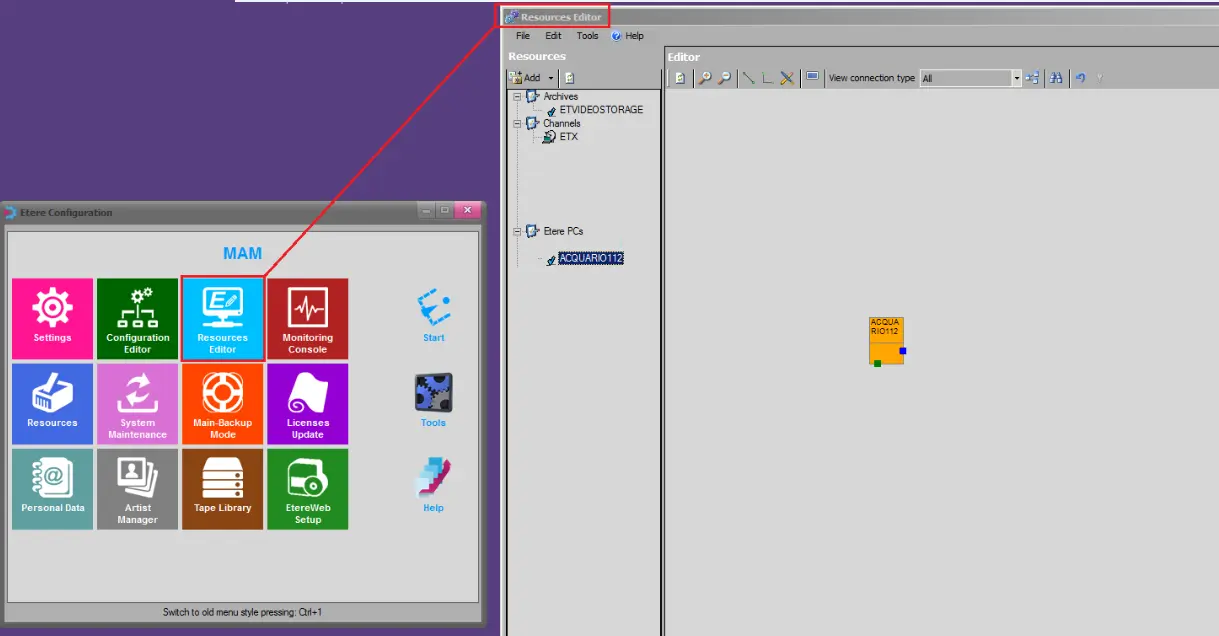
2. In "Etere Configuration > Resource Editor", define the video server resource (e.g. VS-Omneon) including encoder and decoder channels. Then,make sure the the video server channels are connected to a router resource:
Resource Editor
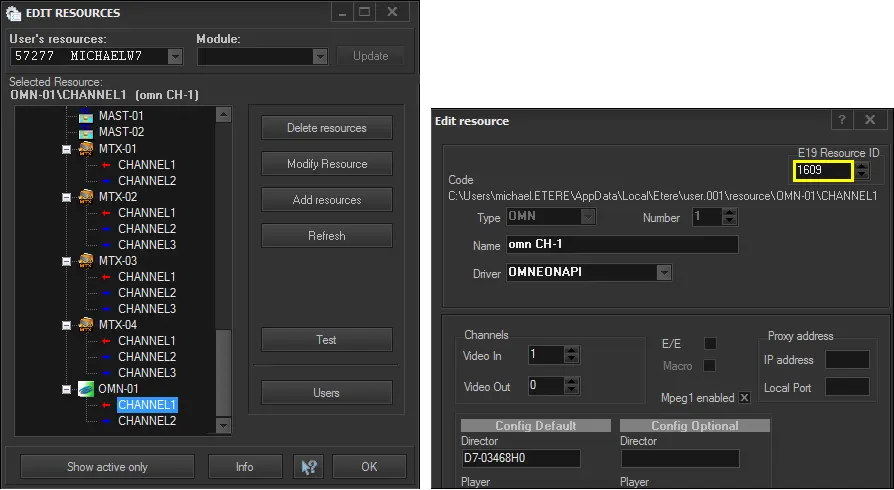
NB: Take note of the "resource ID" (e.g. 1609), it must be later used when configuring the legacy resource.
3. In "Etere Configuration > Resources" define the video server resource (e.g. OMN-01). Then, specify the resource ID (taken in the previous step) on each encoder and decoder channel:
Edit Resource
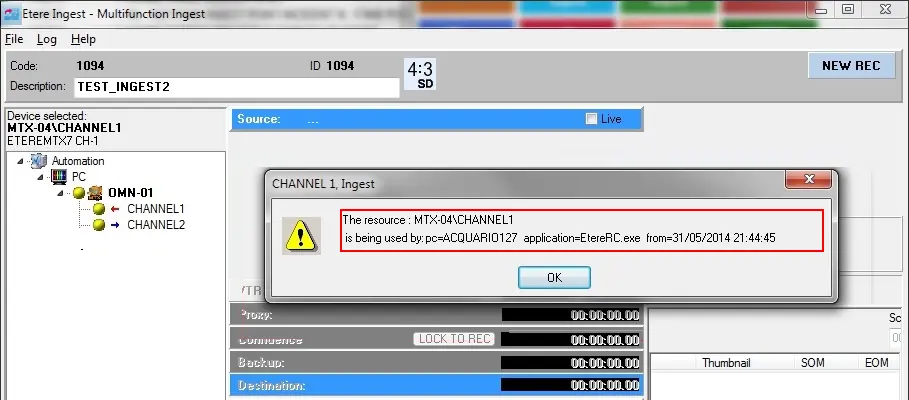
4. Once configured, the resource will be automatically locked every time it's used by an Etere module. for instance:
Manual lock/unlock:
It's worth mentioning that channels can be manually locked/unlocked from the "Monitoring Console > Resource Viewer" module, by right-clicking the resource and selecting either the unlock or lock function:
Multifunction Ingest
NB: locking a resource channel has effect also on preview channels in order to display the preview on Executive Editor. In that case a popup will appear asking you if you want to unlock it.
 Multifunction_Ingest
 Ingest_-_Settings
 Resource_Editor
 Edit_Resource