59.2.40.13 Global
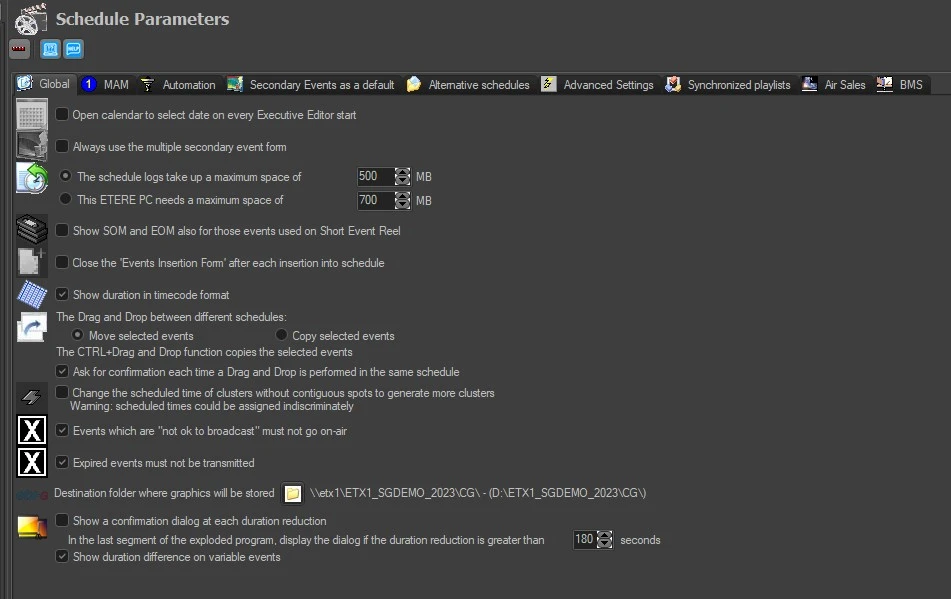
The Global tab provides the possibility of configuring the most relevant parameters regarding the overall management of schedules within Executive Editor.
scheduleparameters_global
Available parameters include:
• Open the calendar to select a date on every Executive Editor's start: If enabled, each time the user access Executive Editor, he will be prompted to select the day he wants to work on.
• Always use the multiple secondary event form: Set the multiple secondary event-form to be used even if only one event is selected.
• The schedule logs take up a maximum space of: In this section, you can set the maximum space (MB) allocated for Executive Editor log files; this parameter is global and read by all workstations. To deactivate the logging, set it at 0. You can set a maximum space of 500 MB for keeping adequate log files in all workstations for investigation purposes.
• This Etere PC needs a maximum space of: If you wish to set the maximum space (MB) limit only for this workstation, this can be done with this option. To deactivate the writing of the Log, set it at 0.
When deletion is required to free up disk space, you can manually delete the log files stored in the local drive. "C:\Users\user_name\AppData\Local\Etere\Log\user_code\EE" folder, keeping log files for the past few days for reference.
• Show SOM and EOM also for those events used on Short Event Reel: All scheduled events with the 'short event reel' property enabled in its type would display their SOM and EOM information.
• Close the 'Events insertion form' after each insertion into the schedule: If enabled, every time the operator inserts an asset into the schedule from the Event insertion form, it will close automatically, leaving the focus on the daily schedule.
• Show duration in timecode format: Choose the format in which Executive Editor should display the time duration of events (playlist, properties, etc):
Standard (disabled): mmmm:ss:ff (e.g. 0062:37:24)
Timecode (enabled): hh:mm:ss:ff (e.g. 01:02:37:24)
• The drag and drop between different schedules: Select the action that should be performed when events are dragged and dropped from one Executive Editor instance to another; it will be possible to select between:
Move selected events: Drag&Drop moves selected events; CTRL+Drag&Drop copies selected events
Copy selected events: Drag&Drop copies selected events; CTRL+Drag&Drop moves selected events
Note: Moving events already transmitted would require supervisor rights.
• Ask for confirmation each time a Drag and Drop is performed in the same schedule: If enabled (default), each time the operator drags a scheduled event and drops it into another position of the same schedule, a confirmation will be required to complete the action.
• Change the scheduled time of clusters without contiguous spots to generate more clusters: If enabled, when copying and pasting clusters into a certain EE television schedule, the system will change the scheduled time of all non-contiguous events (i.e. with different scheduled times) within the cluster so that events with different scheduled times will be featured on different clusters.
Before enabling this function, please note that new scheduled times could be assigned indiscriminately by the system.
• Events that are "not ok to broadcast" must not go on-air: If enabled (default), all scheduled events derived from a "not ok to broadcast" asset won't be allowed for being transmitted until being explicitly allowed (i.e. set ok to broadcast). These events will be published to the automation playlist without any media to avoid transmission. This parameter affects the following processes:
- Programming: New scheduled assets which are "not ok to broadcast" will be automatically inserted into schedules without a media, whereas already scheduled assets will require the "update duration and secondary events" function (available in the Executive Editor or as a Workflow action) to remove their media from schedules.
- Playout: If the "ignore (skip) events without media" parameter is enabled in the automation parameters, all events which are "not ok to broadcast" will be skipped by the automation. Instead, if that parameter is disabled, events will be replaced with emergency assets for their entire duration.
If disabled, "not ok to broadcast" assets will only be pointed out by warnings on the Executive Editor (and the Media Library), allowing the automation to transmit them.
• Expired events must not be transmitted: If enabled (default), all scheduled events which are "expired" won't be transmitted, similar to the upper option (i.e. Events which are "not ok to broadcast" must not go on-air).
If disabled, "expired" assets will only be pointed out by warnings on the Executive Editor (and the Media Library); the automation can transmit them.
• Destination folder where graphics will be stored: Specify the global path in the server where all graphic objects would be stored. If the path has been changed, you must restart the Configuration module and linked module (e.g. Automation) for changes to take effect.
• Show a confirmation dialogue at each duration reduction - In the last segment of the exploded program, display the dialog if the duration reduction is greater than: If this option is enabled, when the duration of a scheduled event has been modified by changing the SOM or EOM, a confirmation dialogue box would be pop-up to alert the operator. In the dialogue box, the original duration value and modified value are displayed for verification; the operator would need to click the <Yes> button to confirm and effect the changes.
After the change, if the reduced in duration is greater than the value indicated in the parameter (defaulted to 180 seconds), a warning dialogue would be pop-up to alert the operator.
• Show different duration in variable events: In Executive Editor, there are 2 durations displayed in the duration column for manual variable events, the actual duration and the duration of the material. If this option is enabled, both durations would be displayed in the duration column; if disabled, only the actual duration would be displayed.
 scheduleparameters_global