76.1.3.2 Run Secondary Event Immediately
The "Run Secondary Event Immediately" function allows sending a command to the Etere STMan module command indicating that a certain crawl script must be executed immediately on a preset device. Use this function to, for example, display (in the current station) a crawl text alter informing about a breaking weather situation, just by following the following procedure:
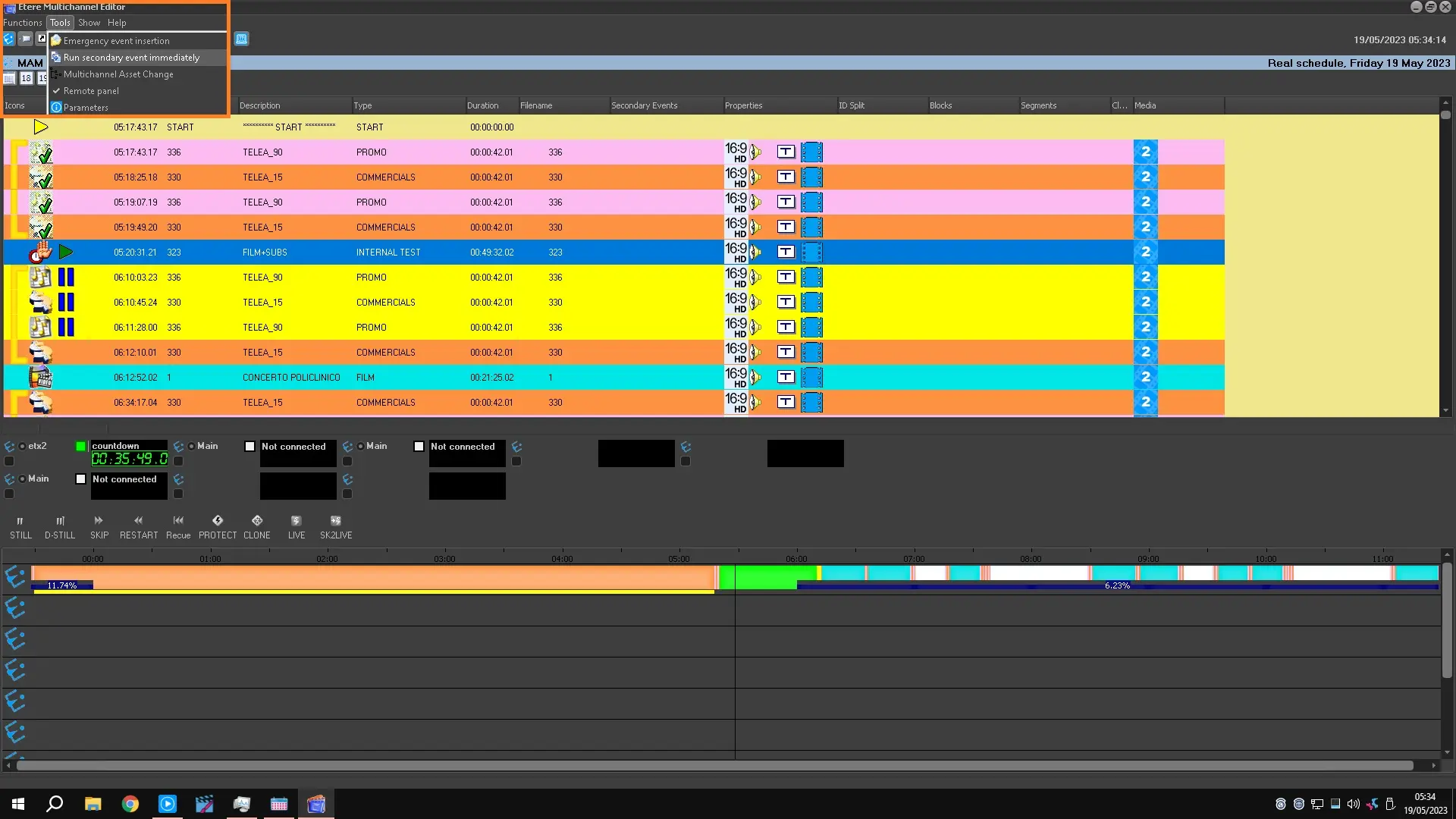
1. Click on the [Run secondary event immediately] and either use an existing script or create a new one:
run_2nd_events
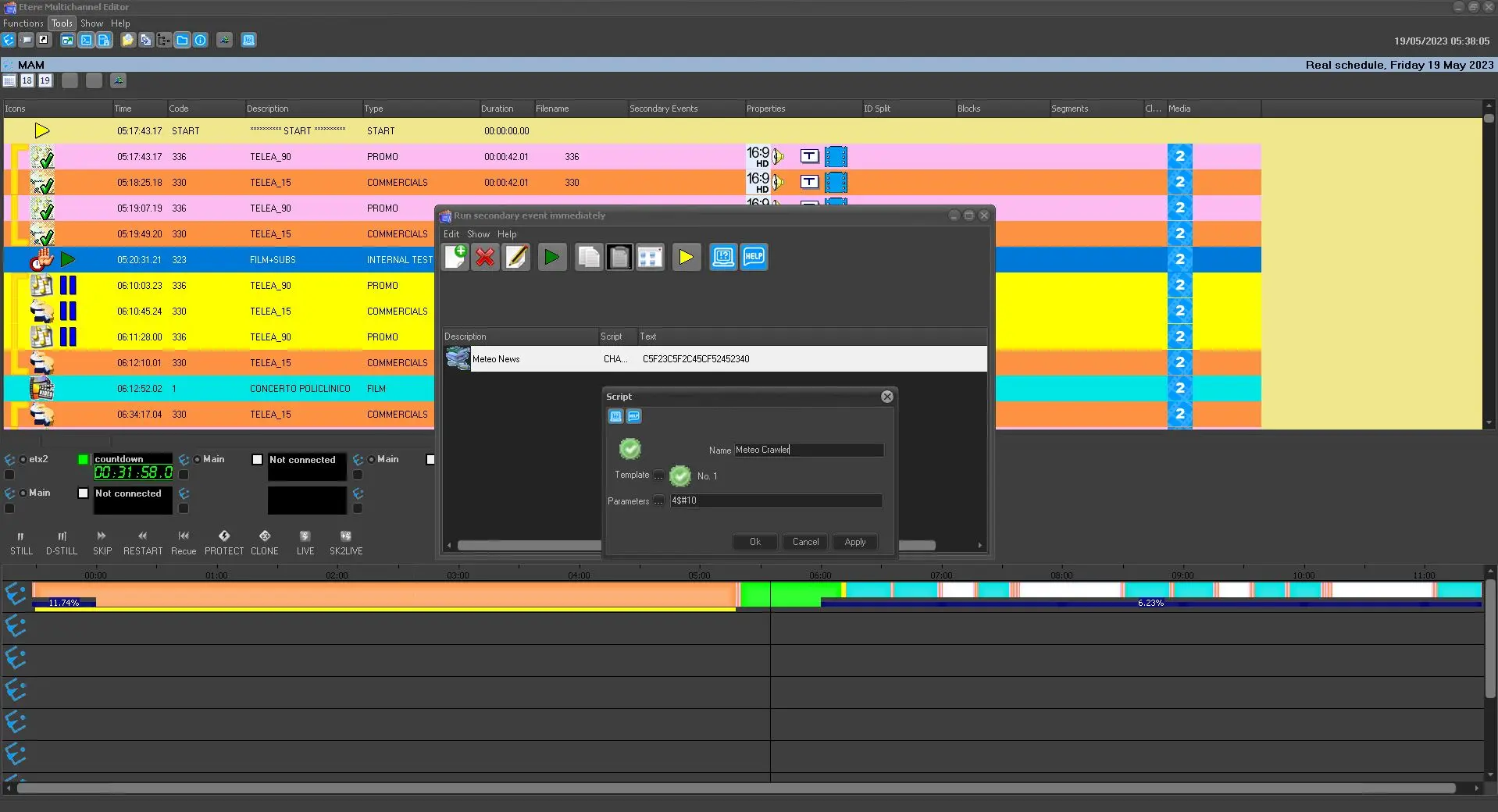
2. In case you have chosen to create a new secondary event, it will be requested to select the type intended to be created; available types include:
Secondary Object
This secondary event allows to send logos (fixed graphics), script files (command strings), or scheduled event information (current/next). This secondary event requires compiling the following parameters:
Secondary event
Name - Give it a brief descriptive name
Icon - Make a double-click on the default icon to change it to a more suitable one.
Format - Select the CTM script to be used. CTM scripts are configured in Etere Configuration > Settings > Devices > Scripts
Parameters - Specify the parameters to be passed to the CTM script (e.g.:'An electrical storm is coming from the east coast) to send to Etere STMan.
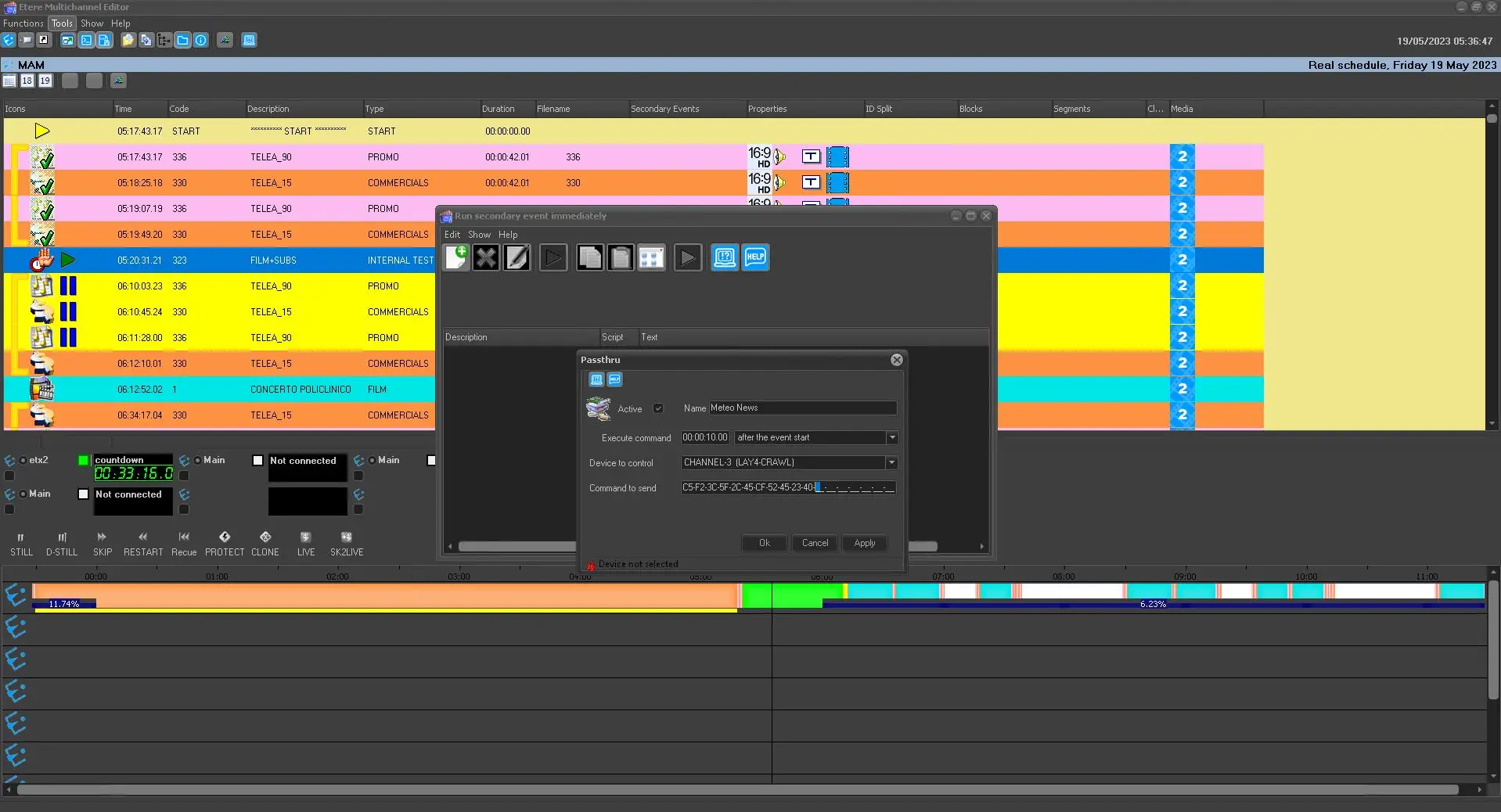
Passthru
This secondary event permits custom hexadecimal commands to a specific device (e.g., logo generator, subtitler, crawl generator, router, etc.). This secondary event requires the following parameters to be specified:
run_2nd_events_form_passthrough
Active - Tick off this parameter to enable the secondary event, and leave it unchecked to disable it.
Name - Give it a brief descriptive title,
Icon - Make double-click on the default icon to change it with a more suitable one,
Execute command - Set the time at which the secondary event will send the command; possible values include "after the event start (SOM)," "before the event start (SOM)," "at the event start (SOM)," "before the event end (EOM)," "after the event end (EOM)" and "at the event end (EOM)."
Device to control - Indicate the device to which the command will be sent,
Command to send - Enter the hexadecimal string to be sent to the selected device.
NB: Whichever the immediate secondary event is (secondary object or pass-thru), it won't be possible to name it using existing names.
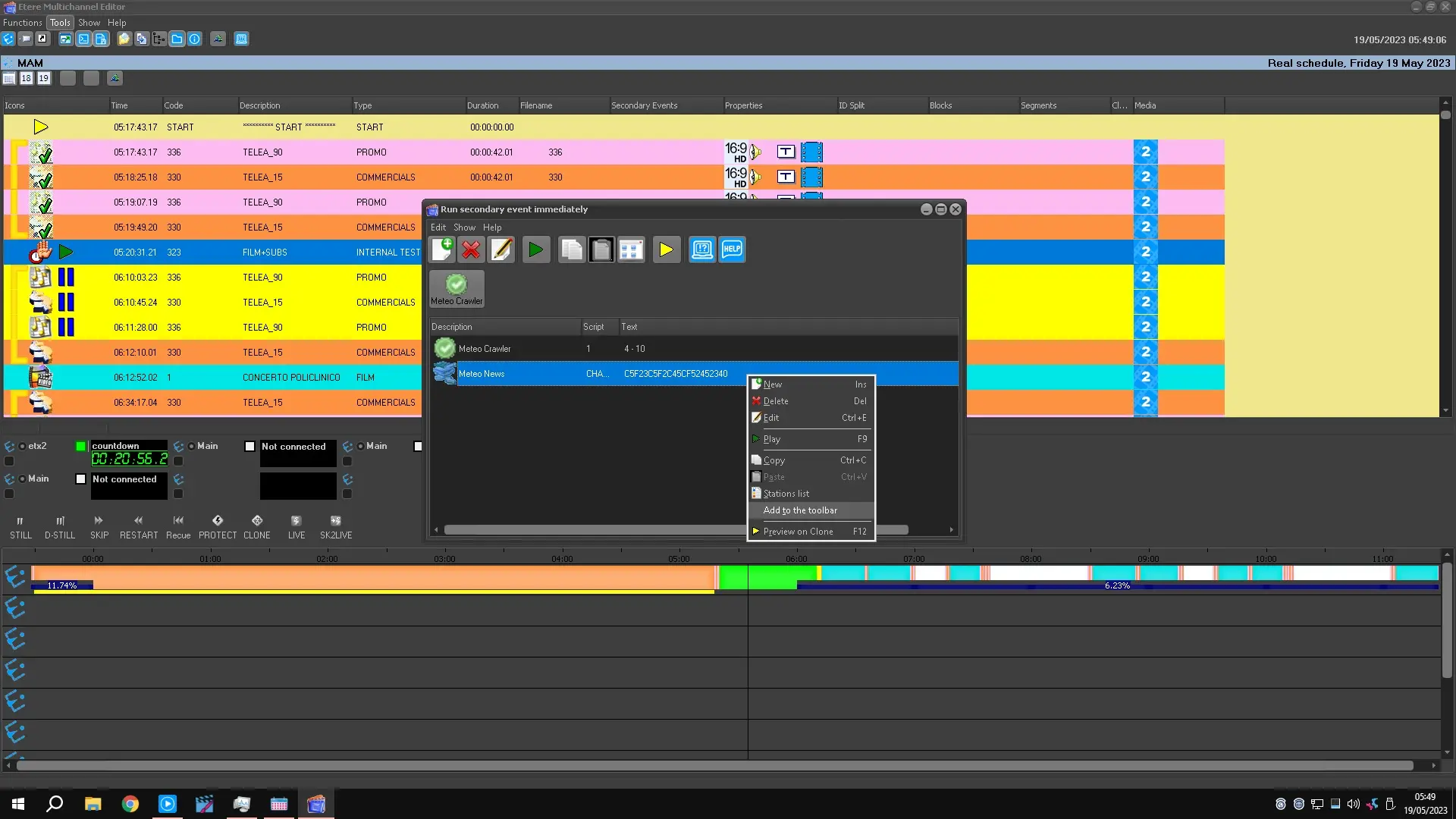
3. Once created, by making right-click on the script and selecting the 'add to the toolbar' option, it will be possible to add the script to the "quick launch" toolbar, from which it will be possible to launch scripts with just one click:
run_2nd_events_add_2_toolbar
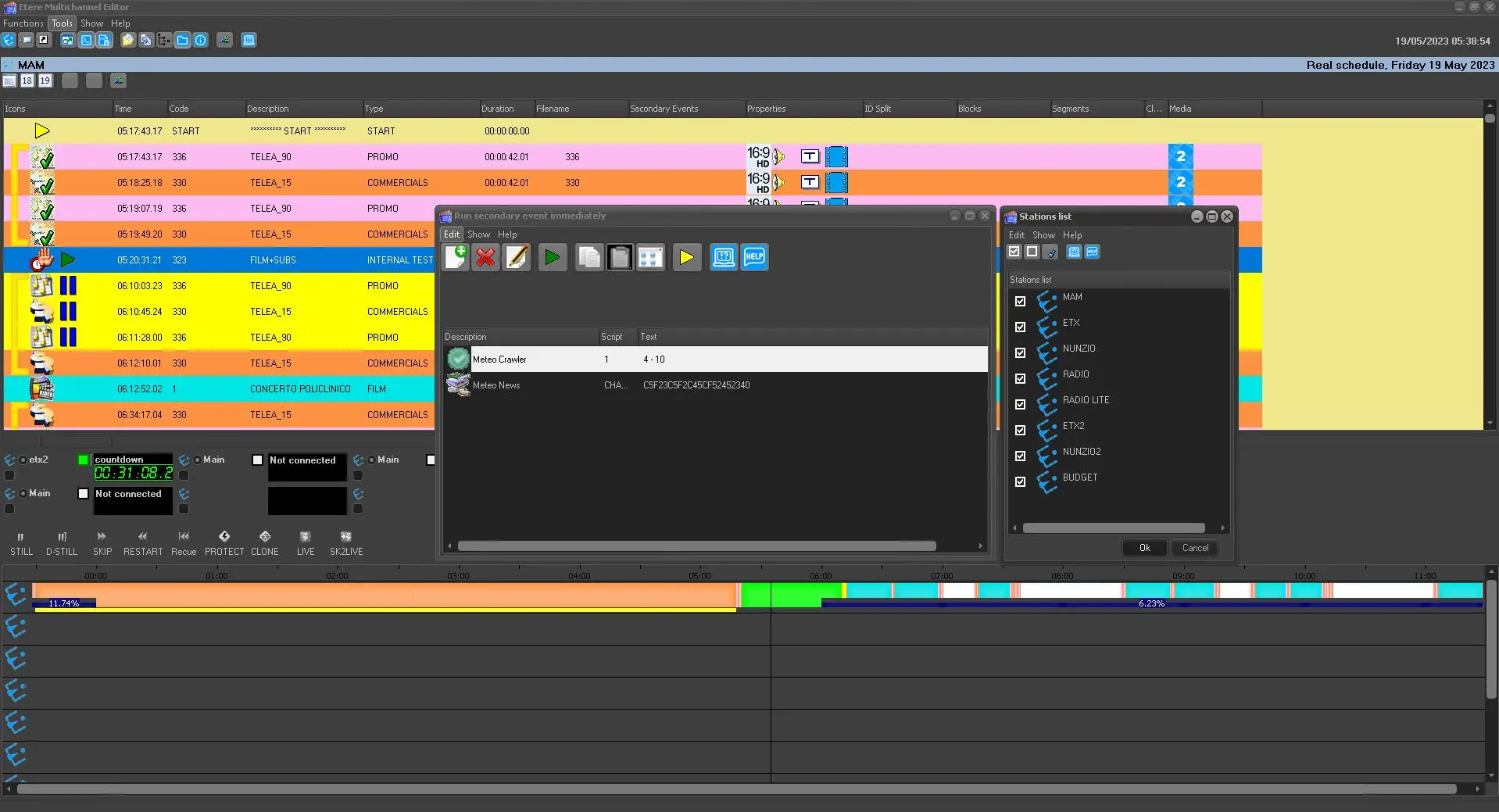
Moreover, for each secondary event, it's possible to define for which stations it should be executed this, making right-click on the script and clicking on the 'stations list' button:
run_2nd_events_form_station_list
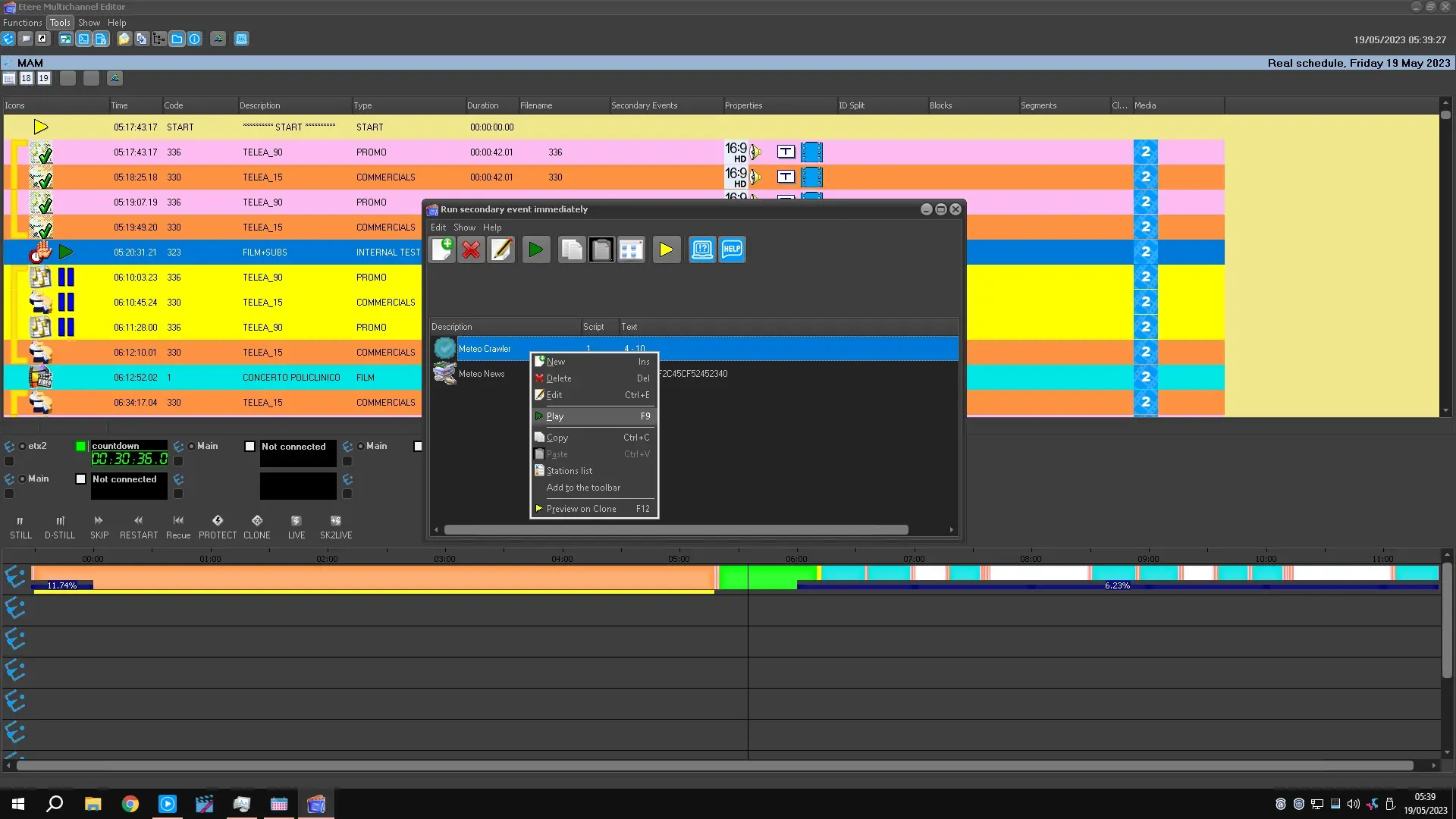
4. Secondary events can be run through any of the following actions:
run_2nd_events_immediately
Press its related quick button
Please select it and make click on the [Play] toolbar button
Please select it and press the F9 key
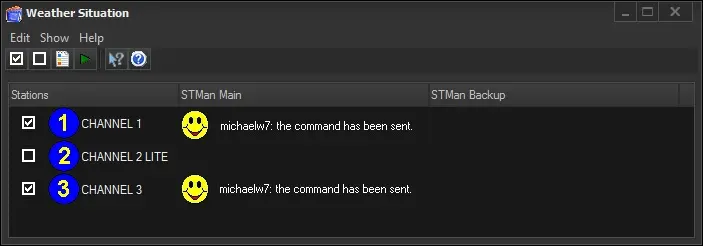
5. A small form will be displayed indicating the success of the command execution as well as the stations for which it has been executed:
Weather Situation
6. Secondary events can be launched as often as required, as detailed in the previous step.
Note: This feature complies with the EAS (Emergency Alert System) regulation for broadcasting important information during a state of emergency. EAS is a public warning system. It requires broadcasters, cable television systems, wireless cable systems, satellite digital audio radio service (SDARS) providers, and direct broadcast satellite (DBS) providers to provide communication capability to the authorities and to deliver important information to the public during a national emergency.
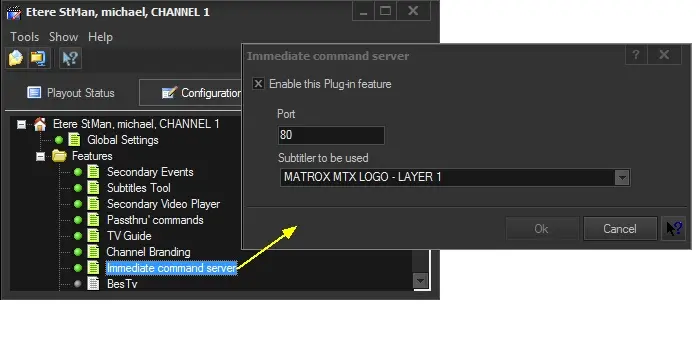
Please remember that to work; this function needs to be active in the Etere STMan module, this by activating the 'immediate command server' option just as shown below:
Etere STMan module
 Weather_Situation
 Etere_STMan_module
 run_2nd_events_immediately
 run_2nd_events_add_2_toolbar
 run_2nd_events
 run_2nd_events_form_crawler
 run_2nd_events_form
 run_2nd_events_form_station_list
 run_2nd_events_form_passthrough