59.2.39.4 Configuring a Virtual Router
Once the resource(s) related to the virtual router (and its managed sub-routers) has been created, it can be configured under Etere's Configuration > Settings > Devices > Video Routers section as described in the following procedure:
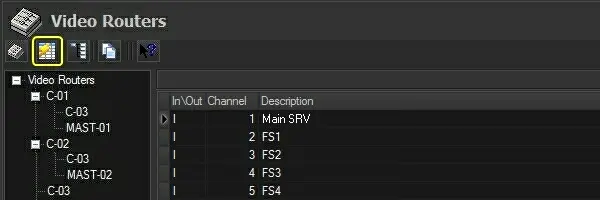
1. First of all, press the [Update routers table] button to refresh the list of routers. The list of routers has been updated, including all routing devices previously configured in the resources:
configuration_videorouters
Virtual Routers - C-01
Managed sub-routers: C-03 and Mast-01
Virtual Routers - C-02
Managed sub-routers: C-03 and Mast-02
Physical Routers
C-03
MAST-01
MAST-02
2. All channels descriptions of the physical router will be displayed in the "virtualised" instance. If no description was inserted, enter the description on the physical router or its "virtualised" instance:
physical_router
NB: Descriptions entered on physical routers (e.g. C-03) will be automatically extended to its "virtualised" instance (within the virtual router) and vice versa.
3. Click on the [Virtual Router Editing] button (located in the toolbar) to start configuring the properties of the virtual router:
Virtual_Router_Editing
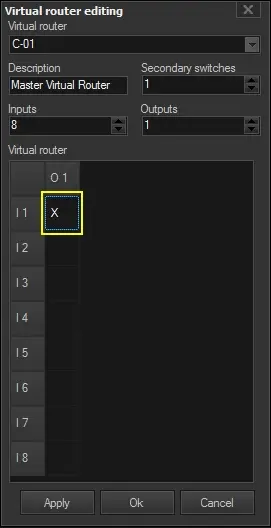
4. A configuration window allows editing of the properties of the virtual router:
All_configured_switches
Property - Description
Use description: Insert a brief description of the virtual router. For instance, indicate the name of the channel's feed.
Property -Sec. switches
Use description: Set the number of secondary switches to be managed in addition to the main switch.
Property -Inputs
Use description: Set the number of incoming (source) channels (e.g. 8) managed by the VR.
Property -Outputs
Use description: Set the number of outgoing (destination) channels (e.g. 1) managed by the VR.
Property -Virtual Router Table
Use description: The Virtual Router table is a crosspoint table where all multiple switches managed by the virtual router are defined.
For all virtual switches (e.g. I1, O1), it is possible to define the main switch and various secondary switches (to be concurrently performed); every main/secondary switch will allow to:
•Set one switch (in->out) for each physical router within the virtual router.
•Select the layers (L1, L2...) to which the switch will be applied (e.g. audio, video, etc.).
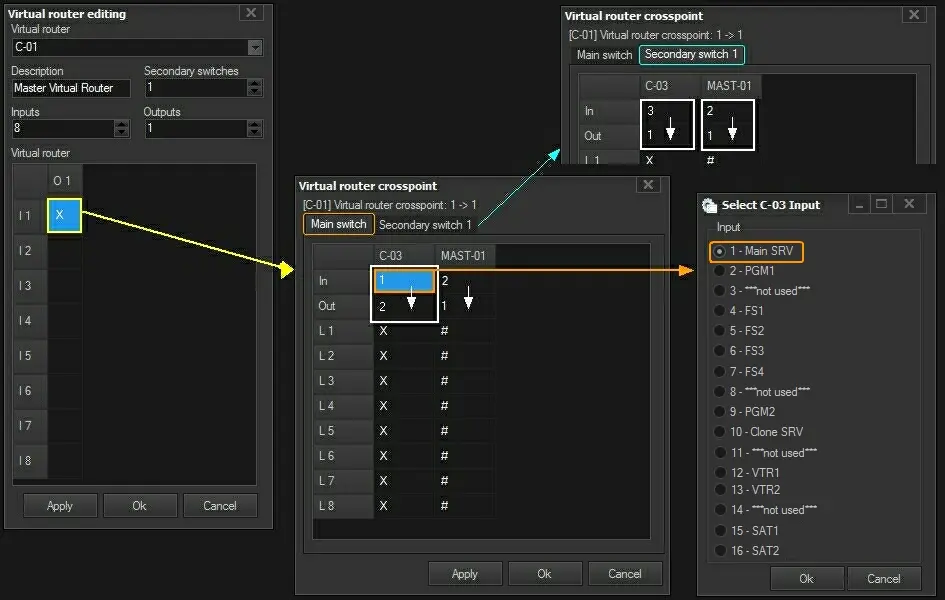
5. In the Virtual Router Table, double-click on a cell (e.g. I1, O1) to define the main switch (and eventual secondary switches) to be triggered when virtual switching occurs:
Virtual_Router_Table
Example - For example, it's possible to set one virtual switch (e.g. I1, O1) to perform all the following physical switches:
(1,1) Main switch - Router1 (C-03): input 1->output 2 - Router2 (Mast-01): input 2->output 1
(1,1) Secondary switch - Router1 (C-03): input 3->output 1 - Router2 (Mast-01): input 2->output 1
6. All configured switches will be marked with an "X", whereas switches not-configured would remain blank. Continue configuring all switches, and then press the [OK] button:
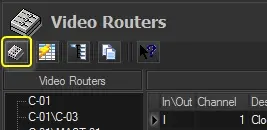
7. Press the [Update routers table] button to update all changes made to the virtual router (e.g. added inputs/outputs):
Update_routers_table
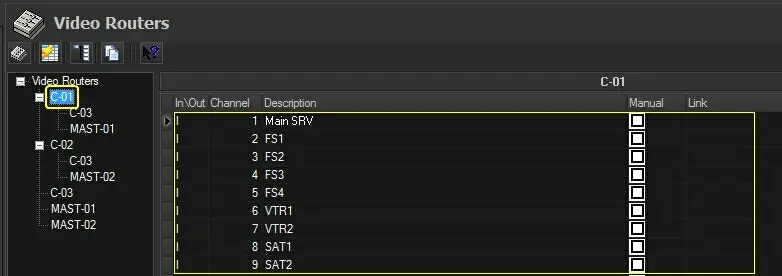
8. Enter a description for the in/out channels of the virtual router to facilitate their future identification:
future_identification
Note
In case your system has a redundant automation deployment, the channels of the clone virtual router must be connected to the corresponding ones in the master virtual router to enable parallel switching. See "Connecting routing channels".
9. Press the [Create table] button to update the virtual router (and its added video routers and/or master controls) into the routing table:
Create_table
NB: Please consult the "Generating the Routing Table" chapter for information on the requisites for creating a routing table.
10. The virtual router (and its linked routers) is ready to be used.
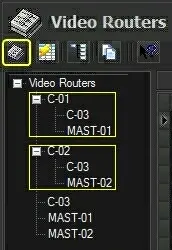 configuration_videorouters
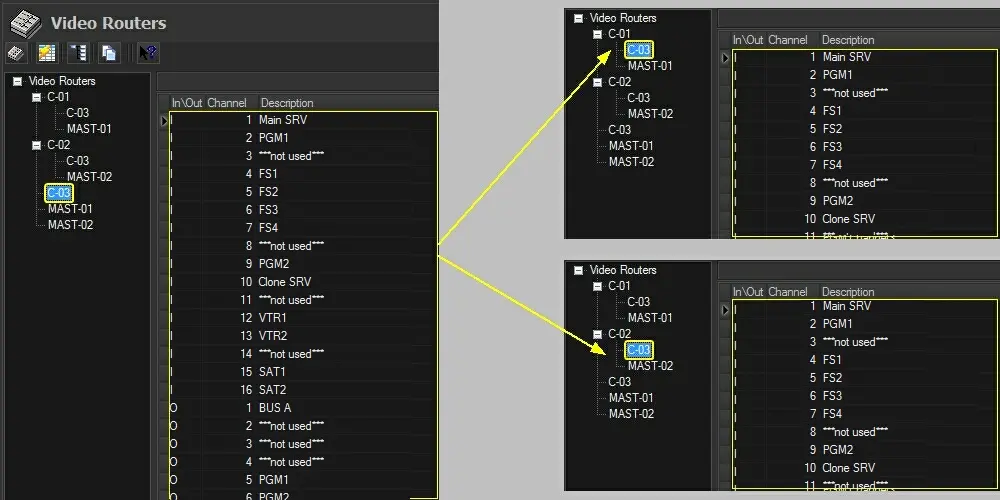 physical_router
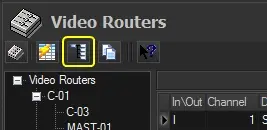 Virtual_Router_Editing
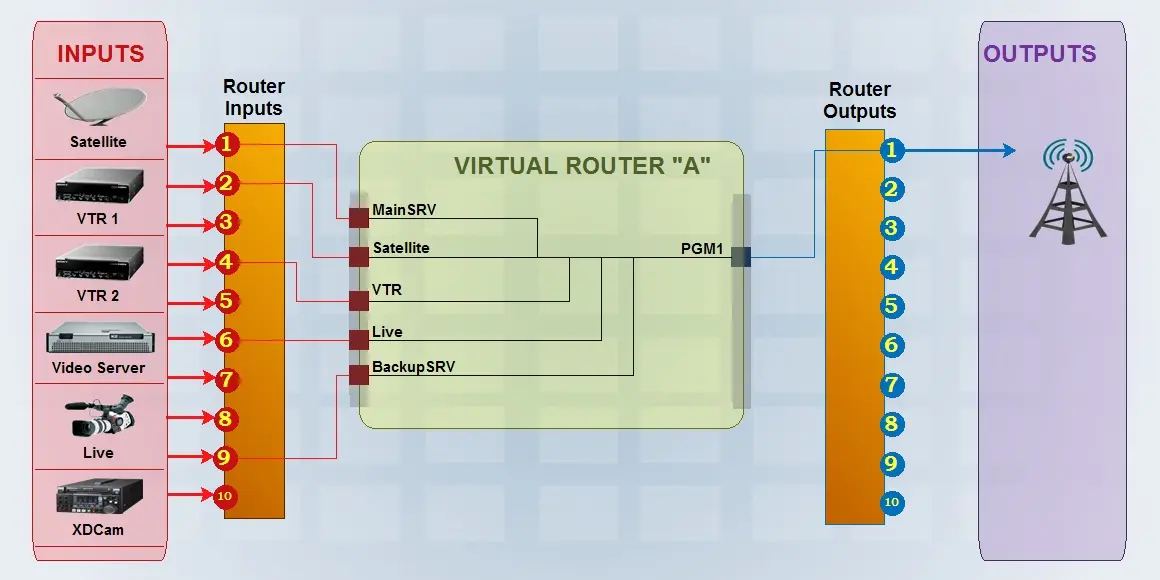 virtual_router
 Virtual_Router_Table
 All_configured_switches
 Update_routers_table.
 future_identification
 Create_table.