70.5.3.1 User interface
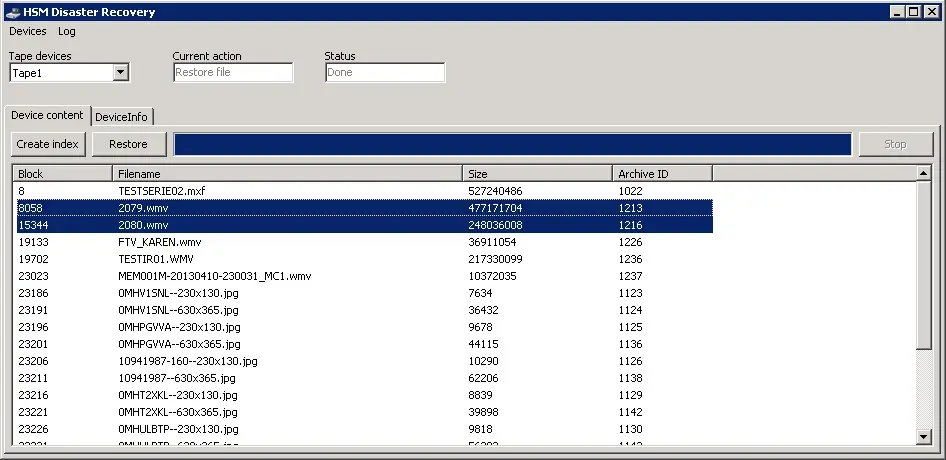
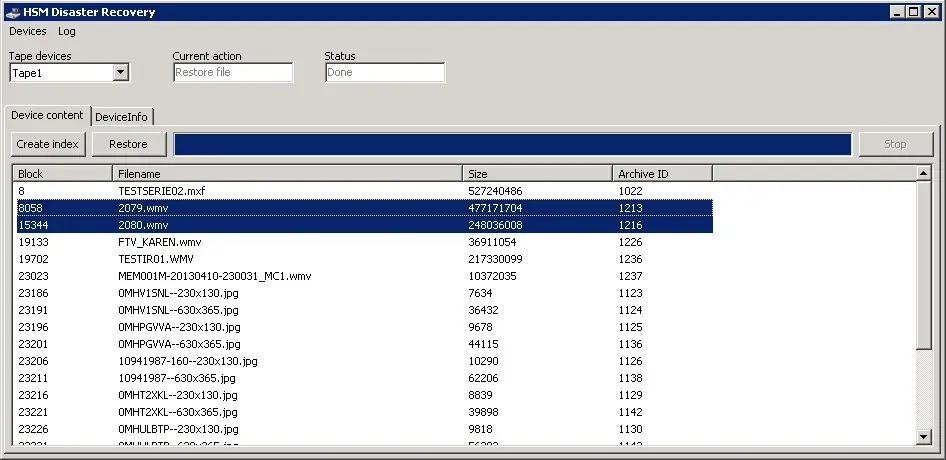
When the HSM Disaster Recovery utility is launched its main interface is displayed, it is formed by the following sections and functions:
HSM Disaster Recovery 1
Available sections
SECTIONS
Tape devices - Here will be listed all tape drives tape drives in the computer, allowing to select the one from which restore content.
NB: If no tape drive is found when the application starts, a warning message will be displayed.
Current action - Indicates the operation being currently performed (e.g. creating index, restoring file, etc).
Status - Indicates the current operation status (e.g. rewinding, seeking on the tape, reading, done, stopping).
HSM Disaster Recovery 2
Device content - In this tab are displayed all content files stored into the tape within the selected drive
NB: Only content archived in EXF format (i.e. by Etere HSM) will be displayed for restore.
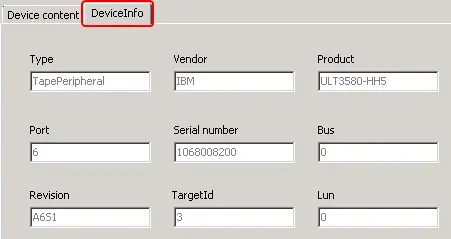
Device info - In this tab is displayed a summary information on the tape drive currently in use, this information includes the following data:
DeviceInfo
Available functions
FUNCTIONS
[Refresh tapes list] - Go to the "Devices" menu and select the "Refresh tapes list" function, all tape drives currently available in the system will be listed in the "Tape devices" combobox:
Tape devices
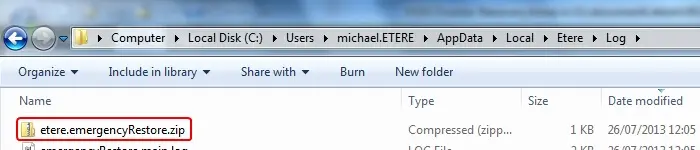
[Zip log files] - Go to the "Log" menu and select the "Zip log files" function, all operations records will be zipped in the %localappdata%\Etere\Log\ directory named as "etere.emergencyRestore.zip":
Zip log files
[Create index] - Rewind the tape to seek all stored valid content (i.e. archived by Etere HSM).
During the indexing, a progress bar will display the completion status, it will be possible to [Stop] the operation at any time (e.g. if the desired file has been already found and displayed).
Indexed content can be selected for being restored just by clicking on them, multiple files can be selected by using the [Control] and [Shift] keys.
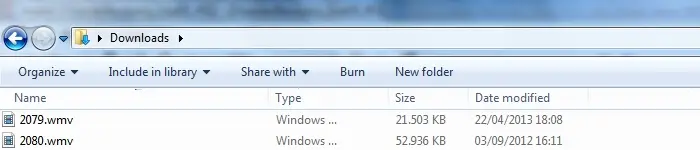
[Restore] - Read all selected contents from the tape to save them into a selected directory:
Selected directory
During the restore, a progress bar will display the completion status, being possible to [Abort] the operation at any time (e.g. if the restore was launched for a wrong file).
NB: In case only one file is restored it will be possible to change the name with which it will be saved; otherwise, multiple selected files will be automatically restored with their original names.
 HSM_Disaster_Recovery_1
 DeviceInfo
 Selected_directory
 Zip_log_files
 HSM_Disaster_Recovery_2
 Tape_devices