72.2.1.17 T-Workflow Info
The Workflow Info tool allows to manage the T-workflows in two different modes, depending on:
•The 'Workflow Info' is launched for only one asset:
It will allow to manage all T-workflows for the selected assets (whether they are associated to it or not).
•The 'Workflow Info' is launched for more than one asset:
It will allow to manage a certain T-workflow for all selected assets (whether they are associated to it or not).
Multi-asset workflow management
For example, to manage a certain T-workflow for various assets at the same time, just follow the next procedure:
1.Select the desired assets (e.g. those which codes are '1', '2' and '3').
Select assets
2.Right-click on asset and click the 'Workflow info' option.
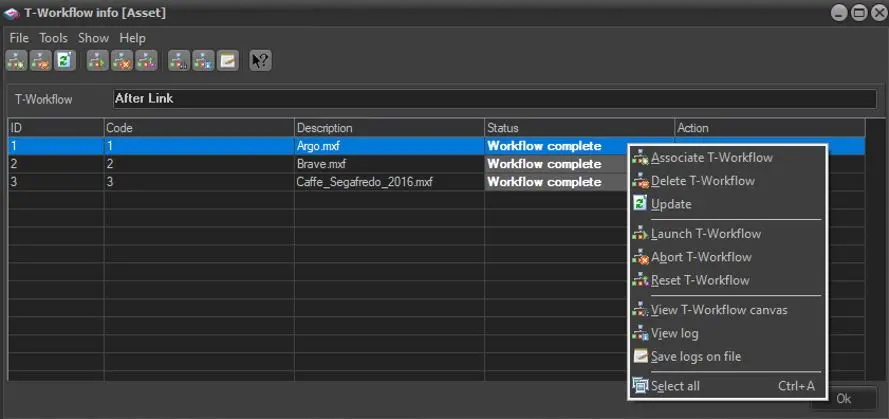
3.Select the specific T-workflow to be managed (e.g. 'Archive to HSM'), the following window will be opened.
Archive to HSM
4.By selecting one or more assets (multi-selection is allowed) and right-click on assets, it will be possible to:
Associate the workflow - Attach the T-workflow to the selected asset(s), if it is already attached no action will be performed.
Delete the workflow - Remove the T-workflow association from the selected asset(s).
Update the workflow - Update the T-workflow status and current action of the T-workflow.
Launch the workflow - Trigger the T-workflow execution for the selected asset(s).
Abort the workflow - Force abort the T-workflow.
Reset the workflow - Reset the T-workflow execution (i.e. it will be attached but not launched).
View workflow canvas - Open the 'View Workflow canvas' tool that displays the T-workflow execution through graphical action blocks.
View log - Display the log containing all information about the execution of the T-workflow for the selected asset(s).
View all archived logs - Show the same information as the 'view log' function for archived logs. This function will be available only if a historical database has been configured in the system.
Save logs on file - Creates in the Etere's log directory a zip file named wf_log_[asset-id]_[wf-name].zip (e.g. wf_log_1_batonqc.zip), said file will contain two files related to the execution of the T-workflow:
▪etere.wflog.xmlexport.[asset-id].[wf-id].xml : XML file detailing the concerning asset and T-workflow as well as detailed information for each action (time, name, result, login, host, etc.).
▪wflogexport.xsl : XSL style sheet describing how to display the exported XML document.
NB: Please note that once an action is performed, selected assets will remain selected, thus allowing to perform another action on them.
 Archive_to_HSM
 Select_assets