72.19.3.3 Management tab
The Management tab enable you to configure and manage the key components in Advanced QC, including users, nodes, view license, and most importantly to create and manage the repositories where all the files to be analyzed are stored.
1.Configure Users
Under the Management tab, configure the users who require to access the features in Advanced QC.
There are 3 categories of user profiles available in Advanced QC:
•Admin:
With full privileges for all functionality to perform advanced QC
•Designer:
Available functions includes creation and configuration of projects and files for which authorization has been granted.
•Viewer:
Allowed viewing of projects and files which authorization has been given.
Follow the instructions prompted on screen to create desired users.
2.Configure Nodes
You can use the existing nodes provided in the system or create new nodes to suit your requirements. Simply follow the instructions prompted on screen to complete the node creation.
3.View License
This option provides information regarding the number of nodes and points in Advanced QC to perform analysis of files
4.Configure the repositories
The repositories is the key component in Advanced QC, it is a path or root directory where the files to be analyzed are stored. The repositories can be created/located in local drive or folders in the mapped network drives.
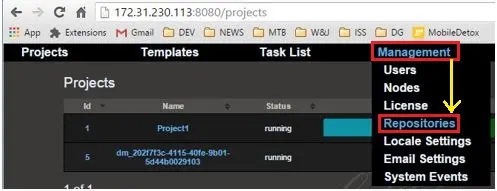
After login, click on the Management tab on the project page and select “Repositories” to open the web page containing all repositories.
Repositories
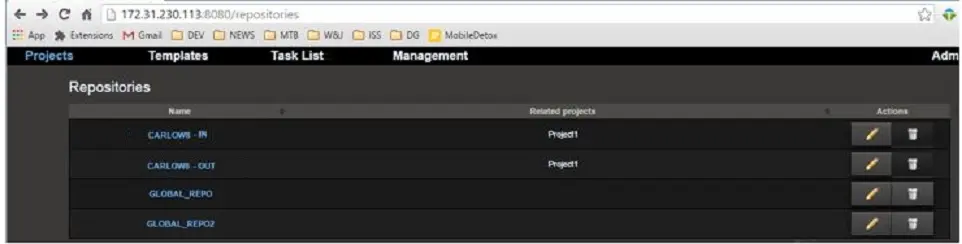
All available repositories are displayed on the web page, click on the “Add” button under the Action column to add a new repository to the list.
Advancedqc_management_repositories
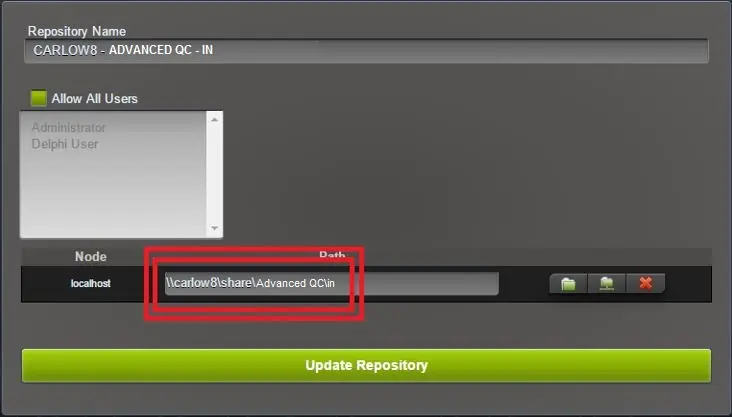
You must configure the required parameters in the new repositories dialog to match you requirements.
Advancedqc_configure_repositories
Parameter - Repository Name
Description : Give a name to the new repository.
Parameter - Allow All Users
Description : Specify which user group is allowed to access the new repository, you can enable the checkbox to allow all users access.
Parameter - Node
Description : Enter the node name if necessary.
Parameter - Path
Description : Specify the path to the repositories. This parameter is essential, the path must match one of the entries in Etere Media Folders. During analysis runtime, Data Mover would search for a repository with the path matched the entry in Media Folder to start the analysis process.
The path name is case insensitive.
Parameter - Localhost
Description : Enter the URL of the local host.
When all parameters are fulfilled, click the “Update Repository” button to confirm the creation of new repository.
 Repositories
 Advancedqc_management_repositories
 Advancedqc_configure_repositories