59.2.40.11 Assign Logo to Secondary Object
In Parental Guidance, you can assign a STMan logo to the secondary object for any parental rating; the inserted logo would be displayed from the start of the scheduled duration for identification in the Executive Editor.
In Parental Guidance, right-click on any Parental Rating and select "Edit Secondary Object" from the menu. Look for the similar icon in the Toolbar that would be activated for the similar function.
Edit Secondary Object
Next, click on the Template button and select any logo from the list; double-click the logo to confirm your selection.
Template
The selected logo would be appended as a logo inserted for the set Parental Rating.
Click <Apply> to conform the logo insertion and <OK> return to Parental Guidance. The selected logo would appear under the "Secondary Object" column.
Parental_guidance_1
Now select another Parental Rating code and repeat the steps above to insert a different logo to the next rating.
In Executive Editor, the inserted logos would be displayed in the Secondary Events column. If the event consists of multiple segments, the logo would be applied to all segments.
Executive_Editor
If you want to remove the inserted logo in Parental Guidance, select the rating object and right-click and execute the "Remove Secondary Object" function. Noticed that the similar icon in the Toolbar is also activated for a similar function.
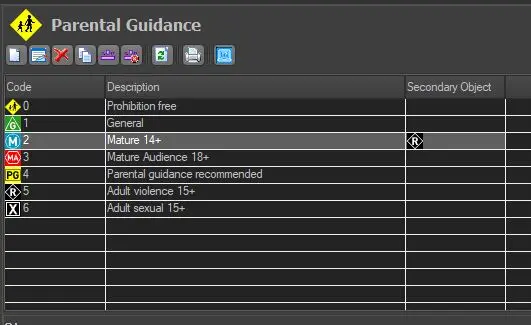 Parental_guidance_1
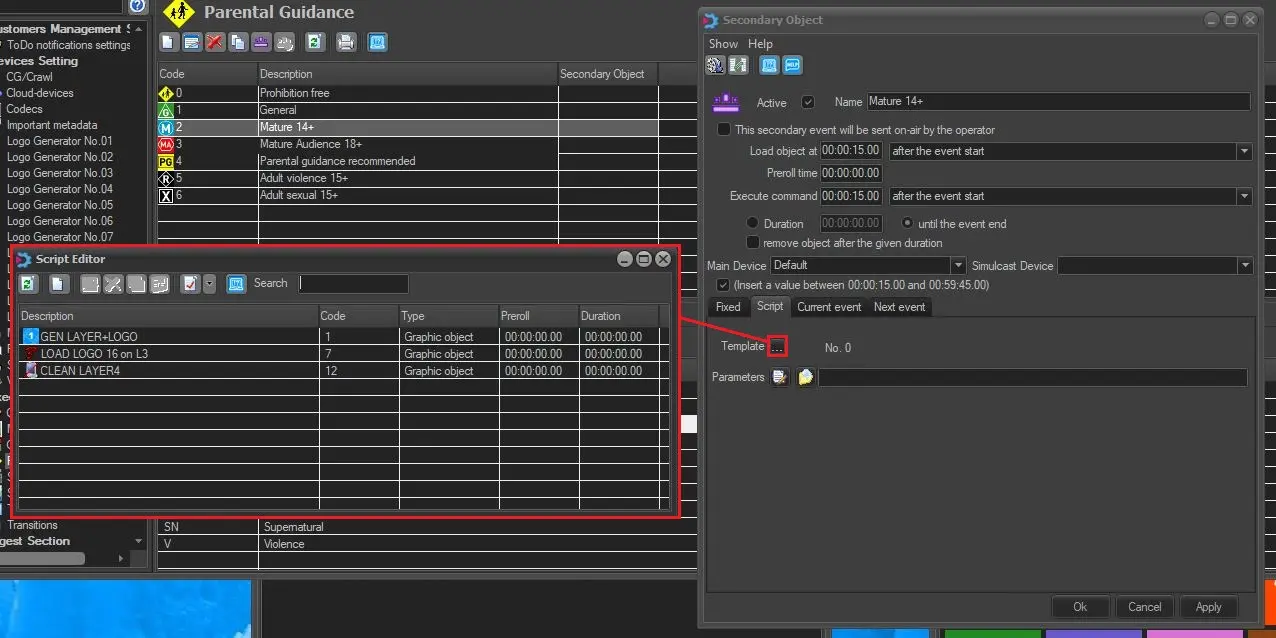 Template
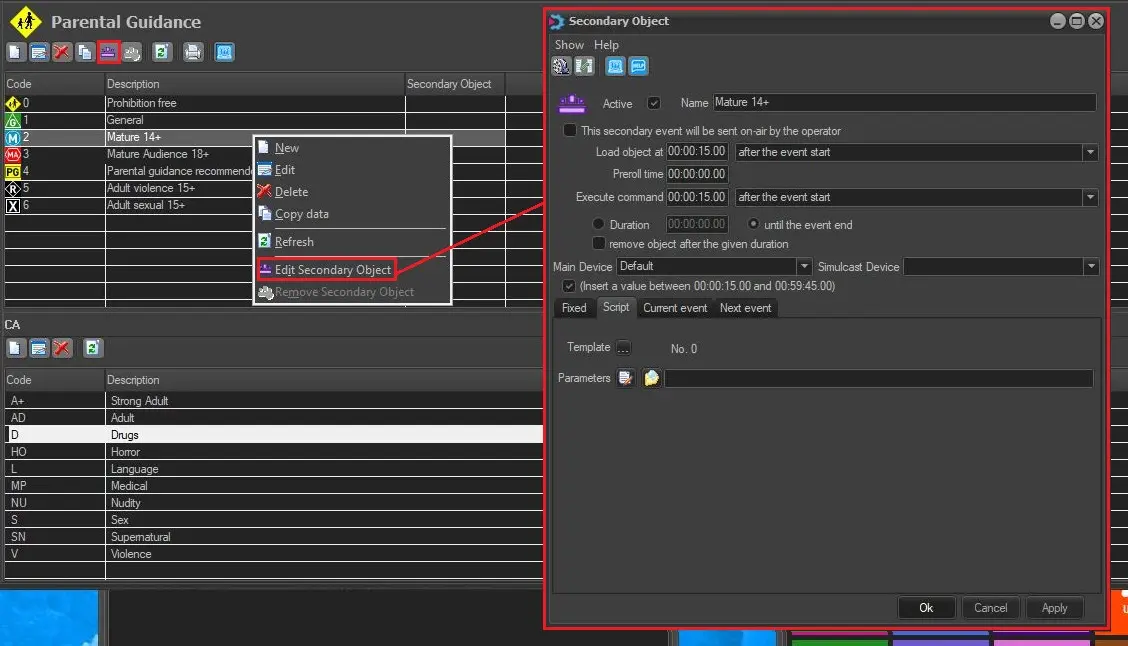 Edit_Secondary_Object
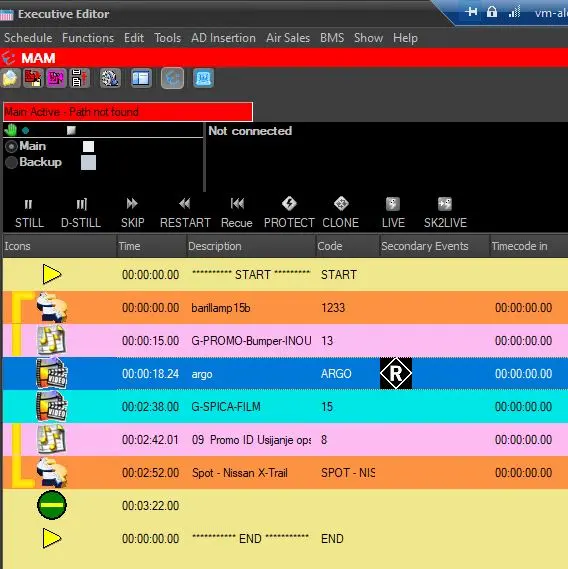 Executive_Editor