59.5.20 Settings
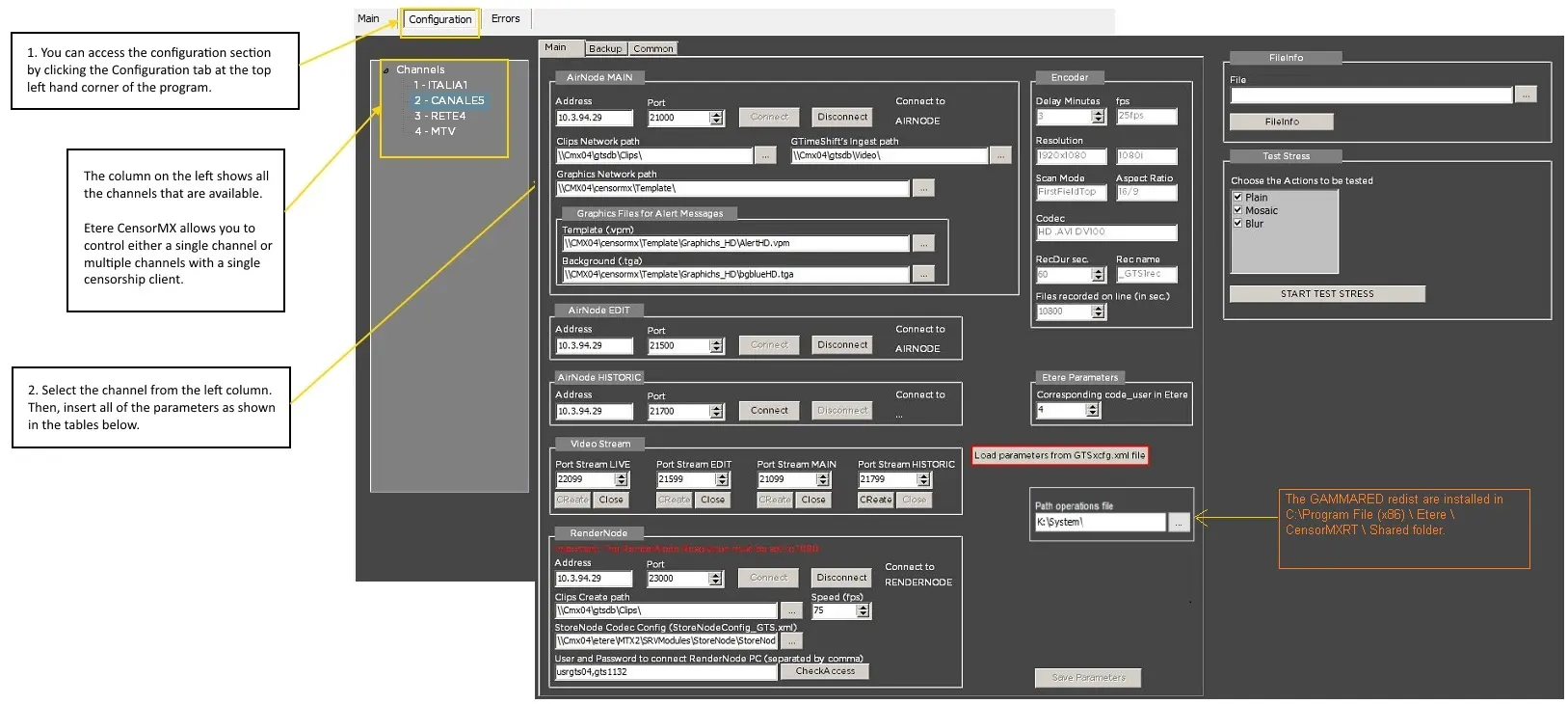
1. You can access the configuration section by clicking the Configuration tab at the top left-hand corner of the program.
AUTOMATIC SETUP FOR NEW CHANNEL
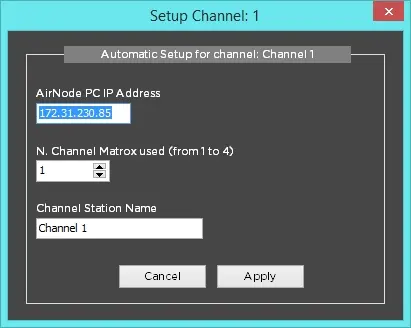
For Etere CensorMX, the setup will be done automatically when you start CensorMX for the first time and when creating a new channel.
A dialogue box (as shown below) allows you to select the channels to use (from 1 to 4). Upon selection, it will set all port-related defaults.
One setting that you need to input is the "Clips Network Path", which is likely set to \mtxdb\video
cmx_auto_setup
MANUAL SETUP FOR NEW CHANNEL
To perform a manual setup, refer to the default settings below.
All available channels are displayed on the left panel within the configuration tab.
You can add or delete channels since Etere CensorMX allows you to control a single channel or multiple channels with a single censorship client.
MANUAL_SETUP_FOR_NEW_CHANNEL
Select a channel from the left panel and insert all the parameters as shown in the tables below.
AirNode MAIN
Address - Insert the IP address of relative AirNode MTX2.
Port - Insert the Port of relative AirNode MTX2 for the respective channels as below.
Channel 1 - 21000
Channel 2 - 21200
Channel 3 - 21100
Channel 4 - 21300
Clips Network Path - Insert a network path shared between PC CensorMX and AirNode MTX2. It must contain the video files used for addition to the Timeline. The files must be of the same dimension out of Airnode (eg:1920x1080); file types are .mxf, .avi, .mpeg, .mov, .wmv (.mp4 is not compatible with Matrox.)
Note: refer to the supported format, codecs and resolutions chapter.
Clips Network Path - Insert a network path shared between PC CensorMX and AirNode MTX2. It must contain the video files used for addition to the Timeline. The files must be of the same dimension out of Airnode (eg:1920x1080); file types are .mxf, .avi, .mpeg, .mov, .wmv (.mp4 is not compatible with Matrox.)
Note: refer to the supported format, codecs and resolutions chapter.
GTimeShift's Ingest path - Specify the path in GTimeShift to access the XML file.
Graphics Network Path - If graphics are used, specify the network path where all graphics objects are stored.
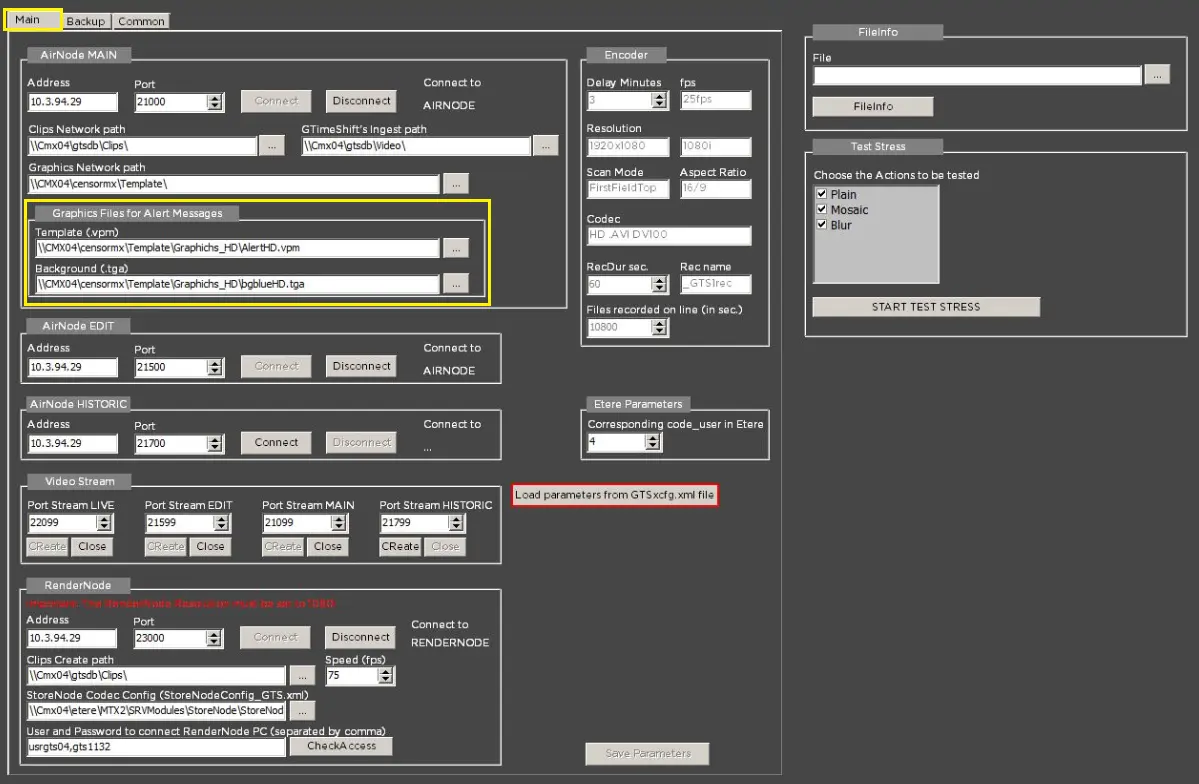
Graphics Files for Alert Message - Inserts graphic files for alert message.
Note: The relative button [CONNECT] is mainly used for testing.
Note
The shared directory must have a default. It is likely to be \mtxdb\video
Graphics Files for Alert Message
The Graphics Files for Alert Message feature allows users to configure the following related files:
•File Template (.vpm) created by applying SHI
•NE GTed.
•The background file (.tga)
The two files must be compatible with the resolution of the video recording, either in HD (1920x1080) or SD (720x576).
The files must reside in the AirNode directory: C:\Shine\AirNode\Template\
Censormx_Graphics_Files_for_Alert_Message
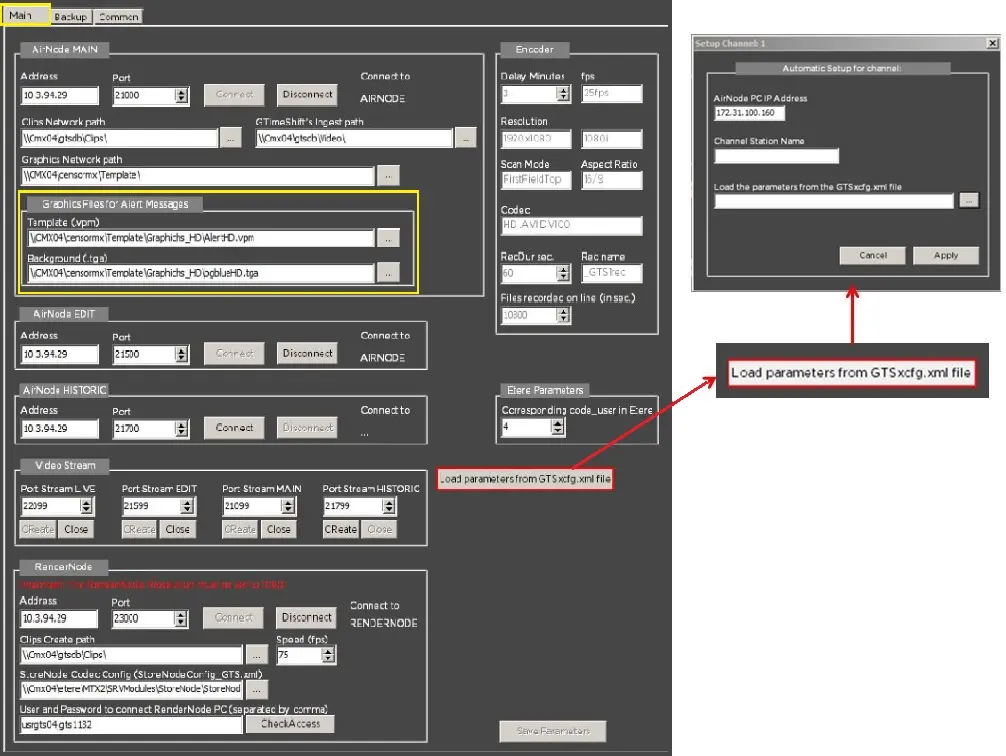
Load Parameters from GTSxcfg.xml file
Load_Parameters_from_GTSxcfg.xml_file
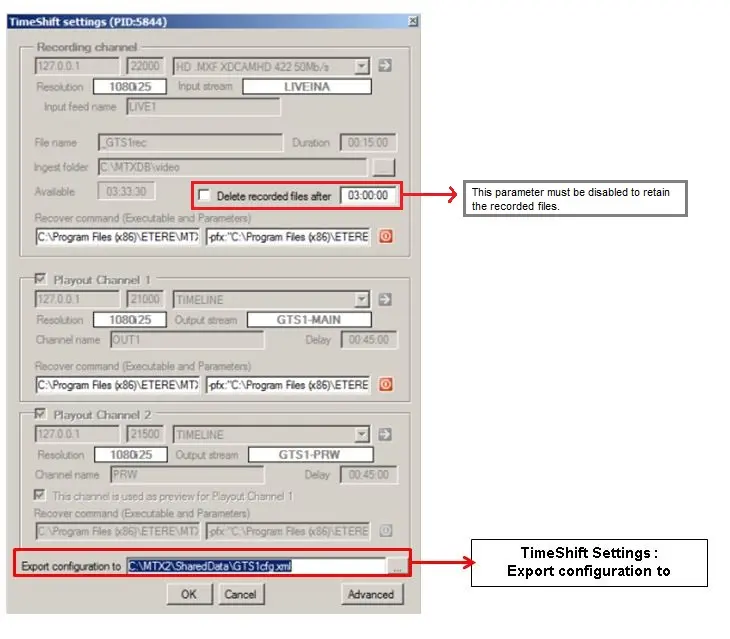
This feature allows you to load the configuration of Censor from a .xml file saved from the "TimeShift Settings - Export configuration to." parameter.
TimeShift_Settings
The file contains all the data except those from the "Clip Network Path" and "Graphics Files for Alert Messages."
AirNode EDIT
Address - Insert the IP address of relative AirNode MTX2
Port - Insert the Port of relative AirNode MTX2 for the respective channels as below.
Channel 1 - 21500
Channel 2 - 21700
Channel 3 - 21600
Channel 4 - 21800
Source to use - Automatic selection of the TIMELINE
Note: The button [CONNECT] is mainly used for testing.
Delay
Minutes - Insert the same value as per Airnode
AirNode Historic
•Address: It reflects the IP address of the server that stored the historical clips
•Port: The port number the IP address uses for communication to the historical server.
•Connect: Click this button to establish the connection to the historical server.
•Disconnect: This button terminates the connection to the server.
Video Stream
Port stream LIVE - Insert the Port of the stream output LIVE.
Channel 1 - 22099
Channel 2 - 20299
Channel 3 - 20199
Channel 4 - 20399
Port stream EDIT - Insert the Port of the stream output EDIT; the standard setting is Airnode Edit Port + 99.
Channel 1 - 21599
Channel 2 - 21799
Channel 3 - 21699
Channel 4 - 21899
Port stream MAIN- Insert the Port of the stream output MAIN; the standard setting is Airnode MAIN Port + 99.
Channel 1 - 21099
Channel 2 - 21299
Channel 3 - 21199
Channel 4 - 21399
Port Stream HISTORIC - Insert the port number of the stream historical in the node.
Note: The button [CREATE GSPREVIEW] is used only for testing.
RenderNode
Address - It reflects the IP address of the RenderNode server
Port - The port number the IP address uses for communication to the RenderMode server. The port number can be determined from the taskbar.
Connect - Click this button to establish the connection to the PC / server
Disconnect - This button terminates the connection to the PC / server
Clips Create path - Specify the path to the clips.
Speed (fps): Specify the processing speed of the clip. The default is 75 frames per second, and you can set it up to 3 times the default speed.
StoreNode Codec Config - The StoreNode Code configuration is stored in the StoreNodeConfig_GTS.xml file; you can modify the format in the XML file and load the XML file from the selected location path.
User and Password to connect RenderNode PC - Enter the user name and Password in the text box, and separate the user and Password with a comma, as shown in the screenshot. You can use the <CheckAccess> button to verify your username and Password.
Note
After completing the parameters setting, save settings by clicking on the [SAVE PARAMETERS].
2. If all the parameters have been inserted correctly, you should see the relative video stream on the main screen.
3. After clicking the [SAVE PARAMETERS] button for the initial startup, all the clips in the path will be uploaded and previewed in the library, as shown below.
path_will_be_uploaded_and_preview_in_the_library
4. After uploading, the button [OPEN ALL] is enabled.
OPEN_ALL
5. Click on [OPEN ALL] to start the application. You should see the video on three display screens: LIVE IN, EDITOR and ON AIR.
6. You can set the aspect and the video standard by right-clicking over the green box.
a) The aspect is read automatically from OnAirNode MAIN.
b) You must set the right video standard for the Video Standard number.
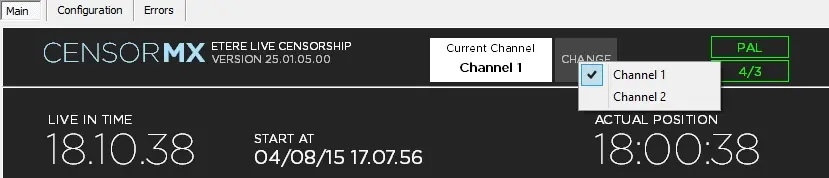
7. If you manage multiple channels, you can select the specific channel from the selection function at the screen's top portion, as shown below.
select_the_specific_channel
Configure Main and Backup Censor
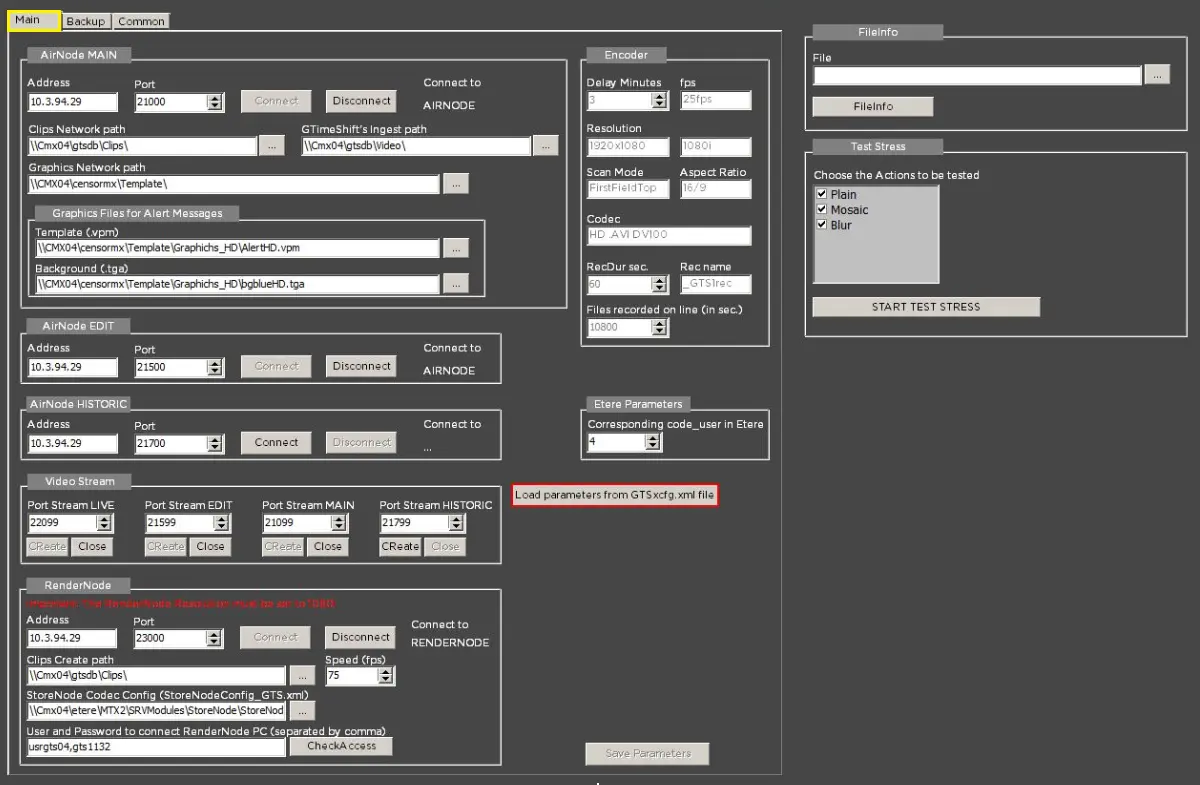
In the CensorMX configuration, you can manage the Main and Backup CensorMX with a unique client interface. Here is a snapshot of the parameters in the configuration setup:
Configure_Main_and_Backup_Censor
All the parameters are required to set up CensorMX on your PC. If you do not need the Backup CensorMX configured on your PC, no action is required for the Backup tab. Upon completion, click the <Save Parameters> button to save the configuration.
Alternatively, you can upload all parameters from the configuration file GTSxcfg.xml to automatically update all required parameters by activating the <Load parameters from GTSxcfg.xml file> button.
The GTSxcfg.xml file is saved from GTimeShift. The file contains:
- Clips network path
- Graphic files for alert messages
They are placed (by default) based on the video resolution SD or HD, provided that the AirNode PC there is a shared path type:
\\servername\CensorMx
With relative subdir:
\\Servername\CensorMx\
(Must Contain the additional video clips and posters)
\\Servername\CensorMx\config\n\
(Must Contain the configuration XML) (where n is the channel number)
\\Servername\CensorMx\graph
(must Contain the graphics to use)
\\Servername\CensorMx\audio
(must Contain the audio files)
NB: In the workstation where CensorMX is installed, the Main and Backup configuration is displayed and editable only if the registry key "ViewConfigurationBackup" is set to "1" in Windows Registry [HKey_Current_User\Software\Etere\Etere.CensorMx].
AirNode MAIN
•Address: It reflects the IP address of the central server.
•Port: The port number used by the IP address for communication.
•Connect: Click this button to establish the connection to the central server.
•Disconnect: This button terminates the connection to the central server.
•Clips Network path: Specify the network path to access the clips.
•GTimeShift's Ingest path: Specify the path in GTimeShift to access the XML file.
•Graphics Network path: If graphics are concerned, specify the path to the graphic objects.
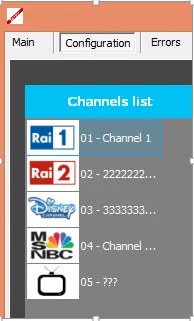
Import Logos
You can import logos broadcasters into the configuration. The logos must be:
- resided in the same path as the CensorMX application
- the names of the logos icon must be named <Channel_Logo_1.ico>, <Channel_Logo_2.ico>, etc
- the filename must have a file extension .ico, with logo file H=40px W=60px H=35px W=52px in size
- If the logo icon file does not exist, a default logo icon will be imported
Upon completion, the logo station will appear in the Main CensorMX.
Import_Logos
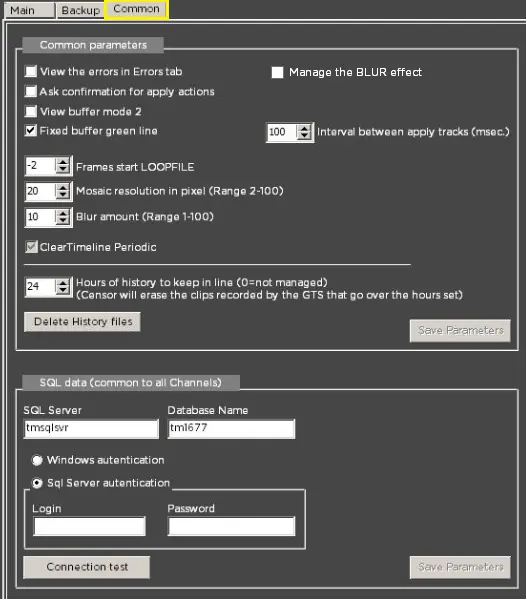
Common Parameters
The common parameters settings include:
Parameters: View the error in the Errors tab
Description: If checked, the error can be viewed from the Error tab in the main interface.
Parameters: Ask for confirmation for applying actions
Description: If enabled, the user would be prompted for confirmation before taking action.
Parameters: View buffer mode 2
Description: Enable this option to refresh the available buffer based on the on-air counter position in the Buffer Variable.
Parameters: Fixed buffer green line
Description: Enable this option to fix the SOM and EOM processing green line when applying effects.
Parameters: Manage the BLUR effect
Description: This option is disabled by default at the client workstation. Before enabling this option at the client workstation, you must have an NVIDIA Quadro K720 (SD) or NVIDIA Quadro M2000 (HD) graphics card installed on your server.
Parameters: Frames start LOOPFILE
Description: Set the number of frames (positive or negative) to start the looping files.
Parameters: Mosaic resolution in pixel
Description: Set the resolution for applying the mosaic effect in pixels—range from 2 to 100.
Parameters: Blur amount
Description: Set the amount applied to the blur effect. It ranges from 1 to 100.
Parameters: Clear Timeline periodic
Description: Enable this option to housekeep the timelines periodically.
Parameters: Hours of history to keep in line
Description: The online history for retrieval is 3 hours; for offline retrieval, you can retrieve video files up to 24 hours ago. No history files will be managed if the value is set to 0 (zero).
Parameters: Delete history files
Description: Execute this function to delete history files from the system.
The past daily operation files would be catalogued into a historical file (Etere.Consormx.Operations_n_yyyymmdd.txt, one file per day) and stored in the same path as the online operation files. The historical files would be retained for the past 30 days, and the files would be automatically deleted from the system.
Parameters: Interval between applied tracks (msec)
Description: Set the interval time (in milliseconds) for users to apply tracks.
Click <Save Parameters> to apply and back up the standard parameters.
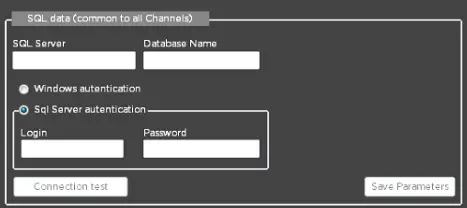
SQL Connection
Parameters: SQL Server
Description: Provide the name of the SQL server
Parameters: Database Name
Description: Enter the name of the database in SQL Server
Parameters: Authentication
Description: Select to be authenticated by Windows or SQL Server when connecting to the SQL database.
Parameters: Login / Password
Description: Enter the username and Password for authentication
 cmx_auto_setup
 MANUAL_SETUP_FOR_NEW_CHANNEL
 Censormx_Graphics_Files_for_Alert_Message
 Load_Parameters_from_GTSxcfg.xml_file
 TimeShift_Settings
 path_will_be_uploaded_and_preview_in_the_library
 OPEN_ALL
 select_the_specific_channel
 Configure_Main_and_Backup_Censor
 Import_Logos
 logo_station_in_Main_CensorMX
 Common_Parameters
 SQL_Connection