59.3.3.3 Content Mover
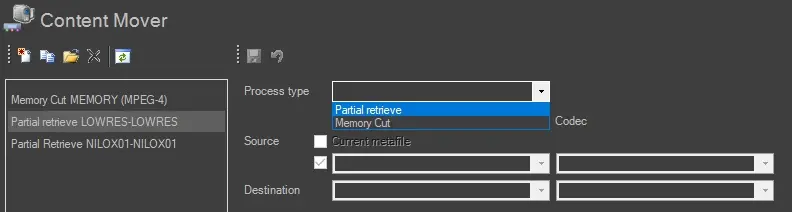
The "Content Mover" section allows viewing, creating and modifying T-workflow actions related to the management of media content (e.g. final conforming, partial restore and precise cutting) just by using the following functions present in the toolbar:
Content_Mover
Add a new action: Create a new action from an empty form.
Copy selected action: Create a new action based on the selected one, and copy all its properties into further action.
Open selected action: List all the existing actions and allows you to open them.
Delete selected action: Removes the current open action completely.
Refresh actions list: Update the list of actions located at the left of the window.
As shown in the figure above, on the left is located the actions column listing all existing CMS actions, whereas in the right area is situated the editing panel where every single action is managed using the following parameters:
• Process Type: Choose from the drop-down list the type of CMS action to be created:
Partial Retrieve - Create a new asset form containing a new video file containing an existing segment, and link it to the source segment.
Memory Cut - Create a new asset form containing the new video file containing a custom segment.
• Source: Select the source device (the device where the file to be 'moved' is located). The relevant devices will appear in the dropdown list (only those configured in Resource Editor).
You must also select the relevant codec from the dropdown list related to the file contained in the referred Source device.
• Destination: Specify the destination device (the device where the file to be 'moved' will be sent). The relevant devices will appear in the dropdown list (only those configured in Resource Editor).
You must also select the relevant codec from the dropdown list related to the file contained in the referred Destination device.
Once you have been compiled the fields above and have saved the action, two tabs will be enabled for entering relevant data regarding how the 'data movement' will be performed:
1. Basic Settings
This section displays basic information about the current action; the action name is usually named with a descriptive string that self-explains its function (e.g., Partial Retrieve USING etpartmog.exe).
2. Process Settings
The Process Settings tab display and allows to set the executable to be used for performing the CMS action:
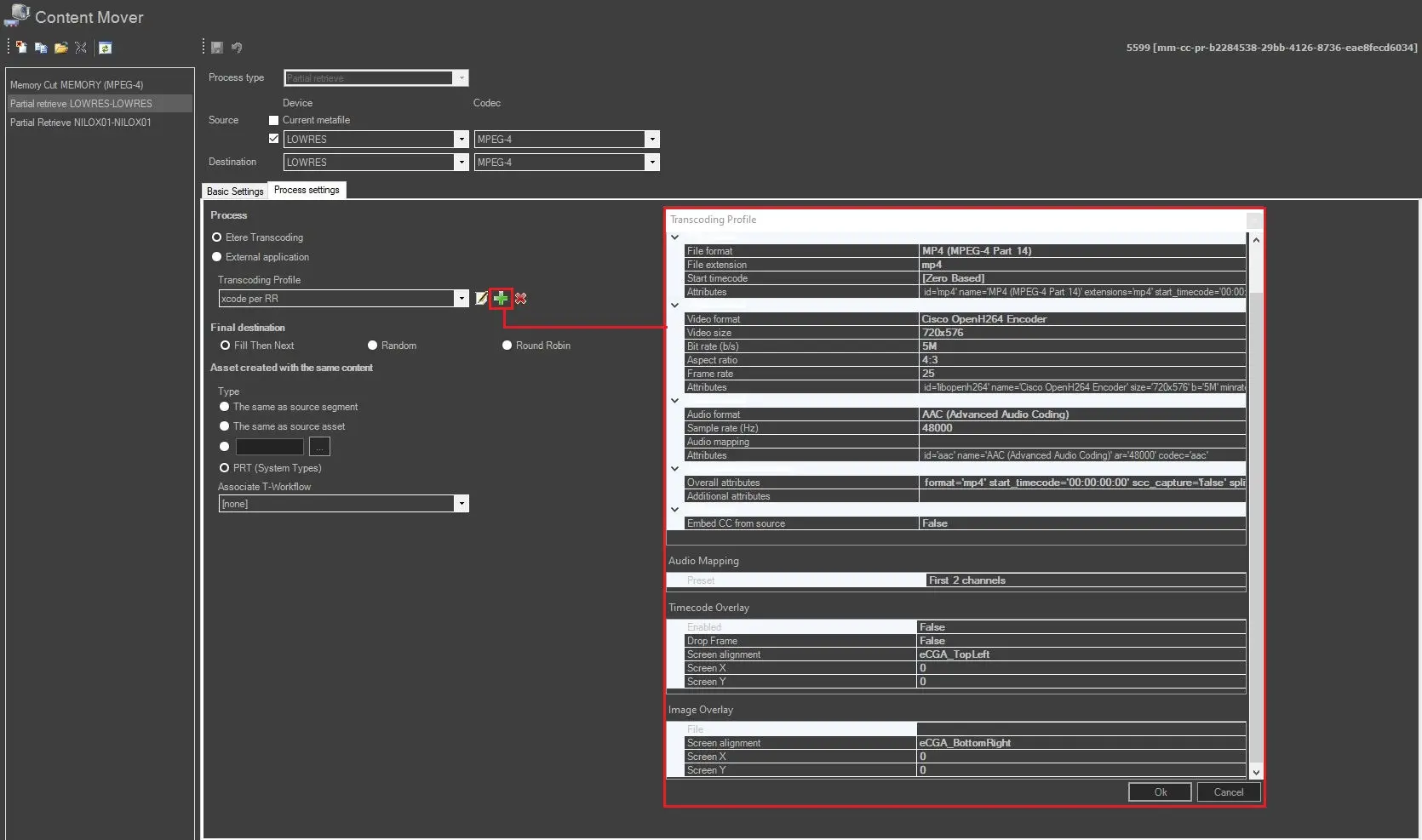
• Etere Trascoding:
To use Etere Transcoding, a transcoding profile must be set or created. Select a profile in the list or create a new one clicking on the '+' button beside the combobox. With the other 2 buttons it's also possible to edit or remove an existing profile.
Etere_Transcoding
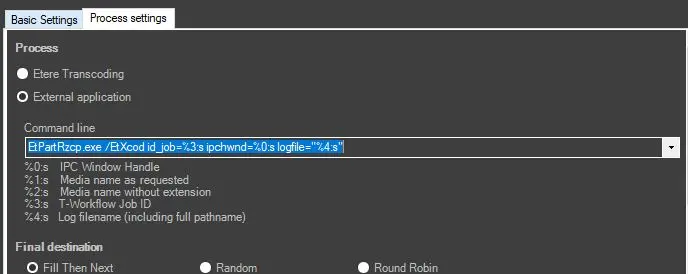
• External application:
Selecting this option, a different combobox will appear. Here must be specified a string which contains the .exe file intended to be used to carry out the transcoding and some additional attributes which allow to define the following properties:
%0:s - IPC window handle
%1:s - Media name as requested
%2:s - Media name without extension
%3:s - T-workflow job ID
%4:s - Log filename (including full pathname)
external_app
NB: By default this field is already compiled with the application EtPartRzcp.exe and some default attributes.
Final destination
Select how to choose the path where the resulting file will be saved:
• Fill Then Next: If enabled, Data Mover starts with the first path and checks whether that path has enough space, if it has enough space Data Mover uses it, otherwise Data Mover checks again until the next available path is found.
• Random: If enabled, a random path selection among the available ones is chosen.
• Round Robin: If enabled, the path is chosen starting from the first to the last of the available ones and then starting again at the top of the list and Data Mover continues to search in this sequence. The selection status is shared globally among all instances of the Data Mover that works on the configured cloud device. This means that if a DM selects the 1st path, then another DM on a second machine or another instance of the same action in the same DM will select the 2nd one.
Asset created with the same content
Type: select if the resulting asset should have the same type as the source segment, the same type as the source asset, a user-defined type or the system type PRT.
Associate T-workflow: Choose which wf should be launched after the Content mover action has been executed.
 Content_Mover
 Etere_Transcoding
 external_app