72.2.2.22 Annotations - Media File Link
The Media File Link function enables users to quickly associate to an asset a file already stored in the system, automatically launching a custom T-workflow at the end of the operation (e.g. to move the file into the archive, get technical information on the file, control the quality of the file, etc).
In order to link a media file just launch this function and follow the simple procedure detailed below:
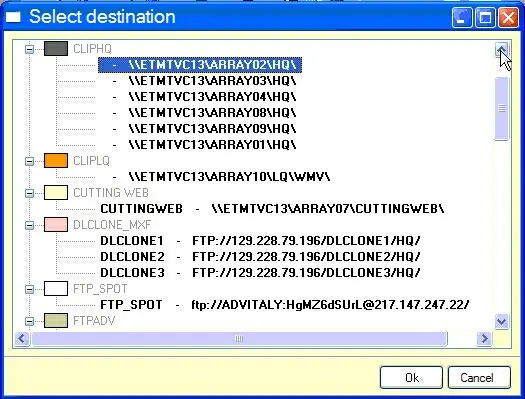
1. Select the cloud-device path to be browsed for choosing the file:
Cloud-device path
NB: Here will be displayed for selection only cloud-device paths with a media folder not based on ftp download/upload paths.
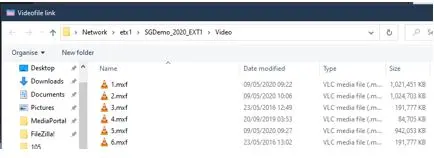
2. Choose the file to be linked from within the opened directory (choosing a file out of this directory will make the link unallowed):
Choose the file
NB: The filename of the file will be saved in the asset's technical data as "media name" and "original filename".
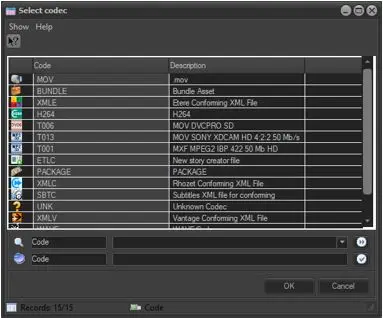
3. Specify the codec (e.g. MPG) to be assigned to the linked file:
MPG
NB: Only codecs with access rights enabled to the login user would be displayed.
4. The file will be added to the asset's Media List featuring all previously given information:
Media library 1
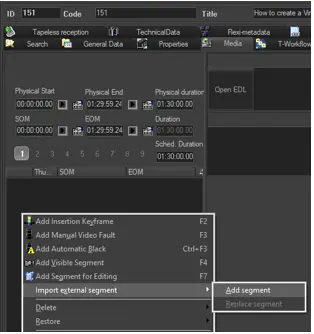
5. The default T-workflow set for being launched "after a media file link" will be automatically started for the asset:
Media library 2
 Media_library_2
 Choose_the_file
 Cloud-device_path
 MPG
MPG
 Media_library_1