3.2 EtereWeb Main Menu
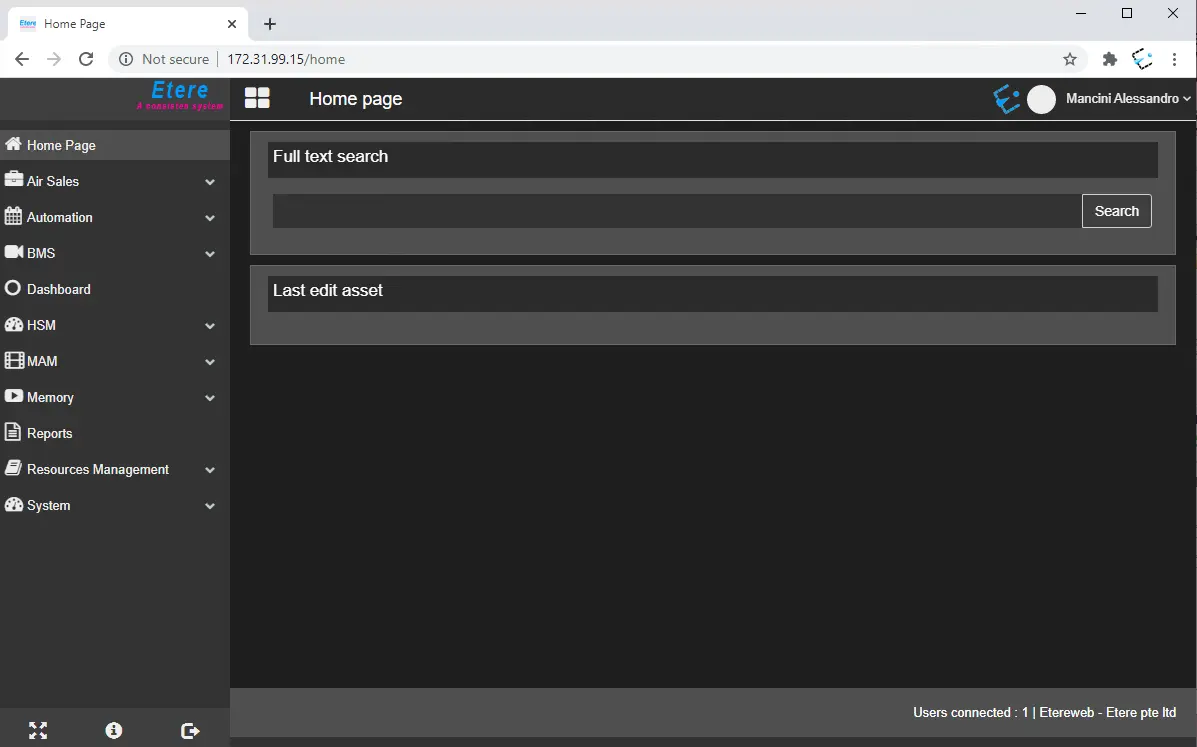
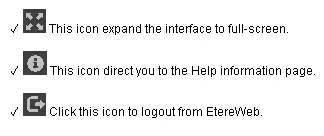
On the Home page, there are shortcut icons/features available for quick access to features in Etere Web:
✓ Full-text search: this feature perform a keyword search for assets used by Etere. See chapter 10.2.4.0 Search assets for more information.
✓ Last edit asset: This feature displays the last assets edited by the user during the last login session. These assets can be opened clicking on the thumbnail or asset code.
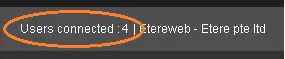
Upon successful login, the number of users currently connected to EtereWeb is displayed at the bottom-right corner of the login page.
From Etere Web version "Etere310103_BETA.zip" onwards, the maximum number of users allowed to log in to Etere Web is set at 50 users on the web.config file (key = "LICENSE NUMBER" value = "50"). If the login attempt exceeds the maximum number of users allowed in the license, an error message will be prompted, and the login attempt will be denied.
When the logged-in Web session expires, the user will be redirected to the Login page when clicking on any EtereWeb link. By default, the session timeout is set at 10 minutes.
You can modify the session timeout value for Web instance in Session State settings in IIS Manager.
Login User Menu
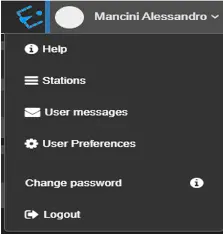
The Login User Menu is placed on the right side of the top bar and it can be opened clicking on the name of the currently connected user. Beside the user's name, there are its picture (it can be added in Personal data) and the icon of the station currently in use.
Items available on the menu include:
• Help: It launches the Etere Online Help portal when Etere module information is available.
• Station: Since some features may be licensed only for some stations, this section allows to switch between them. The stations are displayed by default in an horizontal view, but it can be changed clicking on the buttons on the top-right corner. A search bar is available as well, useful to quickly find the desired station when there are many of them in the license.
• User Messages: It enables users to communicate within EtereWeb in an Outlook-like messaging environment.
• User Preferences: It allows the Administrator to manage user accounts and settings. See chapter 16.10.0.0 User Preferences for more details.
• Change Password: It allows the logged user to change the password.
 etereweb_home_page_modules
 quick_access_to_features_in_EtereWeb
 number_of_users_currently_connected
 Login_User_Menu