59.1 Startup Screen
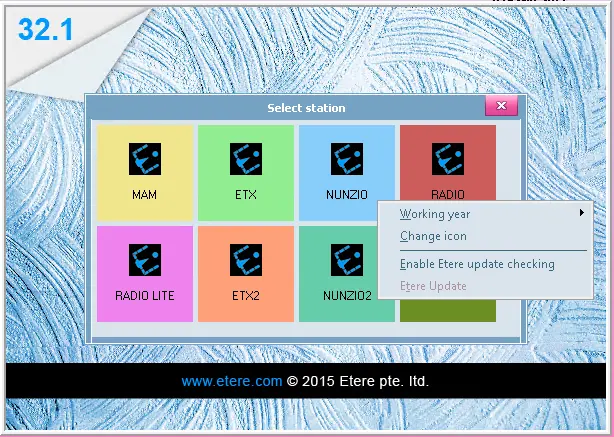
Every time an Etere module is launched, a small window allowing users to select the station (i.e. network) you intend to work on will pop up. In addition, more functions are available by right click on any channel's icon:
select_the_station_32.1
Working year - Access the system on a specific year. For instance, use this option to access past/future invoices.
Change icon - Change the icon of the selected station.
Disable Etere update checking - Use this option to turn on/off the automatic weekly checking of updates.
Please refer to "Etere Installation" for further information on automatic updates.
Etere Update - Use this option to check the network for available software updates. Users will be prompted to proceed with the update if updates are found.
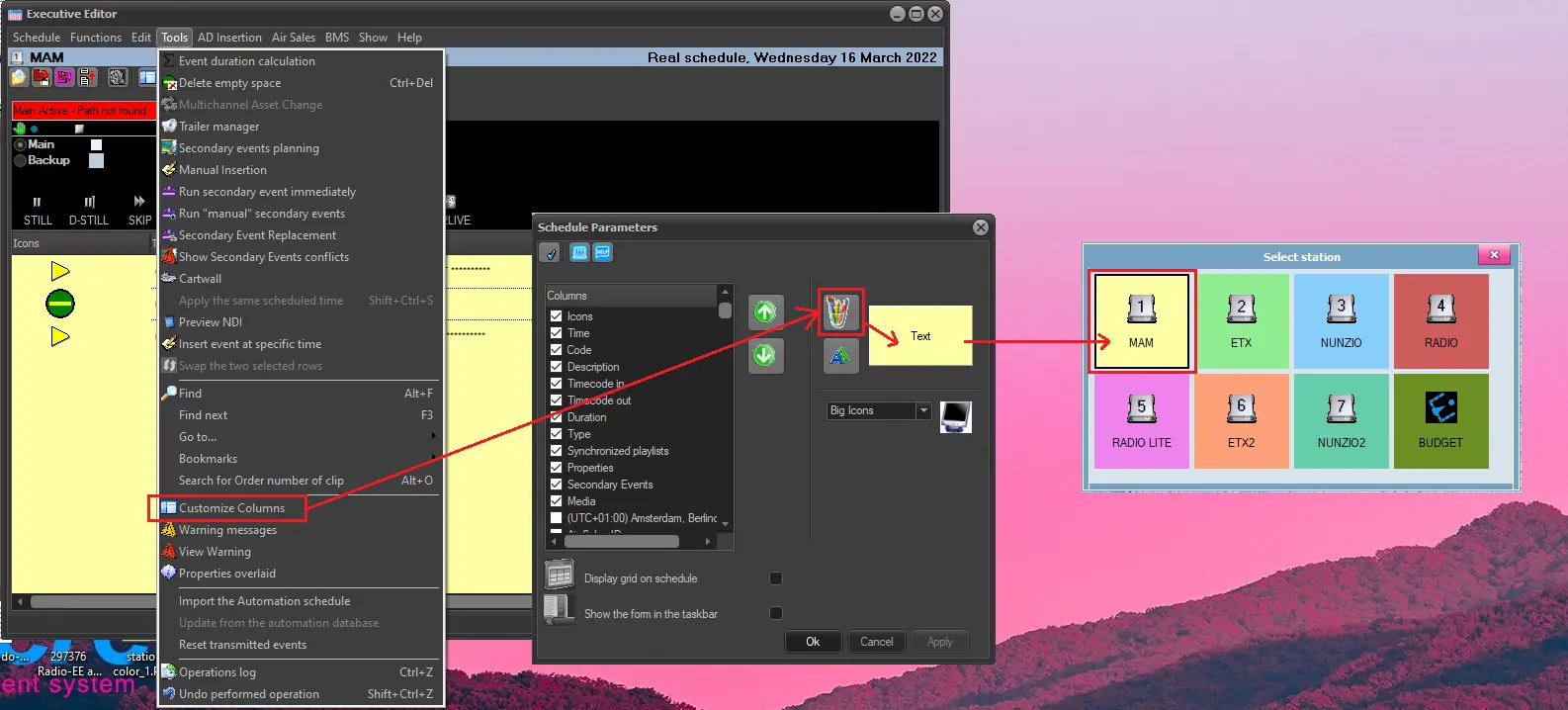
The background colour for the station's tile in the "Select station" form is similar to the broadcast schedule of each station. This colour can be set in the Etere Scheduling > Executive Editor module through the Tools menu > Customize columns.
station_color
Note: See chapter WINDOWS APPS > Scheduling > Executive Editor > EE User Interface > Schedule View > Columns for more information.
NB: If the Windows Operating System has been configured with a font size different from 100%, a warning message would be displayed each time an Etere module is launched since this value would affect the display of application forms and panels.
 select_the_station_32.1
 station_color